Android Private Space: Setup, Privacy Limits and Backup Risks
Set up Android Private Space, understand hidden app notifications, separate accounts, and check backup limitations before resetting your phone.
- 8 min read
View article illustration
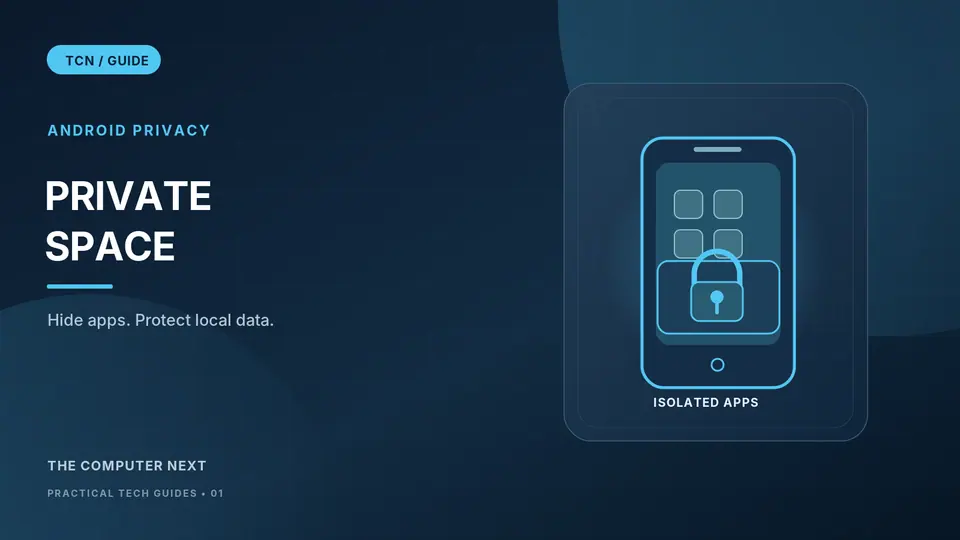
Android’s Private Space can keep a second instance of an app away from your normal app list, give it a separate lock, and isolate its local data from your everyday phone profile. But it comes with a trade-off that many quick tutorials skip: Private Space is not restored by Android’s ordinary device backup. Delete the space or reset your phone without a separate plan, and locally stored data in those apps may be gone.
If you want to use Private Space for financial apps, personal accounts, sensitive documents, or a second copy of a messaging app, first understand how its locks, notifications, accounts, files, and backups work. This is a setup guide and a warning against assuming that “hidden” means impossible to discover.
Can your Android phone use Private Space?
Google’s feature requires Android 15 or later and may not be available on certain managed, supervised, or multi-user configurations. Device manufacturers and enterprise administrators can disable it. If your Settings app does not show Security & privacy > Private space, check your OS version and manufacturer’s help documentation rather than downloading a random “private space” APK that claims to add the feature.
Private Space is different from a vendor’s Secure Folder or third-party app locker. Those products can have different backup, sharing, and security properties. Use the official documentation for the feature actually installed on your device.
| Need | Is Private Space suitable? | Important trade-off |
|---|---|---|
| Keep a second social app account out of ordinary app view | Often, yes | The new instance is not a copy of the existing app’s local data |
| Hide casual notifications when handing over your phone | Often, yes, when locked | Apps in a locked space stop background activity |
| Run a health tracker that must work continuously | Usually a poor fit | Locked apps cannot run their normal background tasks |
| Back up important private documents automatically | Not by default | Device backup does not restore Private Space’s local data |
| Protect information from sophisticated forensic access | Not a complete guarantee | Computer access, logs, or other technical surfaces may reveal its presence |
Set up Private Space with a deliberate account choice
On a supported device, open Settings > Security & privacy > Private space, authenticate with the main device lock, and follow setup. You can use the same device lock or create a separate Private Space lock. A distinct strong lock adds separation, but remember its recovery implications. Choose how the space locks automatically based on your usage and privacy goals.
Google recommends considering a different Google account inside Private Space. Why? Signing into the same account used elsewhere can cause synced photos, email, search history, contacts, app history, or other information to become visible outside the private profile. A separate account can reduce that cross-profile overlap—but you must then maintain access and recovery methods for an additional account. Don’t create one impulsively without recording legitimate recovery options.
Private Space isn’t anonymous, and it does not change the privacy practices of the apps you install. An app may still collect information under its own terms, especially when you sign in to an existing account.
Understand the installation: a second app is a separate app
From the apps list, supported devices may offer Install app in Private space when you long-press an app. You can also unlock Private Space and install from its own app store surface. This creates a new app instance; it doesn’t move your main app’s existing login, files, or message history.
For example, suppose an app has five years of conversations in its normal installation. Installing the same app in Private Space does not guarantee the old messages appear. You may need to sign in or follow the app’s own backup, migration, or cloud-sync process. Do not uninstall the original before checking what the private installation actually contains.
If an app uses device-wide privileges, companion services, or background features, test whether they still work. Some apps will not behave the same way inside the isolated profile.
What happens when you lock Private Space?
Google’s documentation says apps in a locked Private Space are stopped. They cannot continue normal foreground or background activities or deliver notifications while locked. That’s useful for concealing activity, but inconvenient when you expect real-time alerts or background uploads. Unlock the space and confirm whether the app resumes successfully.
Private apps can be hidden from the launcher and common Android views while locked; their visibility changes when unlocked. Additional “Hide private space” settings can make its container less obvious in the apps list, but this is a concealment layer, not a guarantee that advanced system tools cannot detect it.
A useful test is to install a harmless app and send it a notification while Private Space is locked. Observe the difference when unlocked. Do not use a health, safety, or emergency alert app for that test; real-world notifications may be missed.
Move files safely: Copy is not Move
On supported builds, open Private Space, use Add > Add files, and choose the files. Google documents two distinct actions:
- Copy preserves the item in the main phone profile and places a separate copy in Private Space.
- Move removes it from the original location after transferring it into Private Space.
If you move the only copy of a document into Private Space, the normal Android backup may not protect it. For valuable files, create a verified second copy outside the private profile first. After transferring, open the private copy and confirm its contents. If the transfer is interrupted, don’t immediately delete the original; check both destinations.
Sharing into or out of Private Space is more constrained than ordinary apps. Certain quick-share or Bluetooth receiving paths may be unavailable while the space is locked. Google’s exact feature restrictions are documented in its help article and may evolve with Android releases.
The critical backup and reset limitation
This is the most important part. Google explicitly states that on-device Private Space data is not backed up or restored as part of the usual Android device backup. Deleting Private Space removes its apps and local data. If an app syncs data to its own service, signing in again may restore some information, but that is application-specific and not something to assume.
Before resetting the phone or deleting Private Space, make a private inventory: which apps have cloud-backed content, which store files locally, which require an export, and which need separate recovery codes. Sign in to each service from another trusted device if possible and verify actual data. Do not regard the standard Google device-backup timestamp as proof of Private Space recovery.
Privacy limitations worth knowing
Private Space may be uncovered through computer access, Android debugging interfaces, system logs, or apps with appropriate visibility. It is designed to add separation and convenience, not to offer perfect invisibility to every technically capable person. It also can interact differently with a device-wide VPN: Google’s documentation warns that Private Space apps may bypass the VPN on the device. For a user relying on a corporate VPN or strict network policy, that distinction can be important.
If you share a phone with other household members, decide whether a separate Android user profile, an app’s own account lock, or the manufacturer’s secure-folder feature is a better fit. The right answer depends on data recovery, notifications, and how the device is administered.
A verification plan before storing important data
- Confirm Android 15+ and that Private Space is supported by your exact device.
- Set up a separate Private Space lock and store its credentials securely. If you forget that separate lock, resetting the space deletes its local data; it is not a recovery method for those files.
- Install a harmless test app and confirm it is independent of the normal instance.
- Lock the space and check what disappears and which notifications stop.
- Copy a non-sensitive test file; verify both copies, then test an intentional move.
- List the important private apps and establish independent exports or cloud recovery.
- Before any phone reset, repeat this backup check.
Frequently asked questions
Is Private Space the same as Android’s work profile? No. Enterprise work profiles are managed under different rules and policies.
Will ordinary Google Backup bring back my Private Space apps? Google says Private Space and its locally stored app data are not restored from standard device backup.
Can I install a second instance of an app? Generally yes for supported apps, but it won’t automatically bring across the original instance’s local data.
Can apps send notifications while the space is locked? Google states that private apps are stopped when locked, so do not depend on real-time notifications from them.
Can Private Space make an app completely undetectable? No. It is a privacy feature with documented technical limitations.
Related guides
- Passkeys Explained Properly: Where They Are Stored, How They Sync, and How Not to Lock Yourself Out
- Android Developer Verification Is Here: Why Some Apps Are Blocked and What Sideloading Users Should Know
Official references
Google: Back up and restore Android dataOfficial reference checked 20 November 2026
Related posts
Browse all articles →
How to Free Up Android Storage with Google Photos Without Losing Your Photos
Use Google Photos Free up space safely on Android by confirming backup first and understanding the difference between Delete, Delete from device, and cloud copies.
Moving to a New Android Phone: What Google Backup Restores—and What It May Not
Before switching Android phones, learn what Google backup includes, what depends on app developers, how Photos and messages differ, and how to verify data before wiping the old phone.
Android Find Hub Offline Finding: Locate a Lost Phone or Tracker Without Exposing Your Privacy
Set up Android Find Hub offline finding, understand location timestamps and sharing, and prepare secure account access before a phone or tracker goes missing.