Android Can Now Transfer Passkeys Between Password Managers: How to Switch Safely
Android can now move passwords and passkeys directly between supported password managers without exporting an unencrypted CSV file. Here is how to switch safely and verify the migration.
- 6 min read
View article illustration
Switching password managers has always been more awkward than it should be. Passwords could usually be exported to a CSV file, but that file was often unencrypted and had to be deleted carefully after import. Passkeys were worse: in many cases, they could not be moved at all, so you had to create them again site by site.
Android has now changed that. Google introduced a direct password and passkey transfer experience on September 10, 2026, allowing supported password managers to hand credentials to one another through Android without creating a plaintext export file.
For anyone who has wanted to move away from one password manager without rebuilding dozens of passkeys manually, this is a significant improvement.
Which password managers support the new transfer?
At launch, Google says the direct transfer experience is available with:
- Google Password Manager
- 1Password
- Bitwarden Password Manager
- Dashlane
More providers are expected to add support. Google lists the feature as compatible with Android 8 and later, but both the source and destination password-manager apps need to support the new Android transfer flow.
If your password manager is not supported yet, you may still see its older export/import options instead.
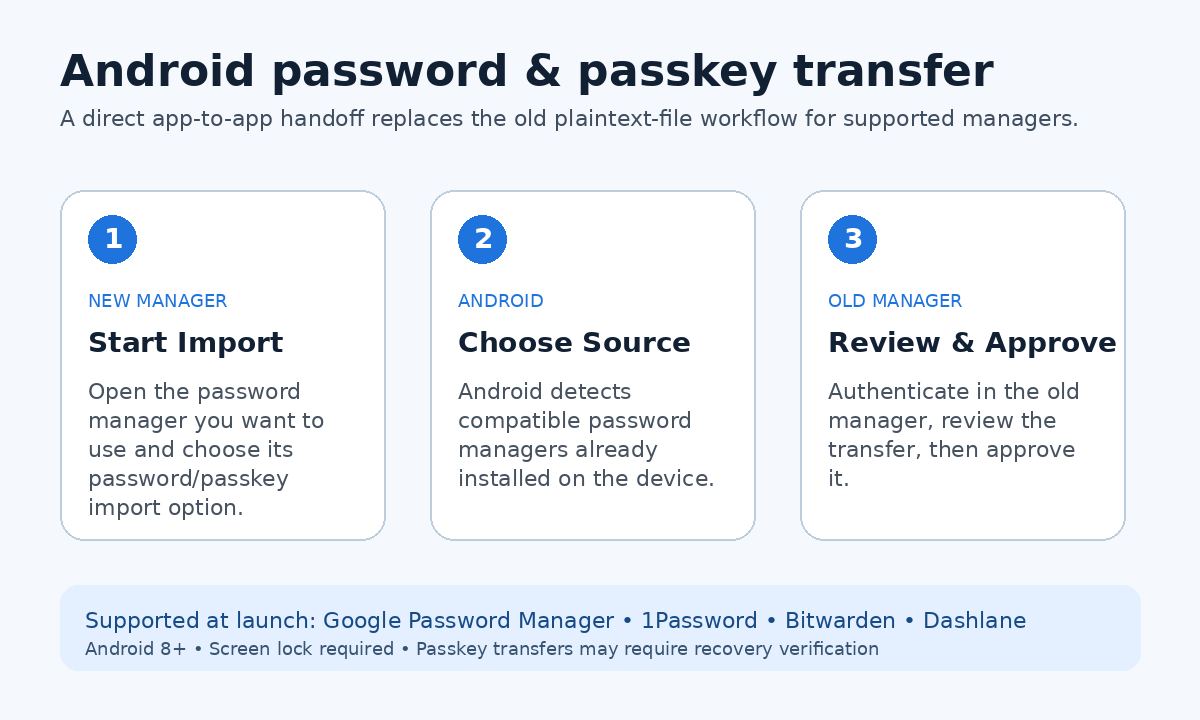
How the new Android transfer works
The migration is initiated from the new password manager—the place where you want your credentials to end up.
The process has three main stages:
- Start the import in the new password manager. Choose its option to import or copy passwords and passkeys from another provider.
- Android detects compatible password managers. You select the old manager that currently holds the credentials.
- Review and authorize in the old manager. Android sends you to the existing password manager so you can authenticate and approve the transfer.
The credentials then move directly between the supported apps. You do not need to download a password spreadsheet first.
How to import passwords and passkeys into Google Password Manager
If Google Password Manager is your destination:
- Open Google Password Manager on Android.
- Open Settings.
- Select Import passwords and passkeys.
- Verify your identity using your screen lock.
- Select Next.
- Choose the password manager you want to import from.
- Sign in to the old password manager if requested.
- Review and approve the export.
- Select Done when Android reports that the transfer has completed.
Google notes that when passkeys are involved, the old password manager may ask for its recovery key or another form of strong authentication.
How to move away from Google Password Manager
The direction is reversed, but the principle is the same.
Open the new password manager first and choose its import option. Select Google Password Manager as the source when Android presents the available providers. Google Password Manager will then ask you to confirm the export.
This is important because you do not normally start the app-to-app migration from a generic “export everything” button inside Google Password Manager. The destination app initiates the transfer.
Do not delete your old password manager immediately
A successful transfer message is not the same thing as a verified migration.
Before uninstalling the old password manager or deleting its vault, test the new one:
- Open several important websites and make sure usernames/passwords autofill.
- Test at least a few passkey sign-ins.
- Check accounts that have multiple logins.
- Verify secure notes, payment cards, identities, attachments, or TOTP codes separately—these are not necessarily part of the same Android credential-transfer flow.
The new Android feature is specifically about passwords and passkeys. A full password-manager vault can contain much more than those two data types.
What happens to duplicate passwords?
When importing into Google Password Manager, Google says duplicate passwords that already exist are not added again.
That prevents an obvious flood of duplicates, but it is still worth checking accounts where the old and new managers contain different passwords for the same site. A migration tool cannot always know which credential you consider authoritative.
You still need a screen lock
Android requires a device screen lock—such as a PIN, pattern, fingerprint, or face authentication supported by the device—to perform the direct import/export process.
This is not just a convenience prompt. You are authorizing access to a vault that may contain the keys to your email, banking, cloud storage, and other accounts.
What if you are moving passkeys on a new phone?
Passkeys can have additional recovery requirements.
Google says that on a new device you may need the old device’s screen lock or your Google Password Manager PIN to access or transfer synchronized passkeys. A third-party password manager may use its own recovery key or account verification.
This is another reason to understand your passkey provider before replacing or wiping a phone.
If you want a deeper explanation of where passkeys live and how they recover, see Passkeys Explained Properly: Where They Are Stored, How They Sync, and How Not to Lock Yourself Out.
What about the old CSV method?
Google Password Manager still supports importing and exporting passwords using a CSV file. That remains useful when moving to or from a service that does not support Android’s new direct transfer.
But CSV has a serious security disadvantage: the exported password file is readable as normal text.
If you must use CSV:
- Export only on a trusted device.
- Import it immediately into the new password manager.
- Verify the import.
- Delete the CSV file afterward.
- Empty the trash/recycle location if appropriate.
- Check Downloads, cloud-sync folders, and file-history systems for accidental extra copies.
Do not email the CSV to yourself or leave it sitting in Google Drive, OneDrive, or Downloads.
Set the new password manager as your preferred provider
After migration, Android still needs to know which provider should offer passwords and passkeys when you sign in.
On many Android devices, search Settings for Passwords or open Passwords, passkeys & accounts, then select or enable your preferred password manager.
The exact Settings path varies by Android version and phone manufacturer.
Check account recovery before closing the old vault
Make sure you can recover the new password manager if the phone is lost.
Depending on the provider, that may involve:
- A master password.
- A recovery key.
- A second trusted device.
- A password-manager PIN.
- Emergency access or family recovery.
Moving credentials successfully and then losing access to the new vault would defeat the purpose of the migration.
Why this Android change matters
Password managers are security infrastructure, but users have historically faced a portability penalty for switching. Passwords could be moved insecurely through plaintext files, while passkeys often created much stronger lock-in because they had to be recreated manually.
Android’s direct-transfer framework reduces both problems. It lets competing password managers participate in a common, authenticated handoff rather than making the user temporarily turn the contents of a secure vault into an ordinary file.
A safe switching checklist
Use this order:
- Update Android and both password-manager apps.
- Confirm the destination manager supports direct transfer.
- Make sure your phone has a secure screen lock.
- Start the import from the new password manager.
- Authorize the transfer in the old manager.
- Test passwords and several passkeys.
- Verify other vault data separately.
- Set the new manager as Android’s preferred provider.
- Confirm its recovery method.
- Only then remove or retire the old password manager.
The best part of the new Android feature is not that switching is faster. It is that switching no longer has to make your credentials temporarily less secure.
Official references
Google — Switching password managers on AndroidOfficial reference Google Support — Import or export passwords and passkeysOfficial referenceRelated posts
Browse all articles →
Passkeys Explained Properly: Where They Are Stored, How They Sync, and How Not to Lock Yourself Out
Understand how passkeys work across Google Password Manager, Android, Chrome, Apple devices, Windows, and third-party managers—and how to plan recovery before losing a device.
How to Transfer an eSIM to a New Android Phone—and Fix Activation Problems
Move an eSIM to a new Android phone during setup or later, understand carrier requirements, and troubleshoot activation without deleting the working line too early.
Quick Share Between Android and Windows Not Working? Complete Setup and Troubleshooting Guide
Fix Quick Share between Android and Windows when devices cannot see each other, notifications do not appear, or transfers are slow or fail.