Export Google Photos with Takeout: Keep Your Pictures, Dates, and a Verifiable Backup
Export Google Photos with Takeout, preserve metadata and dates, handle JSON sidecars, and verify archives before deleting cloud originals.
- 7 min read
- 5 steps
View article illustration
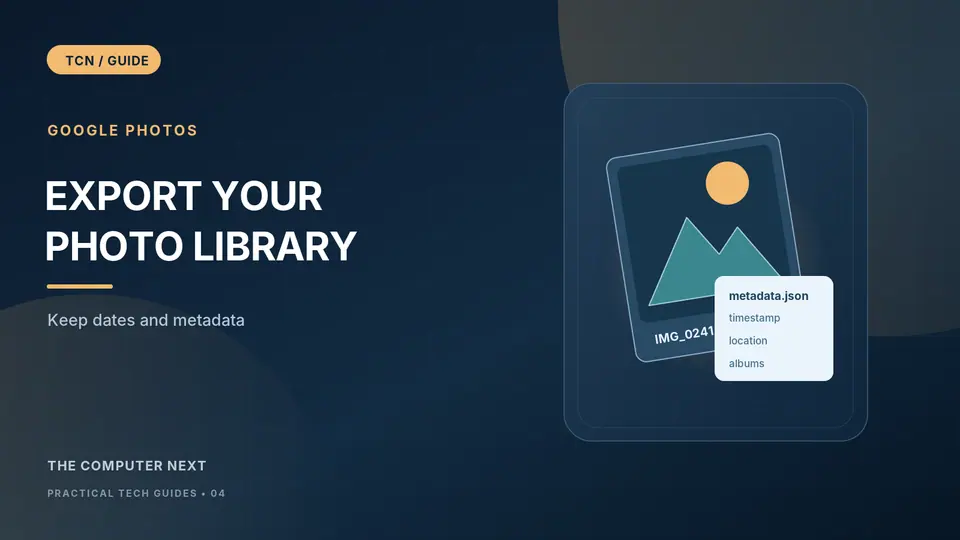
Downloading a Google Photos archive sounds straightforward: open Takeout, select Photos, and wait for the files. The difficult part comes afterward. There may be multiple archive parts, albums can appear alongside year-based folders, and extra JSON files may hold information that is not embedded in the photo. If you delete cloud storage before confirming the export, you could discover missing media only when it is too late.
This article walks through a recoverability-first export. The objective is not merely to download ZIP files; it is to build a copy you can inspect, open, search, and retain independently of your Google account.
Decide what kind of copy you need
There are three different tasks people call “backing up Google Photos”:
- One picture or small album: use the normal download option, then verify the files.
- A large personal library: use Google Takeout, choose Google Photos, and export the archive in manageable parts.
- Moving to another service: check whether Google offers a direct transfer option for the destination, but still verify that transferred media and albums meet your needs.
Takeout creates an export. It does not delete the originals or free Google storage by itself. A successfully requested archive is not evidence that all parts were downloaded and extracted.
Step 1: Audit your library before requesting an export
Visit photos.google.com in a desktop browser and confirm the correct Google account. Look at the oldest and newest photos, favourite albums, shared albums, and large videos. Record approximate counts where your interface provides them, but remember that albums and storage numbers are not always a one-to-one count of unique original media files.
If you have more than one Google account, repeat the audit for each rather than assuming one export covers every photo. Photos shared with you or accessible in a shared album may not all be part of your own export unless they are actually saved to your library. Check ownership and download rights before trusting shared content as a backup.
It is sensible to leave your existing cloud library untouched while building the first offline copy.
Step 2: Export Google Photos and choose a manageable archive size
- On a trusted computer, open takeout.google.com and sign in.
- Select Deselect all, then select Google Photos. If offered, inspect album-selection controls to make sure the intended content is included.
- Continue to the next step and choose a delivery method you can access. A download link is a common choice; cloud delivery options may use another account or grant permissions.
- Choose Export once unless you deliberately want recurring exports. Select a ZIP or other supported archive format you can reliably open.
- Choose an archive size appropriate to your storage and connection. Smaller parts can be easier to re-download after interruptions, but they require careful tracking.
- Create the export. When Google notifies you that it is ready, download every part to a folder with sufficient free space.
Large exports can take time and may be split across several archives. The availability period of download links can be limited. Do not make a deletion decision based only on an email saying the export is ready.
Step 3: Extract into a new, clearly named folder
Create a folder such as Google-Photos-Export-2026-11, then extract all archive parts without merging them into a messy existing photo library. Keep the downloaded archive files temporarily, and avoid deleting them before checking the extracted content. If your extraction tool reports CRC errors, unexpected end-of-archive messages, or missing parts, re-download the affected archive. A partially extracted directory is not a complete backup.
Use normal file-system tools to locate a few specific photographs and videos. Test opening them in a separate image viewer or video player—not only viewing thumbnails. Include one very large video and media from several years in the test. If an image cannot be decoded, compare it against the online original before assuming the export worked.
What are the JSON files, and why do dates sometimes look wrong?
Google’s documentation distinguishes metadata embedded in media files from additional Google Photos information stored in accompanying JSON files. Original timestamps may remain in the image or video metadata, while information such as comments or other service-specific attributes can appear in JSON sidecars. The file-system created date can change when you extract an archive; this does not automatically mean the photo’s original capture time was lost.
Before using a bulk renaming or metadata-rewriting utility, inspect a sample image’s embedded Date taken value. Compare it with the timestamp you see in Google Photos and the information in the corresponding JSON, if present. A file can have a correct internal capture date even when Explorer or Finder displays the extraction time in another column.
Avoid running an unverified “fix Takeout timestamps” script across the only copy of your pictures. Tools that merge metadata from sidecars can be useful, but first test them on duplicate samples and compare output dates, GPS data, file size, and video playback.
Why albums can appear duplicated
The same photograph may be represented in multiple organisational contexts—such as an album and an export grouping—depending on how Takeout structures your archive. Do not immediately run a duplicate remover against the unmodified export. Two files sharing a filename may have different edits, resolutions, or metadata. Two files with different paths may represent the same underlying media item.
A safe inventory starts with hashes, not filenames alone. Hash matching can identify byte-for-byte identical files; it does not prove that visually similar JPEGs are duplicates, nor does it identify which version has better metadata. Keep the initial export intact and conduct deduplication only on a working copy.
Step 4: Verify the backup using a small acceptance test
| Test | What passing looks like |
|---|---|
| All parts present | Every archive part named in the export was downloaded and can be opened |
| Representative years | Pictures from early, middle, and recent years open correctly |
| Large video | A long or high-resolution clip plays from beginning to end |
| Metadata | Capture date in a sample matches an independent reference, or discrepancies are documented |
| Albums | The album structure you need can be located or reconstructed |
| Offline access | Files open with the internet disconnected |
| Second copy | The verified export exists on a separate drive or trusted storage location |
Record failures and fix them before deleting anything from Google Photos. For irreplaceable family pictures, maintain at least two independent copies in different failure locations. An external drive kept next to the only laptop does not protect against theft or a house incident.
Step 5: Only then consider reducing your Google storage
Takeout does not synchronise later changes automatically unless you set up a new export process. If you continue taking photos, the static export immediately becomes dated. Decide whether your long-term plan is periodic Takeout exports, another photo backup application, or a manual computer workflow. Document the cadence and test recovery occasionally.
If your aim is to free Google storage, delete only media you have verified elsewhere, and understand that Google Photos deletions can also affect connected apps or devices depending on how you perform them. Consult the current Photos deletion instructions first. Don’t empty Trash during the same session in which you’re investigating missing files.
Frequently asked questions
Why does a downloaded photo show today’s file date? Extraction can change file-system dates. Check embedded capture metadata and accompanying JSON before changing the files.
Can I simply upload the ZIP to another photo service? Not always. Many services require extracted individual media files and may not preserve Google-specific album or comment metadata.
Does Takeout include all items shared with me? Do not assume it does. Shared access and ownership are different. Confirm the actual exported files.
Can I delete the JSON sidecars? Keep them in your archive until you’ve decided what metadata you need. They can contain information not embedded in the media.
Related guides
- Photos Can Reveal Where You Live: Remove Location Data Before Sharing from iPhone or Android
- Cloud Sync Is Not a Backup: How to Build a Practical 3-2-1 Backup for Your Home Data
Official references
Google: How to download your Google dataOfficial reference checked 20 November 2026
Google Photos: Download your dataOfficial reference checked 20 November 2026
Related posts
Browse all articles →
Before You Factory Reset an Android Phone: A Backup Verification Checklist
Before resetting Android, verify photos, Google backups, downloads, chats, and authenticator access with this practical recovery-first checklist.
How to Free Up Android Storage with Google Photos Without Losing Your Photos
Use Google Photos Free up space safely on Android by confirming backup first and understanding the difference between Delete, Delete from device, and cloud copies.
Gmail Storage Full? Free Up Space Without Losing Important Mail or Photos
Find what is filling your Google Account and recover Gmail storage without deleting mail, Drive files, or photos you still need.