Troubleshoot a Failed Windows 8 Upgrade or Clean Installation (Historical)
Historical Windows 8 setup troubleshooting focused on compatibility, reliable media, free space, disconnected peripherals, setup logs, and storage health.
Historical support note: Windows 8 is no longer supported. This guide is for recovering legacy installations or understanding an old setup failure.
A Windows 8 upgrade or clean installation can fail for many different reasons. A generic “Windows installation has failed” message is not enough to justify deleting partitions, disabling core devices, or changing firmware settings.
If an in-place upgrade fails
Before retrying:
- Back up important files.
- Make sure the existing Windows installation is stable enough to run Setup.
- Disconnect unnecessary USB devices, printers, external drives, and other peripherals.
- Confirm that the PC has adequate free disk space.
- Remove or update software that hooks deeply into the system, such as old disk, encryption, or security utilities, when the vendor specifically identifies them as upgrade blockers.
- Perform a clean boot if you need to isolate a third-party startup service.
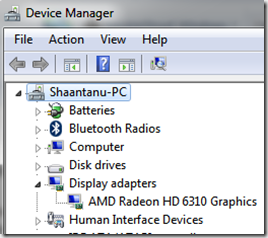
The original article recommended disabling display, sound, and network adapters in Device Manager as a general “hardware clean boot.” That is no longer recommended as a routine step.
If a clean installation fails
Check:
- that the installation media is readable and trustworthy
- that the target disk is detected consistently
- storage-controller/firmware settings documented by the hardware manufacturer
- memory and disk hardware diagnostics
- whether the hardware actually supported Windows 8
If Setup repeatedly fails, review Windows Setup logs such as setupact.log and setuperr.log where available rather than guessing at the cause.
Do not delete partitions as a first-line fix
The original article suggested deleting all existing partitions on an older disk. Deleting partitions destroys data and should only be done when you have a verified backup and intentionally want a clean installation.
Original Windows 8 minimums
The original article recorded the commonly published Windows 8 baseline of a 1 GHz processor, 1 GB RAM for 32-bit or 2 GB for 64-bit, and 16/20 GB of storage. Meeting minimum requirements did not guarantee that a specific PC had suitable drivers or firmware support.
Official references
- Microsoft Windows Setup log-file locations: https://learn.microsoft.com/en-us/troubleshoot/windows-client/setup-upgrade-and-drivers/windows-setup-log-file-locations
- Microsoft Windows lifecycle status: https://support.microsoft.com/en-us/windows/deployment/updates-lifecycle/what-does-it-mean-if-windows-isn-t-supported
Related posts
Browse all articles →
Fix Error 0x800F081F in Windows 8.1 (Historical)
Troubleshoot Windows 8.1 error 0x800F081F when DISM or optional-feature installation cannot find the required source files.
Fix: Windows Recovery Environment (WinRE) Won't Open in Windows 10
Troubleshoot Windows 10 when Advanced startup or Windows Recovery Environment will not open, using supported WinRE checks and recovery media.
Fix Windows Boot Error 0xc0000225 in Windows 10 or 8.1
Troubleshoot boot error 0xc0000225 with Startup Repair first, then repair Boot Configuration Data only when needed.