Windows XP Restarts After the Logo and Will Not Boot (Historical)
Historical Windows XP boot-recovery guidance for systems that restart around the logo screen, with destructive MBR/boot-sector commands moved out of the default workflow.
Historical support note: Microsoft support for Windows XP ended on April 8, 2014. This article is retained for legacy/offline systems only.
If a Windows XP PC restarts immediately after the Windows logo, the restart itself may be hiding the underlying stop error. The safest approach is to identify the failure before rewriting boot structures.
1. Try the Windows XP Advanced Options menu
Restart the PC and press F8 before Windows begins loading. If available, try:
- Disable automatic restart on system failure — useful because it can leave the stop error on screen instead of restarting immediately.
- Safe Mode — if this starts, a recently installed driver or startup component may be involved.
- Last Known Good Configuration — useful when a recent driver/service configuration caused the failure.
Record any stop code or driver name that appears.
2. Check the file system from Windows XP Recovery Console
If you have legitimate Windows XP installation/recovery media, boot into the Recovery Console and identify the Windows installation before running repair commands.
A disk check such as chkdsk /r can be appropriate when the disk or file system is suspected. On aging XP-era hardware, also consider the possibility of a failing hard drive rather than repeatedly repairing filesystem damage.
3. Do not rewrite the MBR by default
The original article recommended fixboot and fixmbr as general fixes. Those commands change boot structures and are appropriate only when there is evidence that the boot sector or master boot record is damaged.
If the system reaches the Windows logo before restarting, the failure may be occurring later in startup and rewriting the MBR may do nothing.
4. Repair installation is a last resort
A Windows XP repair installation can preserve many files and installed applications, but it is not a substitute for a backup and can still leave applications or updates requiring repair afterward.
If the disk is readable, copy important data before attempting major repair work.
Official references
- Microsoft Windows lifecycle status (includes XP end of support): https://support.microsoft.com/en-us/windows/deployment/updates-lifecycle/what-does-it-mean-if-windows-isn-t-supported
- Microsoft activation support page noting Windows XP support ended April 8, 2014: https://support.microsoft.com/en-us/windows/activation/activate-windows-online-or-offline-using-installation-and-confirmation-id
Related posts
Browse all articles →
Fix Frequent 'Not Responding' Messages in Windows 7 and Vista — Historical Guide
Historical Windows 7/Vista troubleshooting for applications that frequently stop responding, with resource, disk, memory, driver, and system-file checks.
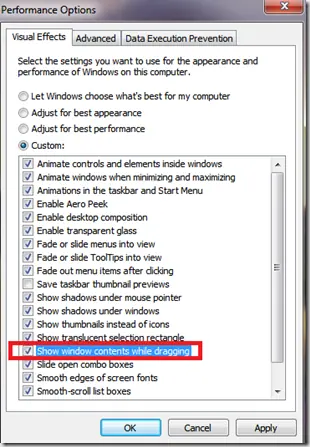
Fix Windows Turning Transparent While Dragging or Resizing (Windows XP–8, Historical)
Historical troubleshooting for Windows XP through Windows 8 when window contents disappear or appear transparent while dragging or resizing.
Fix PAGE_FAULT_IN_NONPAGED_AREA (0x50) in Windows 7/Vista/XP (Historical)
Historical troubleshooting for PAGE_FAULT_IN_NONPAGED_AREA (0x50), focusing on faulty drivers/services, antivirus software, NTFS corruption, and failing memory or hardware.