How to Boot Windows 10 into Safe Mode
Step-by-step Windows 10 Safe Mode instructions using Windows Recovery Environment, including Safe Mode with Networking and recovery-media options.
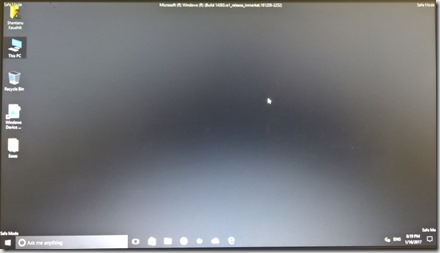
Windows 10 Safe Mode starts Windows with a limited set of drivers and services. It is useful when you need to isolate a startup problem, remove a problematic driver, or check whether third-party software is causing an issue.
Windows 10 support note: Microsoft ended normal support for Windows 10 on October 14, 2025. These steps remain useful for maintaining an existing Windows 10 PC, but moving to a supported Windows release is recommended where possible.
Method 1: Use Shift + Restart
- Open the Start menu or the sign-in screen.
- Hold Shift and select Power > Restart.
- In Windows Recovery Environment (WinRE), select Troubleshoot > Advanced options > Startup Settings > Restart.
- After the PC restarts, choose one of these options:
- Press 4 or F4 for Safe Mode.
- Press 5 or F5 for Safe Mode with Networking.
- Press 6 or F6 for Safe Mode with Command Prompt.
If device encryption or BitLocker is enabled, Windows may ask for the recovery key before it lets you use some recovery tools.
Method 2: Open Advanced startup from Windows 10 Settings
If Windows still starts normally:
- Open Settings.
- Go to Update & Security > Recovery.
- Under Advanced startup, select Restart now.
- Select Troubleshoot > Advanced options > Startup Settings > Restart.
- Choose the Safe Mode option you need.
If Windows will not start
Windows can enter WinRE automatically after repeated failed startup attempts. You can also boot from Windows installation or recovery media and choose Repair your computer instead of installing Windows.
From there, open Troubleshoot > Advanced options > Startup Settings when that option is available.
Exit Safe Mode
Normally, restarting the PC is enough to return to standard Windows. If the PC keeps starting in Safe Mode:
- Press Windows + R.
- Type
msconfigand press Enter. - Open the Boot tab.
- Clear Safe boot.
- Select Apply > OK, then restart.
Official references
- Microsoft Windows startup settings: https://support.microsoft.com/en-us/windows/experience/startup-boot/windows-startup-settings
- Windows 10 end of support: https://support.microsoft.com/en-us/windows/deployment/updates-lifecycle/windows-10-support-has-ended-on-october-14-2025
Related posts
Browse all articles →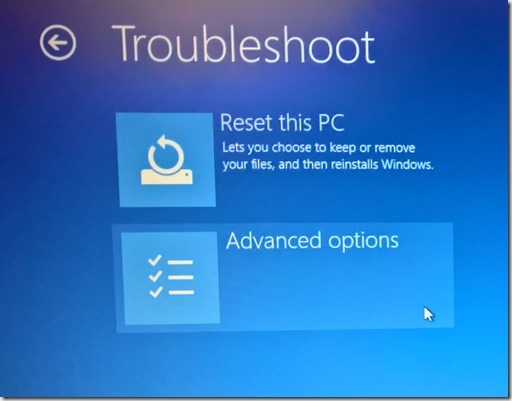
Fix 'Your PC Did Not Start Correctly' in Windows 10
Use Windows Recovery Environment to repair the 'Your PC did not start correctly' loop in Windows 10 without jumping straight to destructive reset steps.

How to Batch Rename Files in Windows with PowerRename and PowerShell
Use Microsoft PowerToys PowerRename or PowerShell to preview and apply advanced bulk file-renaming rules in Windows 10 and 11.
How to Replace PowerShell with Command Prompt in the Windows 10 Win+X Menu (Historical)
Historical Windows 10 instructions for switching the Win+X menu from Windows PowerShell to Command Prompt. This setting does not describe the current Windows 11 menu.