How to Disable Startup Apps in Windows 11 for Faster Boot
Use Windows 11 Settings or Task Manager to stop nonessential apps from launching when you sign in and identify high-impact startup items.
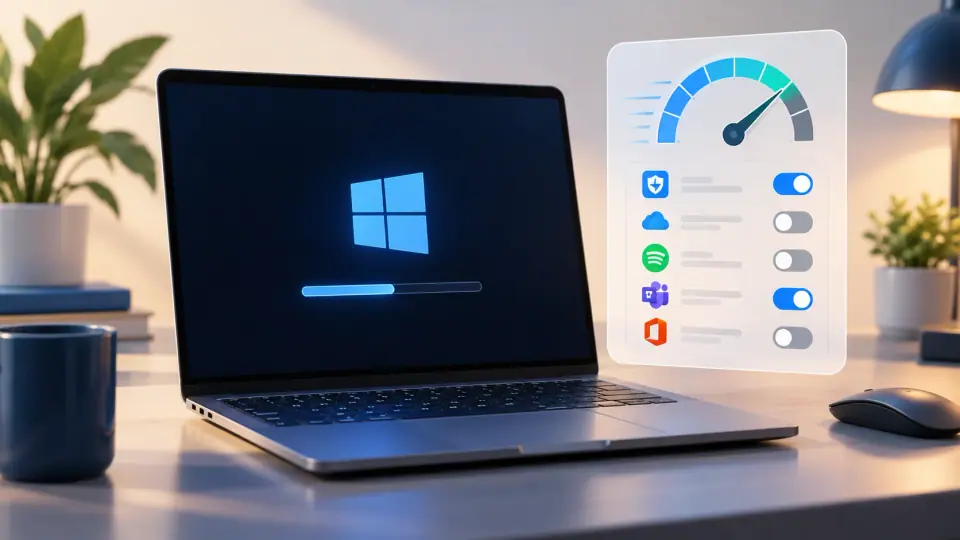
Apps that launch automatically when you sign in can increase startup time and continue using memory or CPU in the background. Windows 11 provides two supported places to manage most startup apps: Settings and Task Manager.
Method 1: Disable startup apps from Settings
- Press Windows + I.
- Go to Apps > Startup.
- Review the list of apps.
- Turn Off the apps you do not need to start automatically.
This does not uninstall the application. You can still open it normally from Start when you need it.
Method 2: Use Task Manager to see startup impact
- Press Ctrl + Shift + Esc.
- Select Startup apps.
- Review the Status and Startup impact columns.
- Select a nonessential app and choose Disable.
Task Manager is useful because Windows estimates the impact that each startup item has on the startup process.
What should you leave enabled?
Be cautious with software related to:
- endpoint security or antivirus;
- touchpads, keyboards, hotkeys, or accessibility devices;
- graphics-switching or laptop power-management utilities;
- backup, synchronization, or encryption software you intentionally rely on.
If you do not recognize an entry, identify it before disabling it.
An app is not listed
Some programs use startup-folder shortcuts or other auto-start locations instead of the normal Startup registration used by Settings and Task Manager.
For those cases, see the companion guide on startup programs and startup folders. Advanced troubleshooting can also use Microsoft’s Sysinternals Autoruns tool.
Will this make every PC boot faster?
Not necessarily. Startup apps are only one factor. A slow boot can also be caused by storage problems, low free space, driver delays, updates, malware, or hardware issues.
Disabling clearly unnecessary high-impact startup apps is a sensible first step because it is easy to reverse.
Official reference
Related posts
Browse all articles →
How to Use Point-in-Time Restore in Windows 11
Point-in-Time Restore can roll Windows 11 back to a recent full-system snapshot, including apps, settings, and personal files.
How to Check Your Windows 11 Version, Build, and Support Status
Learn how to check your Windows 11 version and build number, then confirm whether your release is still supported by Microsoft.
How to Check the 2023 Secure Boot Certificate Status in Windows 11
Some PCs still use older Secure Boot certificates. Learn how to check the 2023 certificate status and what to do if Windows reports an incomplete update.