Fix 'BOOTMGR Is Missing' in Windows 7 and Vista — Historical Guide
Historical Windows 7 and Vista recovery guide for the “BOOTMGR is missing” startup error, using boot-order checks, Startup Repair, System Restore, and BCD repair when appropriate.
Historical support note: Windows 7 and Vista are out of support. This guide describes their BIOS/MBR-era recovery workflow.
A BOOTMGR is missing message means the firmware reached the disk but Windows Boot Manager could not be loaded correctly. Causes include booting from the wrong disk, missing boot files, damaged BCD data, or disk/file-system problems.
1. Check what the PC is trying to boot from
Disconnect unnecessary USB storage and confirm the correct Windows disk is first in the firmware boot order. If the PC has multiple internal disks, make sure the expected system disk is still detected.
2. Run Startup Repair
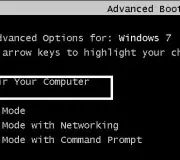
Boot from compatible Windows 7/Vista installation or recovery media, choose Repair your computer, and run Startup Repair. Run it again after a restart if the recovery tool reports additional boot problems.
3. Try System Restore
If the error appeared after a recent system or driver change, use System Restore from the recovery environment when a suitable restore point is available.
4. Rebuild BCD only when needed
If Startup Repair does not fix the issue and BCD corruption is suspected, open Command Prompt from recovery options and run:
bootrec /rebuildbcdDo not run every bootrec switch automatically. fixmbr and fixboot change boot code and should be reserved for cases where that component is actually damaged.
Official references
- Microsoft: Windows startup issues troubleshooting: https://learn.microsoft.com/en-ie/troubleshoot/windows-client/performance/windows-boot-issues-troubleshooting
- Microsoft: Windows support lifecycle: https://support.microsoft.com/en-us/windows/deployment/updates-lifecycle/what-does-it-mean-if-windows-isn-t-supported
Related posts
Browse all articles →
How to Use a Clean Boot in Windows 7 and Vista — Historical Guide
Historical Windows 7 and Vista clean-boot procedure for isolating background service and startup-program conflicts.
Fix KERNEL_DATA_INPAGE_ERROR (0x0000007A) — Historical Guide
Historical troubleshooting for bug check 0x7A KERNEL_DATA_INPAGE_ERROR, focusing on storage I/O errors, bad sectors, cabling, RAM, and diagnostics.
Fix Windows Setup Error 0x80FE0000 or 0x80FF0000 in Windows 7/Vista (Historical)
Historical troubleshooting for Windows Setup errors 0x80FE0000/0x80FF0000 and 'could not set the offline locale information,' with destructive disk steps removed from the default workflow.