Fix Windows Boot Error 0xc0000225 in Windows 10 or 8.1
Troubleshoot boot error 0xc0000225 with Startup Repair first, then repair Boot Configuration Data only when needed.
- Applies to Windows 10
- 2 min read
View article illustration
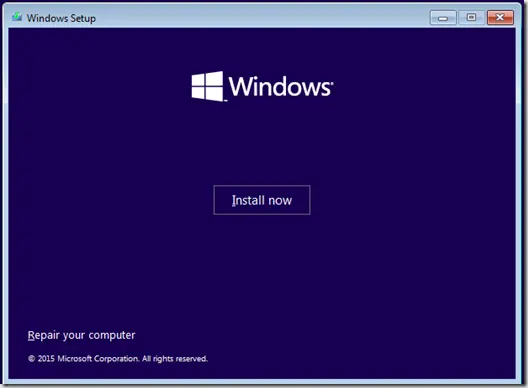
Error 0xc0000225 usually appears before Windows starts and indicates that Windows cannot load the boot configuration or reach a required boot device. The exact cause can vary, so avoid changing firmware mode or partitions until you know how the PC was originally configured.
Support note: Windows 8.1 reached end of support on January 10, 2023, and Windows 10 reached end of normal support on October 14, 2025. These steps are retained for recovery of existing systems.
Method 1: Run Startup Repair
- Enter Windows Recovery Environment (WinRE). If necessary, boot from Windows installation or recovery media and select Repair your computer.
- Select Troubleshoot > Advanced options > Startup Repair.
- Let Windows diagnose the boot configuration and restart the PC.
Startup Repair can repair several startup problems, including damaged Boot Configuration Data (BCD) and boot records.
Method 2: Rebuild the BCD when Startup Repair fails
Use this only if the error still points to boot configuration problems.
- Open Troubleshoot > Advanced options > Command Prompt.
- Scan for Windows installations:
bootrec /scanos- Rebuild the BCD store:
bootrec /rebuildbcd- If Windows is found, follow the prompt to add the installation to the boot list.
- Restart the PC.
Method 3: Repair boot files with BCDBoot on Windows 10
BCDBoot can recreate boot-environment files from a known Windows installation. Drive letters in WinRE may differ from the letters you see in normal Windows, so identify the correct Windows volume first.
For example, if the Windows folder is on D: while you are in WinRE:
bcdboot D:\WindowsDo not assume the Windows installation is always C:. Avoid forcing /f UEFI, rewriting the MBR, or changing BIOS/UEFI mode unless you have confirmed the system’s partition and firmware layout.
If BitLocker protects the drive, you may need the recovery key before these tools can access the Windows volume.
Official references
- Startup Repair: https://support.microsoft.com/en-us/windows/experience/startup-boot/startup-repair
- BCDBoot: https://learn.microsoft.com/en-us/windows-server/administration/windows-commands/bcdboot
- Windows startup troubleshooting: https://learn.microsoft.com/en-us/troubleshoot/windows-client/performance/windows-boot-issues-troubleshooting
- Windows 8.1 end of support: https://support.microsoft.com/en-us/windows/windows-8-1-support-ended-on-january-10-2023-3cfd4cde-f611-496a-8057-923fba401e93
Related posts
Browse all articles →
How to Fix Blue or Black Screen (BSOD) Errors in Windows
To find out the specific error code, prevent Windows from restarting automatically when the system crashes. Here’s how:
Fix 'BOOTMGR Is Missing' in Windows 7 and Vista — Historical Guide
Historical Windows 7 and Vista recovery guide for the “BOOTMGR is missing” startup error, using boot-order checks, Startup Repair, System Restore, and BCD repair when appropriate.
How to Check the 2023 Secure Boot Certificate Status in Windows 11
Some PCs still use older Secure Boot certificates. Learn how to check the 2023 certificate status and what to do if Windows reports an incomplete update.