How to Reduce Startup Time in Windows 11
Speed up Windows 11 startup by identifying high-impact startup apps, removing unnecessary launch tasks, checking updates, and measuring before making changes.
- Applies to Windows 11
- 3 min read
View article illustration
If Windows 11 takes a long time to become usable after you sign in, the delay is often caused by applications that launch automatically. The good news is that you can reduce startup load without using “optimizer” software or disabling Windows services.
Start with Task Manager
Press Ctrl + Shift + Esc and open Startup apps.
Task Manager shows whether each item is enabled and may classify its startup impact as Low, Medium, or High. Microsoft bases that impact on CPU time and disk activity during startup.
Look first at high-impact applications you do not need immediately after sign-in.
Disable apps, not everything
Select an unnecessary startup item and choose Disable. Good candidates might include chat clients, game launchers, update helpers, music apps, or utilities you rarely use.
Leave security software, hardware control utilities, accessibility tools, cloud-sync software you actively rely on, and unfamiliar system components alone until you know what they do.
Use Settings for the same list
You can also open Settings > Apps > Startup. This is useful if you prefer a simpler on/off list rather than Task Manager’s more detailed view.
Check startup folders
Some traditional desktop programs use the Startup folders rather than registering a normal startup task.
Press Windows Key + R and run:
shell:startupTo view startup items that apply to all users, run:
shell:common startupRemove only shortcuts you recognize. Deleting a shortcut from the Startup folder does not uninstall the application.
Update Windows and drivers
A slow boot is not always caused by startup apps. Install current Windows updates and check the PC manufacturer for storage, chipset, graphics, and firmware updates—especially if startup became slower after a Windows upgrade.
Check free storage
Windows needs working room for updates, caches, and paging. Open Settings > System > Storage and free space if the system drive is nearly full.
Measure the right part of “startup”
There is a difference between the time from pressing the power button to the sign-in screen and the time from signing in to the desktop becoming responsive.
If the delay happens before Windows begins loading, BIOS/UEFI hardware initialization may be involved. If the desktop appears quickly but remains sluggish for another minute, startup applications and background tasks are more likely.
Do not use msconfig to disable Microsoft services for routine speed-ups
A clean boot is a diagnostic procedure, not a permanent performance preset. Microsoft warns that System Configuration can reduce functionality when used incorrectly.
Disable one group of unnecessary startup apps, restart, and observe the difference. Measured changes are far safer than applying a “20 services to disable” list copied from another PC.
Check whether Fast Startup is relevant
Fast Startup affects a normal shutdown followed by power-on; it does not make Restart faster because Restart performs a fuller boot. If you are measuring changes after disabling startup apps, use the same test method each time instead of comparing a restart with a shutdown/power-on cycle.
On systems where Fast Startup causes a documented driver or dual-boot problem, it may need to be disabled—but turning it off is not a performance optimization.
Official references
Microsoft Support — Configure startup applications in WindowsOfficial referenceRelated posts
Browse all articles →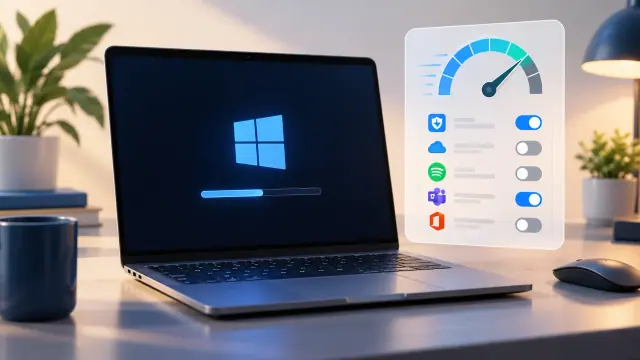
How to Disable Startup Apps in Windows 11 for Faster Boot
Use Windows 11 Settings or Task Manager to stop nonessential apps from launching when you sign in and identify high-impact startup items.
How to Boot Windows 10 into Safe Mode
Step-by-step Windows 10 Safe Mode instructions using Windows Recovery Environment, including Safe Mode with Networking and recovery-media options.

How to Use a Clean Boot in Windows 7 and Vista — Historical Guide
Historical Windows 7 and Vista clean-boot procedure for isolating background service and startup-program conflicts.