How to Find and Install Optional Driver Updates in Windows 11
Windows 11 installs recommended drivers automatically, but some newer or alternative drivers appear under Optional updates. Here is when to use them.
- Applies to Windows 11
- 3 min read
View article illustration
Windows 11 normally installs recommended hardware drivers automatically through Windows Update. Some driver packages, however, are placed under Optional updates and are not installed automatically.
That does not mean you should install every optional driver you see. Treat the list as a troubleshooting and compatibility resource rather than a monthly checklist.
How to check Optional driver updates
- Open Settings.
- Select Windows Update.
- Open Advanced options.
- Under Additional options, select Optional updates.
- Expand Driver updates if it appears.
- Select the driver you actually need.
- Choose Download & install.
Restart Windows after the driver installs, even if Windows does not explicitly demand a restart. Some device drivers do not fully reload until the next boot.
When should you install an optional driver?
An optional driver can be useful when:
- A device is not working correctly with the current driver.
- Device Manager reports a driver problem.
- A Windows update changed hardware behavior.
- Microsoft or the PC manufacturer specifically recommends that package.
If your PC is working correctly, you usually do not need to replace a stable current driver just because an optional one appears.
Windows Update or the manufacturer website?
For many devices, Windows Update is the easiest and safest source. But the PC manufacturer may offer a newer or customized driver for graphics, audio, Wi-Fi, Bluetooth, touchpads, cameras, docks, or chipset components.
For laptops and prebuilt desktops, check the PC maker’s support page before installing generic packages from the component manufacturer. OEM drivers can contain device-specific tuning and companion software.
Be careful with third-party driver updater utilities
You do not need a commercial “driver updater” to keep Windows 11 functioning. These utilities can install inappropriate packages, push unnecessary updates, or make it harder to know which driver caused a new problem.
If a new driver causes problems
Open Device Manager, open the affected device’s Properties, and check the Driver tab. If Roll Back Driver is available, Windows may be able to restore the previous version.
Before changing a working graphics, storage, network, or chipset driver, note the current driver version. That small step makes troubleshooting much easier if the new package introduces a problem.
Check the version before you install
In Device Manager, open the device’s Properties > Driver tab and note the current provider, date, and version. Compare that information with the optional package. Windows may offer an alternative driver that is useful for troubleshooting but not necessarily newer in every meaningful way.
Do not use Optional updates as a bulk update button
Optional drivers are deliberately not installed automatically. If the machine is stable, selecting every available package can create several variables at once. Install only the driver related to the problem you are solving, restart, and test the device before changing another component.
Firmware updates are different
Some manufacturers deliver firmware through Windows Update, but BIOS/UEFI updates deserve extra care. Keep the machine connected to power, do not interrupt the update, and follow the OEM instructions for your exact model. If BitLocker or Device Encryption is enabled, make sure you know where the recovery key is stored before performing major firmware work.
Official references
Microsoft Support — Get recommended and updated hardware driversOfficial referenceRelated posts
Browse all articles →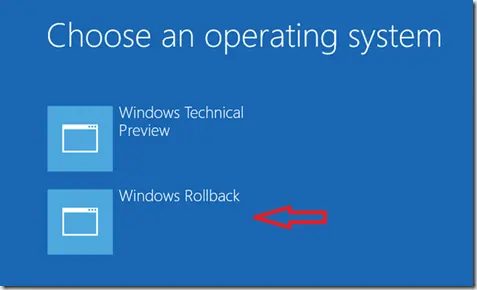
How Windows 10 Technical Preview Rollback Worked in 2015 (Historical)
A historical explanation of the Windows Rollback boot entry that appeared on some early Windows 10 Technical Preview systems, plus the modern Go back equivalent.
How to Fix Windows 11 Update Stuck Downloading or Not Installing
Windows 11 update stuck at 0%, 100%, or failing to install? Work through these safe troubleshooting steps before resetting update components.

Fix Hardware Devices Not Detected in Windows 8, 7, Vista, or XP — Historical Guide
Historical device-detection troubleshooting for older Windows versions using connection checks, Device Manager, OEM drivers, and hardware diagnostics.