How to Create AI Art on Windows 10 with Free Web Tools
Create AI-generated images on a Windows 10 PC with Microsoft Designer in a web browser, write better prompts, and save the results without relying on Windows 11-only Paint features.
Windows 10 support status: Windows 10 reached end of support on October 14, 2025. The browser-based method below still works on a Windows 10 PC with a supported browser, but the operating system itself is no longer in normal free support.
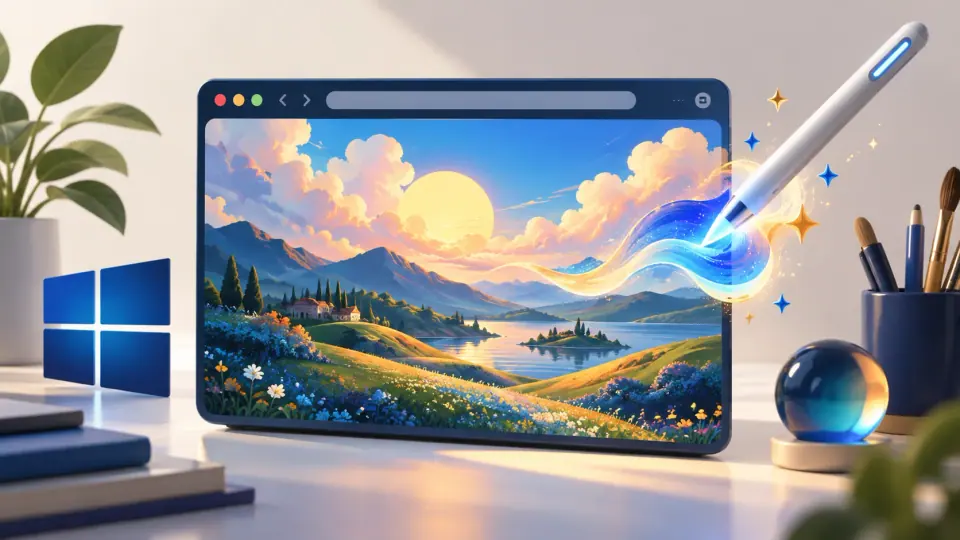
You do not need Windows 11-specific AI features to create AI images on a Windows 10 PC. A browser-based tool such as Microsoft Designer can generate images from text prompts without requiring a local AI-capable GPU.
The recovered version of this article incorrectly presented Paint’s Image Creator as a Windows 10 feature. Microsoft’s Windows documentation introduced and developed those Paint AI features on Windows 11, so that method has been removed from the Windows 10 guide.
Create an image with Microsoft Designer
Microsoft says Designer is available for personal use with a Microsoft account. Free usage is available, although a subscription can be required for more frequent creation or additional capabilities.
- Open a current web browser on the Windows 10 PC.
- Go to Microsoft Designer.
- Sign in with a Microsoft account.
- Choose the image-generation option.
- Describe the image you want.
- Generate the options and select the result you prefer.
- Download or continue editing the image in Designer.
Write a better prompt
A useful prompt describes the subject first, then adds scene, composition, lighting, and style details.
Instead of:
a mountain
try:
a snow-covered mountain at sunrise, viewed across a calm alpine lake, wide landscape composition, soft golden light, realistic photography
Useful details include:
- subject and action;
- setting or background;
- camera angle or composition;
- lighting and time of day;
- visual medium, such as watercolor, 3D illustration, or realistic photograph;
- aspect or layout requirements if the tool supports them.
Avoid stuffing the prompt with contradictory instructions. Make one or two changes at a time so you can see what improves the result.
Edit and save the result
After generation, use Designer’s editing tools or download the image and open it in another image editor. Save a high-quality PNG when you need transparency or clean graphics; use JPEG when smaller file size is more important than lossless quality.
Be transparent about AI-generated images
AI-generated content can contain visual mistakes, misleading details, or problematic text. Review an image before publishing it, especially if it depicts real-world facts, logos, people, products, or instructions.
Microsoft documents content credentials for AI-generated and AI-edited images in Designer, helping identify their provenance.
Official reference
Microsoft Designer FAQ: https://support.microsoft.com/en-us/designer/frequently-asked-questions-about-microsoft-designer
Related posts
Browse all articles →
How to Use Point-in-Time Restore in Windows 11
Point-in-Time Restore can roll Windows 11 back to a recent full-system snapshot, including apps, settings, and personal files.
How to Check Your Windows 11 Version, Build, and Support Status
Learn how to check your Windows 11 version and build number, then confirm whether your release is still supported by Microsoft.
How to Check the 2023 Secure Boot Certificate Status in Windows 11
Some PCs still use older Secure Boot certificates. Learn how to check the 2023 certificate status and what to do if Windows reports an incomplete update.