How to Create Custom Gems in Google Gemini
Create a reusable Gem in Google Gemini so repeated tasks follow the same role, rules, context, and output style without rewriting the prompt every time.
- 2 min read
View article illustration
If you repeatedly give Gemini the same instructions, a Gem can save you from rebuilding the prompt each time. A Gem is a customized version of Gemini that follows the role and instructions you define.
You can create one for tasks such as reviewing documents, rewriting technical copy, planning lessons, generating interview questions, or maintaining a specific writing style.
Create a custom Gem
- Open Gemini on the web and sign in.
- Open Explore Gems or Gems from the sidebar.
- Select New Gem.
- Give the Gem a clear name.
- Write the instructions it should follow.
- Add reference files when the feature is available and they will help the Gem stay consistent.
- Save the Gem and test it with a real task.
Write better Gem instructions
Do not make the instruction a single vague sentence such as “help me write better.” Give it a job, audience, boundaries, and expected output.
For example:
You are a technical documentation reviewer. Improve clarity without making the copy sound like marketing. Preserve API names exactly. Flag any step that appears version-specific or technically uncertain. Return the revised copy first, followed by short review notes.
Create Gems around workflows, not topics
A “Windows expert” Gem is broad. A “Windows troubleshooting article reviewer” Gem is more useful because it has a repeatable job.
Good Gem ideas include:
- Meeting-note cleaner
- Product-copy reviewer
- Study-question generator
- Code-explanation assistant
- Research-summary formatter
Review before you reuse
A Gem can make your workflow more consistent, but it does not make every answer correct. When the work depends on current information, legal rules, software versions, or technical compatibility, ask Gemini to verify the facts or check the primary source yourself.
Official references
Google Gemini Help — Create and use GemsOfficial referenceRelated posts
Browse all articles →
How to Use Google Gemini for Everyday Workflows
Unlock the power of Google Gemini—supercharge your daily productivity, learning, and creative projects with the world’s most advanced AI from Google.
Create Shutdown and Restart Shortcuts in Windows 8 (Historical)
Create desktop shortcuts for shutdown and restart in Windows 8 and pin them to the Start screen using Windows' built-in shutdown command.
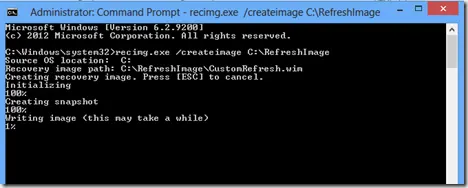
Create a Custom Refresh Image in Windows 8 with Recimg (Historical)
Historical Windows 8 guide to creating and registering a custom Refresh image with Recimg.exe; this recovery model does not apply to modern Windows releases.