How to Export or Back Up the Windows 10 Registry
Back up a Windows 10 registry key or export the registry before making advanced changes, and learn how to restore the saved .reg file.
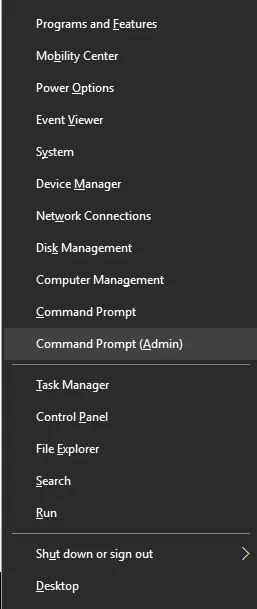
Before changing the Windows Registry, back up the key you plan to edit. A .reg export gives you a convenient way to restore that registry data if the change causes a problem.
Windows 10 support note: Windows 10 reached end of normal support on October 14, 2025.
Back up a registry key
- Open Start, type
regedit.exe, and press Enter. - Approve the administrator prompt if Windows shows one.
- In Registry Editor, select the key or subkey you are about to change.
- Select File > Export.
- Choose a safe location and enter a descriptive file name.
- Confirm that Selected branch points to the key you intended to back up.
- Select Save.
Backing up only the affected branch is usually easier to restore than exporting unrelated registry data.
Export a wider registry range
If you intentionally want a broader export, select Computer, choose File > Export, and use the appropriate Export range. Treat this as a registry export, not as a substitute for a complete system or file backup.
For higher-risk changes, also consider creating a System Restore point before editing the registry.
Restore a saved registry export
- Open Registry Editor.
- Select File > Import.
- Choose the
.regfile you saved. - Confirm the import and restart Windows if the changed setting requires it.
Only import registry files that you created yourself or obtained from a source you trust.
Official reference
Related posts
Browse all articles →
How to Batch Rename Files in Windows with PowerRename and PowerShell
Use Microsoft PowerToys PowerRename or PowerShell to preview and apply advanced bulk file-renaming rules in Windows 10 and 11.
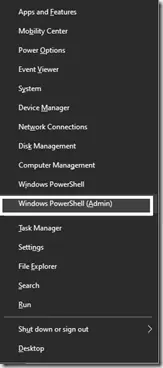
How to Replace PowerShell with Command Prompt in the Windows 10 Win+X Menu (Historical)
Historical Windows 10 instructions for switching the Win+X menu from Windows PowerShell to Command Prompt. This setting does not describe the current Windows 11 menu.

How to Boot Windows 10 into Safe Mode
Step-by-step Windows 10 Safe Mode instructions using Windows Recovery Environment, including Safe Mode with Networking and recovery-media options.