How to Run Linux on Windows with WSL
Install Windows Subsystem for Linux (WSL) on Windows 10 or 11, choose a Linux distribution, update WSL, and access Windows files from Linux.
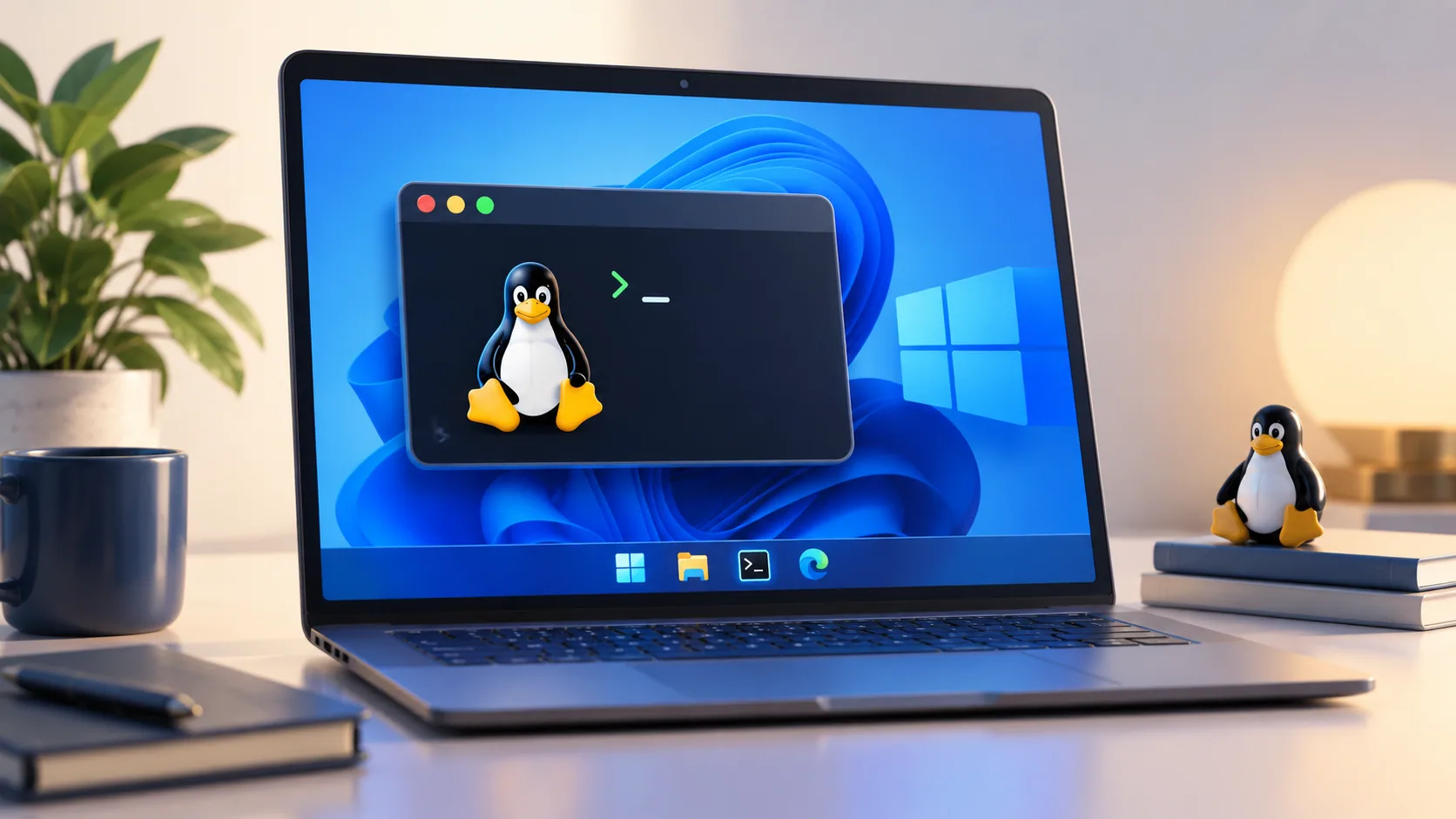
Windows Subsystem for Linux (WSL) lets you run a Linux environment directly on Windows without setting up a traditional dual-boot system or a full desktop virtual machine.
For current versions of Windows, Microsoft recommends installing WSL with a single command.
Requirements
The simplified wsl --install command requires:
- Windows 11, or
- Windows 10 version 2004 or later (Build 19041 or later).
Older Windows builds require Microsoft’s manual WSL installation process.
Install WSL
- Open PowerShell or Windows Terminal as administrator.
- Run:
wsl --install- Restart the PC if prompted.
- The default Linux distribution is installed (typically Ubuntu unless you choose another distribution).
- Launch the distribution and create your Linux username and password.
The install command enables the required Windows components, installs WSL, and configures WSL 2 as the default for new distributions.
Choose a different Linux distribution
List distributions that Microsoft makes available through WSL:
wsl --list --onlineThen install one by name:
wsl --install -d <DistributionName>For example, use the exact distribution name shown by wsl --list --online.
Check and update WSL
Useful commands include:
wsl --status
wsl --update
wsl --list --verbose
To stop all running WSL distributions and the WSL 2 utility VM:
wsl --shutdownAccess Windows files from Linux
Windows drives are mounted under /mnt. For example, the Windows C: drive is normally available at:
/mnt/cFor Linux projects, performance and Linux file permissions are generally better when the project lives inside the Linux filesystem rather than under /mnt/c.
Run Windows and Linux commands together
From a WSL shell you can launch Windows executables, for example:
notepad.exe
explorer.exe .
From PowerShell or Command Prompt, prefix a Linux command with wsl, for example:
wsl uname -aWindows 10 note
Windows 10 reached end of support on October 14, 2025. WSL may continue to run on an existing Windows 10 installation, but consider Windows 11 or Microsoft’s current ESU options if you need a supported host operating system.
Official references
Related posts
Browse all articles →
How to Use Focus Sessions in Windows 11 for Productivity
Use Focus in Windows 11 to reduce distractions, start timed focus sessions, and connect the Clock app with Spotify and Microsoft To Do.
How to Activate Windows 11 Without Entering a Product Key
Learn when Windows 11 can activate through a digital license without asking you to type a 25-character product key, and when a new license is still required.
How to Check if Your PC Is Compatible with Windows 11
Check Windows 11 compatibility with Microsoft PC Health Check and verify the key requirements, including TPM 2.0, UEFI, Secure Boot capability, RAM, storage, and CPU support.