How to Use Focus Sessions in Windows 11 for Productivity
Use Focus in Windows 11 to reduce distractions, start timed focus sessions, and connect the Clock app with Spotify and Microsoft To Do.
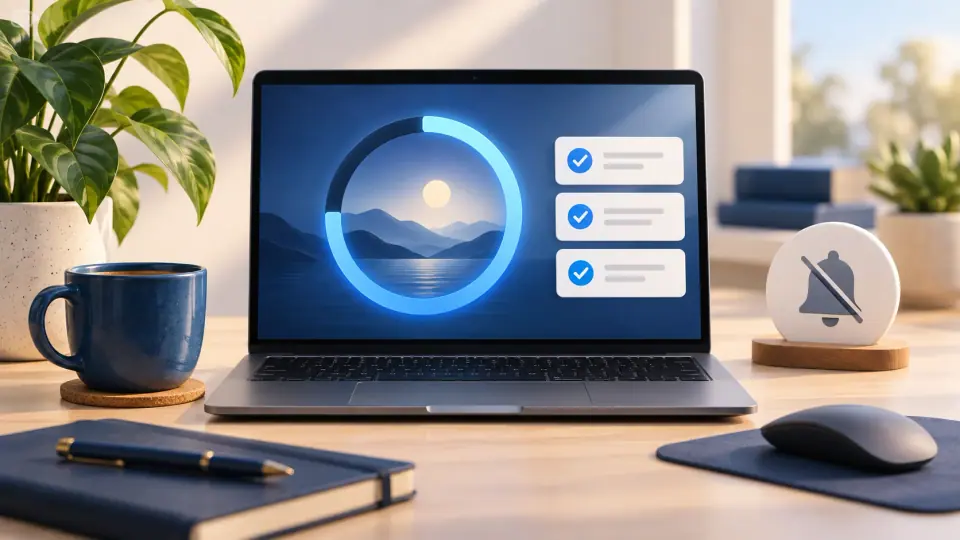
Windows 11 includes Focus, a built-in way to reduce interruptions while you work. When a focus session starts, Windows turns on Do not disturb and, by default, suppresses taskbar badges and flashing so notifications are less distracting.
You can start a focus session from the notification/calendar area, Settings, or the Clock app. The Clock app adds optional breaks and integrations with Spotify and Microsoft To Do.
Start a focus session from the taskbar
- Select the clock or notification bell on the taskbar, or press Windows + N.
- Choose the length of the focus session.
- Select Focus to start.
Correction from the recovered draft: Windows + N opens the notification/calendar area, not Quick Settings.
Start Focus from Settings
- Press Windows + I to open Settings.
- Go to System > Focus.
- Set the session duration.
- Choose which Focus behaviors you want Windows to use:
- Show the timer in the Clock app
- Hide badges on taskbar apps
- Hide flashing on taskbar apps
- Turn on Do not disturb
- Select Start focus session.
Use Focus sessions in the Clock app
- Open Clock from Start or Search.
- Select Focus sessions.
- Choose a session length and whether you want breaks.
- Select Start focus session.
When the session begins, a focus timer appears on screen. You can expand it to return to the full Clock interface.
Play Spotify during a focus session
Microsoft still documents Spotify integration in the Clock app:
- In Clock > Focus sessions, select Link your Spotify.
- Sign in to Spotify.
- Choose a playlist or podcast.
- Start the focus session.
Work from a Microsoft To Do list
If you use Microsoft To Do, the Clock app can show tasks before you start a focus session. Select the task you want to work on, then start the timer.
What happens to notifications?
Focus turns on Do not disturb automatically. Notifications are still collected and can be reviewed later in Notification Center. If Do not disturb was already enabled before the focus session started, it remains enabled after the session ends.
You can customize which notifications are allowed through Do not disturb from Settings > System > Notifications.
Tips for using Focus effectively
- Pick one concrete task before starting the timer.
- Use a duration that matches the task instead of forcing every task into the same interval.
- Keep breaks enabled for longer sessions if they help you reset.
- If a particular notification must always get through, configure it as a priority notification instead of turning Focus off entirely.
Official reference
Related posts
Browse all articles →
How to Activate Windows 11 Without Entering a Product Key
Learn when Windows 11 can activate through a digital license without asking you to type a 25-character product key, and when a new license is still required.
How to Check if Your PC Is Compatible with Windows 11
Check Windows 11 compatibility with Microsoft PC Health Check and verify the key requirements, including TPM 2.0, UEFI, Secure Boot capability, RAM, storage, and CPU support.
How to Change the Desktop Background in Windows 10 and 11
Change your Windows desktop background to a picture, solid color, slideshow, or supported Windows Spotlight background, and adjust how images fit the screen.