Lost Your Phone with Two-Factor Authentication? How to Avoid Getting Locked Out
Prepare for a lost or broken phone by setting up backup codes, alternate factors, recovery contacts, spare security keys, and safe recovery paths before you need them.
- 5 min read
View article illustration
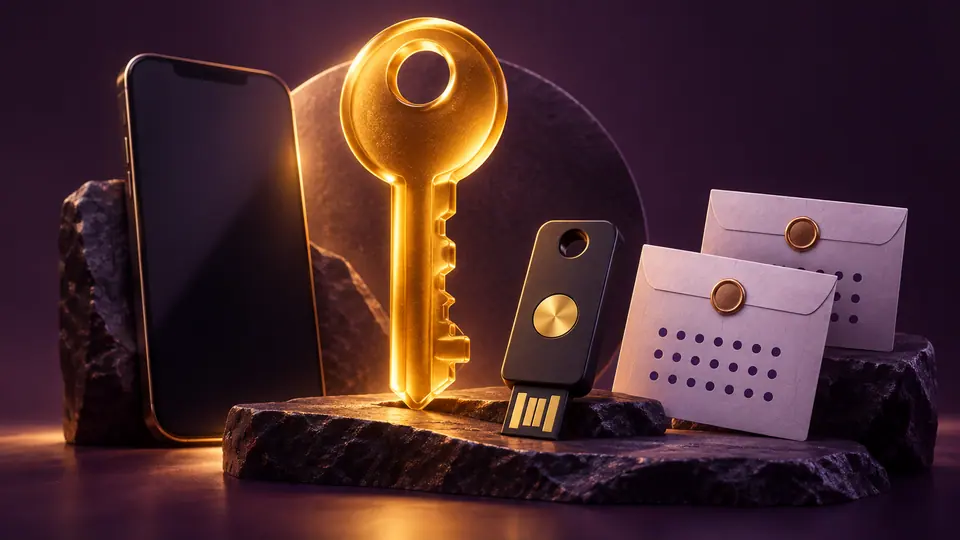
Two-factor authentication makes an account much harder to steal—but it can also expose a different weakness: what happens when the phone holding your authenticator app, SIM, or approval prompts is lost, broken, stolen, or reset?
The answer should not be “I hope support can get me back in.” A good 2FA setup includes a recovery plan before anything goes wrong.
Do not make one phone your only second factor
If every sign-in method ultimately depends on the same phone, losing that phone can block several recovery routes at once.
A safer setup gives you at least two independent ways to complete the second step. Depending on the service, that might include:
- An authenticator app.
- A hardware security key.
- A passkey stored on another trusted device.
- Backup codes.
- A second trusted phone or tablet.
- A verified recovery email or recovery number.
The exact options vary by account provider, but the principle is the same: do not let one physical device become a single point of failure.
Generate backup codes before you need them
Many account providers offer backup or recovery codes. The number of codes and how they work varies by service.
Google currently provides a set of 10 backup codes for accounts using 2-Step Verification. Each code works once, and generating a new set invalidates the old one.
Backup codes are useful precisely because they do not depend on the missing phone.
Where should backup codes be stored?
Not only on the phone they are meant to replace.
Good options include:
- A printed copy stored securely at home.
- An encrypted password manager available on another device.
- An encrypted offline file on another computer.
- A secure document vault that you can access without the lost phone.
Do not store the only copy in your email inbox if your email account itself depends on the same 2FA method.
Use a hardware security key for important accounts
A FIDO security key can provide an independent second factor or passkey.
For critical accounts—primary email, password manager, cloud storage, banking-related accounts, developer platforms—consider registering two hardware keys and keeping the spare somewhere safe.
That costs more than relying only on a phone, but it is one of the cleanest ways to avoid device lockout.
Check whether your authenticator app syncs
Authenticator apps differ.
Some can synchronize tokens to an account or encrypted cloud vault. Others keep secrets only on the device unless you explicitly export them.
Before migrating phones, open your authenticator settings and learn how that specific app handles backup, export, transfer, or recovery.
Do not assume reinstalling the app on a new phone will magically restore every account.
Keep recovery email and phone information current
A recovery phone number you abandoned three years ago is not a recovery method.
Review the recovery information on your most important accounts at least occasionally. Make sure the email address is still accessible and the phone number still belongs to you.
This is particularly important for your primary email account because many other services send reset links there.
Do not rely only on SMS
SMS is better than having no second factor, but it depends on mobile service and the phone number itself.
A lost phone, failed SIM transfer, roaming problem, carrier outage, or SIM-swap attack can make SMS unavailable or unsafe.
Use an authenticator, security key, or passkey where the service supports it, and keep SMS as one recovery path rather than the only one.
What should you do immediately after losing a phone?
- Use Google Find Hub (formerly Find My Device), Apple Find My, or your platform’s equivalent to locate or lock the phone.
- Contact the mobile carrier if the SIM/eSIM needs to be suspended.
- Sign in to critical accounts from a known trusted device.
- Revoke the lost device where appropriate.
- Change passwords if compromise is possible.
- Replace or re-register second-factor methods.
Do not rush to remove every security method before you have confirmed that another working sign-in path exists.
If the authenticator phone is gone but you are still signed in elsewhere
You are in a much better position.
Use that active trusted session to open security settings. The provider may still require identity verification before you can:
- Add a new authenticator device.
- Generate fresh backup codes.
- Register another passkey or security key.
- Review signed-in devices.
Do this before signing out of the trusted session.
What if you are completely locked out?
Use the service’s official account-recovery process.
You may be asked for previous passwords, recovery contact information, trusted-device confirmation, billing information, identity verification, or a waiting period.
A legitimate provider will not ask you to pay a random “recovery technician” over messaging apps or remote-control software.
Do not keep recovery entirely inside your password manager
Password managers are excellent places for recovery codes, but ask yourself one question: How do I recover the password manager itself?
Keep its emergency kit, recovery code, secret key, or equivalent somewhere independent.
Build a recovery map
For each critical account, write down:
- Primary sign-in method.
- Second factor.
- Backup factor.
- Where backup codes are stored.
- Recovery email/phone.
You do not need to record actual passwords in the document. The goal is to know your recovery routes.
The safest 2FA setup is redundant
Two-factor authentication should make account theft harder without making normal hardware failure catastrophic.
If losing one phone would lock you out of your email, password manager, cloud files, and every other account at once, your security is strong but your recovery design is weak.
Fix that while the phone is still in your hand.
Official references
Google Support — Sign in with backup codesOfficial referenceRelated posts
Browse all articles →
Passkeys Explained Properly: Where They Are Stored, How They Sync, and How Not to Lock Yourself Out
Understand how passkeys work across Google Password Manager, Android, Chrome, Apple devices, Windows, and third-party managers—and how to plan recovery before losing a device.

How to Create, Use, and Delete Passkeys in Windows 11
Windows 11 can store passkeys and use Windows Hello for passwordless sign-in. Learn how to create, use, manage, and remove them.
Fake Virus Alerts and Security Pop-Ups in Chrome: How to Tell Website Notifications from Malware
Learn whether a scary Chrome virus warning is a website notification, pop-up, malicious page, extension, or actual malware—and fix the right problem without calling scammers.