Mac External Monitor Not Detected, Black, or Stuck at the Wrong Resolution
Troubleshoot a blank Mac external display, limited resolution, low refresh rate, dock problems, closed-lid issues, and model-specific display limits.
- 4 min read
- 14 steps
View article illustration
A Mac can fail to detect an external monitor for several completely different reasons: the cable lacks enough bandwidth, the USB-C adapter does not support video, the Mac has reached its display limit, the dock is the bottleneck, or the monitor is using the wrong input.
Start by simplifying the connection rather than changing display settings blindly.
1. Check power and monitor input
Make sure the monitor is powered on and that its on-screen menu is set to the input you are actually using—HDMI, DisplayPort, USB-C, or Thunderbolt.
Auto input detection is convenient, but it does not always choose correctly.
2. Connect the display directly to the Mac
Apple specifically recommends bypassing a hub or dock when troubleshooting a dark or low-resolution display.
Connect the monitor directly to the Mac using a known-good cable or the simplest supported adapter.
If it works directly, the Mac and monitor are probably fine. The dock, hub, adapter, or cable path becomes the likely cause.
3. USB-C does not guarantee video support
A USB-C-shaped connection can carry different technologies.
Apple notes that a USB-C/Thunderbolt display adapter must support the required DisplayPort Alt Mode or Thunderbolt standard.
A basic USB-C charging/data cable may physically fit but fail to carry display video.
4. Use a cable that supports the required resolution and refresh rate
A weak cable can produce more than a blank screen.
It can also cause:
- 4K to fall back to 1080p.
- 120 Hz or 144 Hz to fall back to 60 Hz.
- HDR options to disappear.
- Flickering or intermittent black screens.
Apple explicitly warns that insufficient cable or adapter capability can limit resolution and refresh rate.
5. Check your exact Mac’s display limits
This matters especially on Apple silicon.
The maximum number of external displays is determined by the Mac model/chip and the resolution/refresh rate of the connected screens.
A dock does not automatically increase the native external-display limit.
For example, different MacBook Pro chip variants support different numbers and combinations of displays. Apple maintains model-specific support tables for this reason.
6. A DisplayLink dock is different from native display output
Some multi-monitor docks use DisplayLink technology and software compression to create extra display outputs.
If your dock uses DisplayLink, install the current DisplayLink software/manager and verify its permissions.
Do not compare a DisplayLink dock directly with a native Thunderbolt or DisplayPort dock; they use different paths.
7. Check System Settings > Displays
Open:
Apple menu > System Settings > Displays
Review:
- Resolution.
- Refresh rate.
- Arrangement.
- Mirror/extend settings.
- HDR when supported.
If the display is detected but looks blurry, try its native/default resolution before experimenting with scaling.
8. Closed-lid MacBook issues
Apple notes that when a Mac laptop is used with its lid closed, the machine should be connected to power and use an external keyboard and mouse/trackpad.
If the monitor turns off as soon as you close the lid, test again with power attached and input devices available.
9. Wake and sleep problems
If the display works after reboot but stays black after wake:
- Wake the Mac fully.
- Power-cycle the monitor.
- Disconnect and reconnect the display cable.
- Update macOS.
- Update dock and monitor firmware.
Recurring wake problems through a dock strongly suggest testing the same monitor directly on the Mac.
10. High-refresh and 8K setups need stricter cables
Apple’s 8K/high-refresh guidance requires appropriate high-bandwidth HDMI/Thunderbolt connections and, in some cases, direct connections without adapters.
A cable that works for 1080p does not prove it is adequate for 4K 240 Hz or 8K.
11. Check monitor firmware
Modern USB-C and high-refresh monitors often contain firmware that affects USB hubs, DisplayPort negotiation, DSC, VRR, and sleep behavior.
Check the monitor manufacturer’s support page for updates.
12. Test another cable before replacing hardware
A faulty or unsuitable cable is worth ruling out before replacing a monitor or computer.
Use a short, certified cable known to support the desired standard. Avoid stacking adapters during diagnosis.
13. If the Mac detects a monitor but the screen is black
Try lowering resolution or refresh rate temporarily.
If that makes the display work, the connection path may not have enough bandwidth for the previous setting.
14. If only one of several monitors works
Disconnect all monitors and connect them one at a time.
Then check your Mac’s documented maximum display configuration.
Adding an expensive dock does not override the GPU/display-engine limits of that Mac.
Check whether the monitor's USB-C port is really a video input
Some monitors have several USB-C ports with different jobs. One may accept DisplayPort video and provide laptop charging, while another is only a downstream USB data port. Use the input identified by the monitor manufacturer for host/video connection.
If the monitor offers both HDMI and USB-C/DisplayPort, testing another native input is also useful. A monitor that works over HDMI but not through one USB-C path points you back toward the cable, adapter, dock, or USB-C video capability rather than the display panel itself.
The fastest troubleshooting method
Reduce the setup to:
Mac → one known-good cable → one monitor
If that works, add the dock and additional displays back gradually.
This separates a Mac/display problem from a bandwidth, dock, cable, or multi-monitor limitation in minutes rather than hours.
Official references
Apple Support — External display is dark or low resolutionOfficial referenceRelated posts
Browse all articles →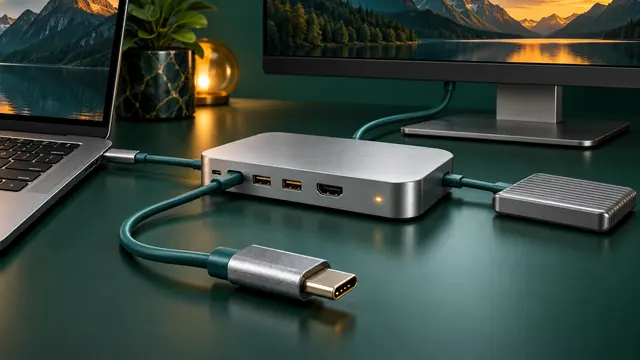
USB-C Dock Not Working? Fix No Display, No Charging, Ethernet, and USB Problems
Troubleshoot USB-C docks by separating power, data, display, cable, host-port, firmware, and driver problems instead of assuming every USB-C port has the same capabilities.
External SSD Works on Windows but Is Read-Only on Mac: NTFS, exFAT, and APFS Explained
If a Mac can open files on an external SSD but cannot save to it, check whether the drive is NTFS and choose the right format for Mac-only or cross-platform use.
Time Machine Backup Failed, Stuck, or Too Slow: A Complete Mac Troubleshooting Guide
Fix Time Machine backups that fail, stay on Preparing, report a full or read-only disk, disconnect from a network destination, or run far slower than expected.