USB-C Dock Not Working? Fix No Display, No Charging, Ethernet, and USB Problems
Troubleshoot USB-C docks by separating power, data, display, cable, host-port, firmware, and driver problems instead of assuming every USB-C port has the same capabilities.
- 5 min read
- 12 steps
View article illustration
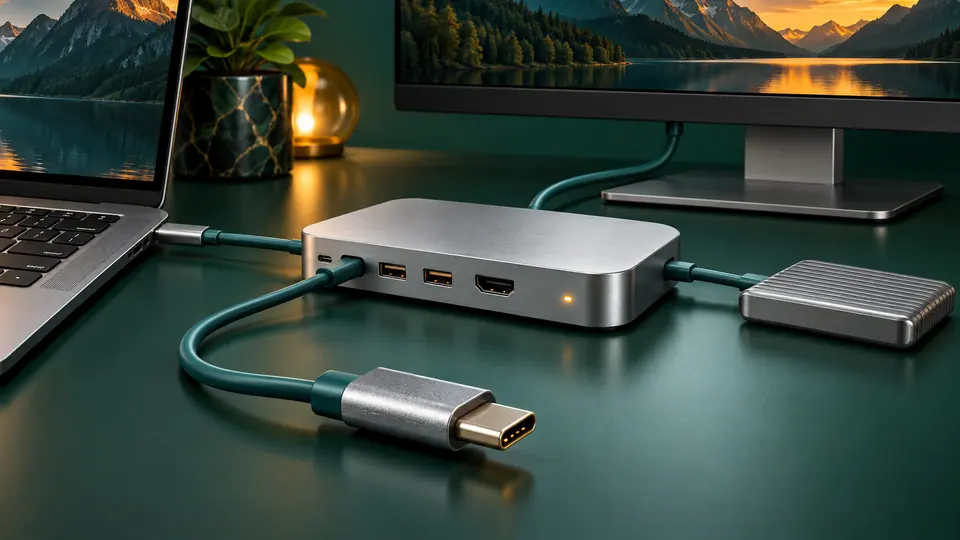
A USB-C dock can carry power, displays, Ethernet, audio, storage, and USB peripherals through one cable—which makes failures confusing. You can have charging but no monitor, Ethernet but no USB, a display that works only at 30 Hz, or a dock that works on one laptop and not another.
The key is to remember that USB-C describes the connector shape, not the complete capability of the port.
First check what the laptop’s USB-C port actually supports
USB-IF explicitly warns that USB Type-C is not the same thing as USB4, USB 3.2, USB Power Delivery, or video support.
A manufacturer can provide a USB-C port that supports:
- USB 2.0 or USB 3.x data only.
- USB Power Delivery.
- DisplayPort Alt Mode.
- USB4.
- Thunderbolt.
- Some combination of these.
If your laptop’s port does not support video output, no passive USB-C dock can create native DisplayPort Alt Mode out of nothing.
1. Test the dock with only power connected
Disconnect monitors, Ethernet, storage, and USB devices.
Connect the dock’s recommended power adapter and then connect the dock to the laptop using the original host cable.
Does the laptop charge?
If not, check:
- The dock power supply is connected.
- The dock supports charging for that host.
- The USB-C cable supports sufficient Power Delivery.
- You are using the dock’s designated host/PC port.
2. Power passthrough is not the same as the dock adapter’s rating
A dock may use some of its incoming power for itself and its attached devices.
For example, a dock sold with a 100W adapter may deliver less than 100W to the laptop. High-performance laptops that normally use 130W, 180W, or larger proprietary adapters may charge slowly, refuse to charge under load, or require their original power supply in addition to the dock.
Check the dock’s actual host charging output, not only the wattage printed on the wall adapter.
3. No external display? Connect the monitor directly
Apple’s current display troubleshooting recommends bypassing the dock or hub and connecting the display directly to the computer when diagnosing a blank or low-resolution monitor.
This is useful on Windows laptops too.
If the monitor works directly but not through the dock, the problem is somewhere in the dock path: cable, dock firmware, supported display bandwidth, adapter mode, or dock hardware.
4. Check DisplayPort Alt Mode, USB4, or Thunderbolt requirements
A USB-C monitor connection requires the host and dock to support the relevant display technology.
For Thunderbolt docks, confirm the laptop actually has Thunderbolt or compatible USB4 support.
A USB-C-shaped port marked only with a generic USB symbol may not provide the display path the dock expects.
5. Check the host cable
The short USB-C cable between the laptop and dock is critical.
A cable can:
- Charge well but carry only USB 2.0 data.
- Carry high-speed data but support less charging power.
- Support USB 3.x but not USB4/Thunderbolt bandwidth.
- Fail intermittently under high display or storage load.
Use the cable supplied with the dock or a certified cable explicitly rated for the required USB4/Thunderbolt speed and charging power.
6. One display works, two do not
This is often a bandwidth or host-support problem rather than a broken dock.
Check:
- Maximum displays supported by the laptop.
- Maximum resolution and refresh rate through the dock.
- Whether the dock relies on DisplayPort MST.
- Whether the operating system supports that MST use case.
- Whether DisplayLink software is required.
macOS, Windows, DisplayLink docks, and native DisplayPort docks can behave differently.
7. Display works, but only at low resolution or refresh rate
Check the entire chain:
Laptop port → host cable → dock → display cable → monitor input
The slowest/least capable component can become the limit.
A 4K 144 Hz monitor connected through an older HDMI adapter or limited dock may fall back to 4K 60 Hz or lower.
8. Ethernet not working
Check whether the dock’s Ethernet adapter appears in Device Manager on Windows or System Information/System Settings on macOS.
If it is detected but not connected:
- Try another Ethernet cable.
- Test the router/switch port.
- Disable and re-enable the adapter.
- Install the dock vendor’s current Ethernet/dock driver if required.
If the adapter does not appear at all, focus on the dock connection, firmware, USB driver, and host cable.
9. USB keyboard works but external SSD disconnects
Low-bandwidth devices can work even when the high-speed data path is unstable.
Try the SSD directly on the laptop. If it works there, update dock firmware and use a known-good high-speed host cable.
Also check whether the dock is overloaded with several bus-powered devices.
10. Update dock firmware
Docks are not passive adapters anymore. Many contain controllers for USB, DisplayPort, Ethernet, audio, and Power Delivery.
Check the manufacturer’s support page for:
- Dock firmware.
- USB/Thunderbolt drivers.
- Ethernet drivers.
- DisplayLink software if applicable.
11. Power-cycle the dock properly
Disconnect the dock from the laptop and disconnect its power adapter.
Wait about 30 seconds, reconnect dock power, then connect the host cable.
This resets dock controllers more completely than merely unplugging the laptop cable.
12. Test one peripheral at a time
Add devices back in this order:
- Power.
- One display.
- Ethernet.
- Keyboard/mouse.
- Storage.
- Second display and other high-bandwidth devices.
If the failure appears after one device is added, you have a much narrower problem to investigate.
Do not buy a new dock before checking the laptop port
A premium Thunderbolt 5 dock cannot make a basic USB-C data-only port become Thunderbolt.
Before replacing hardware, identify the capabilities of both the laptop port and dock. The USB-C connector only tells you that the plug fits. It does not tell you what will happen after you plug it in.
Official references
USB-IF — USB Type-C capabilitiesOfficial reference Apple Support — Troubleshoot external displaysOfficial referenceDid this fix it?
This feedback stays on this page; it isn’t sent to us.Related posts
Browse all articles →
Why Your USB-C Laptop Charger or Power Bank Charges Slowly—or Not at All
Understand USB Power Delivery, charger wattage, cable ratings, multi-port power sharing, dock passthrough, battery limits, and why a USB-C plug alone does not guarantee laptop charging.
Mac External Monitor Not Detected, Black, or Stuck at the Wrong Resolution
Troubleshoot a blank Mac external display, limited resolution, low refresh rate, dock problems, closed-lid issues, and model-specific display limits.
Thunderbolt 5 vs USB4 80Gbps: What Those USB-C Ports Actually Mean
Thunderbolt 5 and USB4 can both use USB-C, but the connector alone tells you almost nothing. Here is what 80Gbps, 120Gbps, displays, PCIe, and charging really mean.