Why Your USB-C Laptop Charger or Power Bank Charges Slowly—or Not at All
Understand USB Power Delivery, charger wattage, cable ratings, multi-port power sharing, dock passthrough, battery limits, and why a USB-C plug alone does not guarantee laptop charging.
- 5 min read
View article illustration
USB-C made laptop charging much more convenient, but it also created a confusing expectation: if the plug fits, the charger should work at full speed.
That is not how USB-C power works.
The connector is only one part of the system. The charger, cable, laptop, dock, and sometimes even the number of devices plugged into the charger all affect how much power actually reaches the battery.
USB-C is not the same thing as USB Power Delivery
USB-IF explicitly distinguishes USB Type-C from USB Power Delivery (USB PD).
A device can have a USB-C port without supporting the full power levels required to charge a laptop.
USB PD allows compatible devices to negotiate higher power. Modern USB PD specifications support power levels up to 240W when all components support Extended Power Range.
The laptop decides how much power it needs
A charger does not force its full advertised wattage into a computer.
The laptop and charger negotiate a supported voltage/current combination.
A 140W charger connected to a laptop that needs only 45W will not continuously push 140W into it.
The reverse is more noticeable: a 30W phone charger connected to a laptop that expects 65W or 100W may charge very slowly—or may only slow battery drain while the laptop is running.
Check the laptop’s recommended wattage
Find the wattage printed on the original charger or in the manufacturer’s technical specifications.
If the laptop normally ships with a 100W adapter, use a USB PD charger capable of supplying the voltage/profile the laptop expects.
Gaming and workstation laptops can require more power than standard USB-C charging provides and may still use proprietary DC connectors for full performance.
Why macOS says “Slow Charger”
On macOS Tahoe 26.4 or later, Apple can display Slow Charger when the connected source provides less power than recommended for that Mac.
The Mac may still charge, but it will take longer. Under heavy CPU/GPU load, the battery can even decline while connected because the system is consuming more than the charger supplies.
The cable has a power rating too
This is easy to overlook.
USB-IF requires certified USB-C to USB-C cables to identify power capability such as 60W or 240W in its current certification program.
A high-power charger cannot deliver its full capability through a cable that does not support the required current/power level.
Use an appropriate certified cable, especially above 60W.
Fast data does not automatically mean high-power charging
Cable capabilities are separate.
A cable could be excellent for USB4/Thunderbolt data and have a particular power rating; another could support high-power charging but only USB 2.0 data.
Read the specifications rather than assuming “premium USB-C cable” means everything.
Multi-port chargers can split their wattage
Many GaN chargers advertise a total output such as 100W, 140W, or 200W across several ports.
When you connect a second phone or laptop, the charger may redistribute power.
A port that supplied 100W by itself might drop to 65W or less when another port is active.
Check the charger’s printed power-allocation table.
Power banks have the same issue
A power bank might advertise a very large battery capacity but have a much lower USB-C output rating.
Capacity (Wh or mAh) tells you how much energy it stores. Output wattage tells you how quickly it can deliver power.
For laptop use, check:
- USB-C PD output wattage.
- Supported PD voltage profiles.
- Cable rating.
- Whether the bank reduces output with multiple ports active.
Why a dock can slow charging
USB-C docks often provide Power Delivery passthrough, but the dock itself uses some power.
A dock with a 100W input might deliver only 85W or 90W to the host, depending on design.
Apple likewise documents adapters that cap charging below the attached adapter’s potential and recommends connecting power directly for maximum charging performance on some larger MacBook Pro models.
If the laptop says “plugged in, not charging”
Possible reasons include:
- Charger wattage too low.
- Unsupported PD profile.
- Weak cable.
- Dirty/damaged USB-C port.
- Battery charging limit enabled.
- High battery temperature.
- Battery already at a configured charge limit.
- Dock consuming part of the available power.
Try a direct charging path
For diagnosis, connect:
Wall charger → known-good USB-C cable → laptop
Remove the dock, hub, monitor, and extension cable.
If charging returns to normal, add components back one at a time.
Check the port
Some laptops have several USB-C ports but not every port supports charging.
Look for the manufacturer’s charging/PD icon or documentation.
A port can support data and video without accepting power input.
Fast charging requires the right combination
Apple’s fast-charge documentation is a good example: supported MacBook models need particular combinations of charger wattage and cable to reach the advertised fast-charge rate.
Other laptop manufacturers have similar requirements.
Heat changes charging speed
Lithium-ion batteries are charged more conservatively when they are hot or near full.
A laptop gaming, rendering video, or sitting in direct sun may reduce charging power to protect the battery.
Charging usually slows naturally as the battery approaches 100%.
Do not judge a charger only from the battery percentage
Open the operating system’s battery/power information or a vendor utility to see whether the charger is recognized and how much power is being delivered when that data is available.
A battery staying at 80% can be intentional if a battery-health feature is limiting maximum charge.
A safe buying rule
Match four things:
- The laptop’s recommended wattage.
- A reputable USB PD charger supporting that wattage/profile.
- A cable rated for the required power.
- A port on the laptop that supports USB-C charging.
USB-C simplifies the plug. It does not eliminate electrical negotiation, cable limits, or device requirements.
Official references
USB-IF — USB Power DeliveryOfficial reference Apple Support — Charge your Mac laptopOfficial referenceRelated posts
Browse all articles →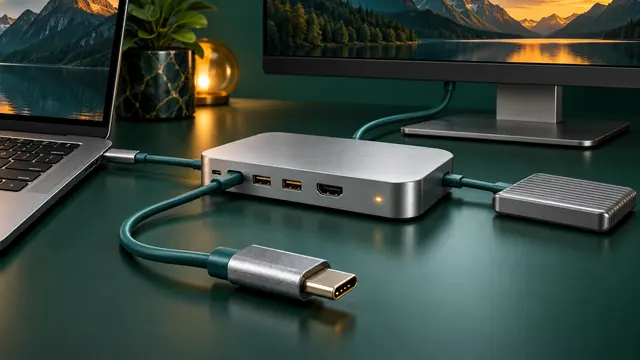
USB-C Dock Not Working? Fix No Display, No Charging, Ethernet, and USB Problems
Troubleshoot USB-C docks by separating power, data, display, cable, host-port, firmware, and driver problems instead of assuming every USB-C port has the same capabilities.
Thunderbolt 5 vs USB4 80Gbps: What Those USB-C Ports Actually Mean
Thunderbolt 5 and USB4 can both use USB-C, but the connector alone tells you almost nothing. Here is what 80Gbps, 120Gbps, displays, PCIe, and charging really mean.
How to Check Laptop Battery Health with the Windows 11 Battery Report
Generate a Windows 11 battery report with powercfg and compare design capacity, full charge capacity, usage history, and estimated battery life.