Fix 'Diagnostics Policy Service Is Not Running' in Windows 8 or 8.1 (Historical)
Troubleshoot the Diagnostics Policy Service on Windows 8/8.1 without granting service accounts unnecessary administrator privileges.
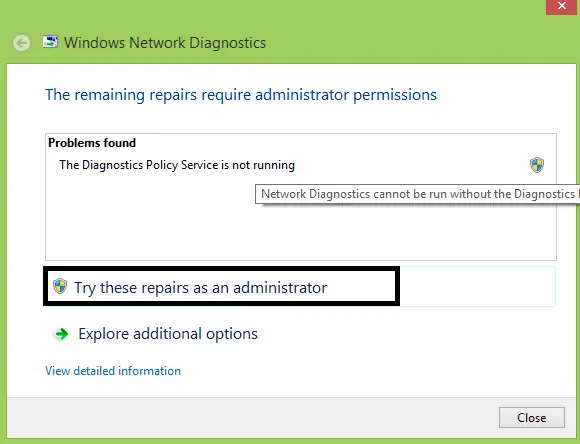
Historical support note: Windows 8 and Windows 8.1 are out of support. This article is retained for legacy PCs.
The Diagnostic Policy Service (DPS) enables Windows to detect and troubleshoot problems. Microsoft documents DPS as an automatically started service. If Windows reports that the service is not running, start with the service itself and system integrity before changing account permissions.
1. Check the Diagnostic Policy Service
- Press Windows + R.
- Type
services.mscand press Enter. - Locate Diagnostic Policy Service.
- Open its properties.
- Make sure the service is not disabled. Its normal startup type is Automatic.
- If it is stopped, select Start.
If the service fails to start, note the error instead of repeatedly changing permissions.
2. Check Windows system files
Open an elevated Command Prompt and run:
sfc /scannowIf the component store may also be damaged, run DISM health and repair commands appropriate for Windows 8/8.1 before running SFC again.
3. Check the network adapter and driver
If the warning appears while troubleshooting a network connection:
- Open Device Manager.
- Expand Network adapters.
- Check the adapter for an error or warning icon.
- Install a compatible driver from the PC, motherboard, or network-adapter manufacturer if necessary.
4. Remove the old administrator-group workaround
An older version of this guide used commands that added the NETWORK SERVICE and LOCAL SERVICE identities to the local Administrators group. That grants broad privileges that are not appropriate as a generic networking fix, so those commands are no longer recommended here.
If DPS still cannot start after the service, driver, and system-file checks, review the service error and Windows event logs rather than widening service-account privileges.
Official reference
Microsoft service guidance for Diagnostic Policy Service: https://learn.microsoft.com/en-us/windows-server/security/windows-services/security-guidelines-for-disabling-system-services-in-windows-server
Related posts
Browse all articles →
Fix Windows Boot Error 0xc0000225 in Windows 10 or 8.1
Troubleshoot boot error 0xc0000225 with Startup Repair first, then repair Boot Configuration Data only when needed.
Fix Windows Update Error 0x80080008 in Windows 8 or 8.1 (Historical)
Historical Windows 8/8.1 troubleshooting for update error 0x80080008, with unsupported-OS context and safer repair steps.
Fix Error 0x800F0906 in Windows 8 or 8.1 (Historical)
Troubleshoot Windows 8/8.1 error 0x800F0906 when Windows cannot download files needed for a feature or component repair.