Fix Sleep Mode Not Working After Upgrading to Windows 8.1 (Historical)
Troubleshoot a Windows 8.1 PC that will not enter sleep by checking available sleep states, active power requests, drivers, and wake-enabled devices.
Historical support note: Windows 8.1 reached end of support on January 10, 2023.
If a PC stopped entering sleep after an upgrade to Windows 8.1, the cause could be a driver, device, application power request, or changed power configuration. The most useful approach is to identify what is blocking sleep before resetting settings at random.
1. Check which sleep states Windows can use
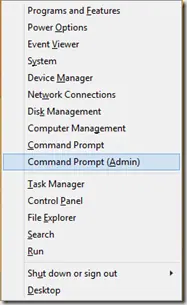
Open an elevated Command Prompt and run:
powercfg /aThis reports the sleep states available on the PC and can explain why a particular state is unavailable.
2. Check for active power requests
Run:
powercfg /requestsWindows lists applications and drivers that are actively requesting that the display or system remain awake. If an entry appears, update, close, or troubleshoot that specific program or device before changing global power settings.
3. Check what can wake the PC
To list devices currently allowed to wake Windows, run:
powercfg /devicequery wake_armedIf a network adapter or another device wakes the PC unexpectedly, open Device Manager, open that device’s properties, and review its Power Management settings where available.
4. Update drivers from the hardware manufacturer
After an operating-system upgrade, check the PC or motherboard manufacturer for Windows 8.1-compatible chipset, graphics, network, storage, and USB drivers.
5. Reset power schemes only if the configuration is damaged
Windows can restore the built-in power schemes with:
powercfg -restoredefaultschemesWarning: this removes custom power schemes and resets power-plan configuration. Use it only when you are prepared to recreate custom settings.
6. Disconnect non-essential devices for testing
Temporarily disconnect optional USB devices and test sleep again. If sleep starts working, reconnect devices one at a time to identify the one associated with the problem.
The previous version of this guide recommended enabling Hybrid Sleep, leaving HomeGroup, and changing multiple adapter settings as general fixes. Those steps are not universal causes of sleep failure and are no longer presented as default remedies.
Official references
- Microsoft
powercfgcommand documentation: https://learn.microsoft.com/en-us/windows-hardware/design/device-experiences/powercfg-command-line-options - Windows 8.1 end of support: https://support.microsoft.com/en-us/windows/windows-8-1-support-ended-on-january-10-2023-3cfd4cde-f611-496a-8057-923fba401e93
Related posts
Browse all articles →
Fix Windows Boot Error 0xc0000225 in Windows 10 or 8.1
Troubleshoot boot error 0xc0000225 with Startup Repair first, then repair Boot Configuration Data only when needed.
Fix Windows Update Error 0x80080008 in Windows 8 or 8.1 (Historical)
Historical Windows 8/8.1 troubleshooting for update error 0x80080008, with unsupported-OS context and safer repair steps.
Fix Error 0x800F0906 in Windows 8 or 8.1 (Historical)
Troubleshoot Windows 8/8.1 error 0x800F0906 when Windows cannot download files needed for a feature or component repair.