Fix a Windows 8 Lock Screen Image That Will Not Change (Historical)
Historical Windows 8 troubleshooting when lock-screen personalization is blocked or the selected image does not appear.
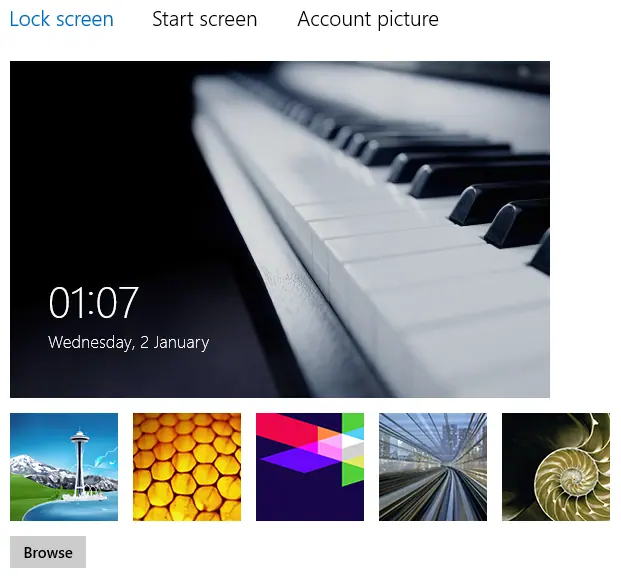
Historical support note: Windows 8 is no longer supported. The policy names in this article are preserved because they explain a genuine reason lock-screen personalization can be blocked.
If Windows 8 says the lock-screen image was changed but the old image remains—or the Browse button does nothing—check policy before editing unrelated registry keys.
1. Check lock-screen Group Policy
On editions that include Local Group Policy Editor:
- Press Windows key + R.
- Run
gpedit.msc. - Go to:
Computer Configuration > Administrative Templates > Control Panel > Personalization
- Check these policies:
- Prevent changing lock screen and logon image
- Force a specific default lock screen and logon image
If either policy is enabled intentionally by an organization, the user may not be allowed to change the image. If this is your own unmanaged PC and the setting was changed accidentally, return the relevant policy to Not Configured.
Windows Home editions may not include Local Group Policy Editor.
2. Test another image and user profile
Try a local JPG/PNG stored in a normal user folder. If another Windows account can change its lock screen normally, the fault is probably profile-specific.
3. Repair system files
From an elevated Command Prompt, run:
sfc /scannowIf Windows components are damaged, System File Checker can restore protected system files.
What was removed from the original article
The earlier version instructed users to create or edit this Explorer namespace CLSID:
{B4FB3F98-C1EA-428d-A78A-D1F5659CBA93}
and set its default value to Other Users. That shell namespace entry is unrelated to lock-screen personalization and has been removed from the troubleshooting flow.
Official references
- Microsoft: lock-screen Group Policy reference: https://learn.microsoft.com/en-us/windows/client-management/mdm/policy-csp-admx-controlpaneldisplay
- Microsoft: System File Checker: https://support.microsoft.com/en-us/windows/experience/backup-recovery/use-the-system-file-checker-tool-to-repair-missing-or-corrupted-system-files
- Microsoft Windows lifecycle status: https://support.microsoft.com/en-us/windows/deployment/updates-lifecycle/what-does-it-mean-if-windows-isn-t-supported
Related posts
Browse all articles →
Fix: Windows Recovery Environment (WinRE) Won't Open in Windows 10
Troubleshoot Windows 10 when Advanced startup or Windows Recovery Environment will not open, using supported WinRE checks and recovery media.
Fix Windows Boot Error 0xc0000225 in Windows 10 or 8.1
Troubleshoot boot error 0xc0000225 with Startup Repair first, then repair Boot Configuration Data only when needed.
Fix Windows Update Error 0x80080008 in Windows 8 or 8.1 (Historical)
Historical Windows 8/8.1 troubleshooting for update error 0x80080008, with unsupported-OS context and safer repair steps.