Fix 'Your PC Did Not Start Correctly' in Windows 10
Use Windows Recovery Environment to repair the 'Your PC did not start correctly' loop in Windows 10 without jumping straight to destructive reset steps.
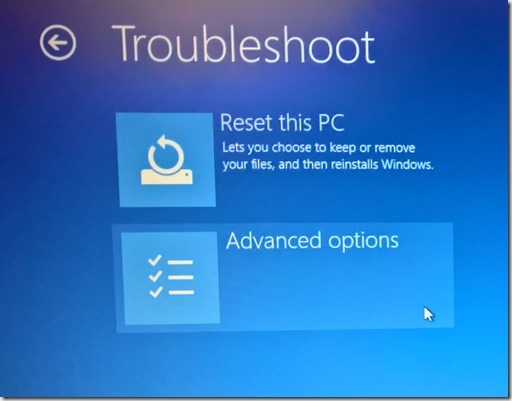
The Your PC did not start correctly screen is part of Windows Automatic Repair. It can appear after an interrupted update, a driver or boot problem, damaged system files, or repeated failed startups.
Work from the least destructive recovery option first.
Windows 10 support note: Windows 10 reached end of normal support on October 14, 2025.
1. Run Startup Repair
From the Automatic Repair screen:
- Select Advanced options.
- Select Troubleshoot > Advanced options > Startup Repair.
- Choose the Windows installation/account if prompted.
- Let Startup Repair finish and restart the PC.
Startup Repair is designed to diagnose common startup problems, including damaged system files and boot configuration data.
2. Try Safe Mode
If Startup Repair does not solve the problem:
- Open Troubleshoot > Advanced options > Startup Settings > Restart.
- Press 4/F4 for Safe Mode or 5/F5 for Safe Mode with Networking.
- If Windows starts, remove or roll back the most recent driver, app, or system change that coincided with the problem.
3. Use System Restore
If a restore point exists:
- Open Troubleshoot > Advanced options > System Restore.
- Select a restore point created before the startup issue began.
- Review affected programs and complete the restore.
System Restore changes system files, drivers, registry settings, and installed programs. It is not intended to delete ordinary personal files.
4. Repair BCD only if the symptoms point to boot configuration
If Startup Repair reports BCD/boot problems, open Advanced options > Command Prompt and start with:
bootrec /scanos
bootrec /rebuildbcd
Do not run a long list of boot-sector commands blindly on every PC; UEFI/GPT and legacy BIOS/MBR systems use different boot layouts.
5. Reset this PC only as a later recovery option
From Troubleshoot > Reset this PC, Windows 10 normally offers:
- Keep my files — reinstalls Windows while retaining personal files, but removes installed apps and resets settings.
- Remove everything — removes personal files as well as apps and settings.
Back up important data first whenever possible. If BitLocker is enabled, make sure you have the recovery key.
Official references
- Startup Repair: https://support.microsoft.com/en-us/windows/experience/startup-boot/startup-repair
- Backup, restore, and recovery in Windows: https://support.microsoft.com/en-us/windows/experience/backup-recovery/backup-restore-and-recovery-in-windows
- Windows startup settings: https://support.microsoft.com/en-us/windows/experience/startup-boot/windows-startup-settings
Related posts
Browse all articles →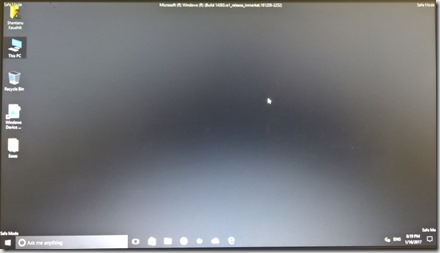
How to Boot Windows 10 into Safe Mode
Step-by-step Windows 10 Safe Mode instructions using Windows Recovery Environment, including Safe Mode with Networking and recovery-media options.
Fix DRIVER_PORTION_MUST_BE_NONPAGED in Windows 10
Troubleshoot the DRIVER_PORTION_MUST_BE_NONPAGED (0xD3) stop error in Windows 10 by isolating drivers and recent hardware changes.

How to Batch Rename Files in Windows with PowerRename and PowerShell
Use Microsoft PowerToys PowerRename or PowerShell to preview and apply advanced bulk file-renaming rules in Windows 10 and 11.