How to Check if Your PC Is Compatible with Windows 11
Check Windows 11 compatibility with Microsoft PC Health Check and verify the key requirements, including TPM 2.0, UEFI, Secure Boot capability, RAM, storage, and CPU support.
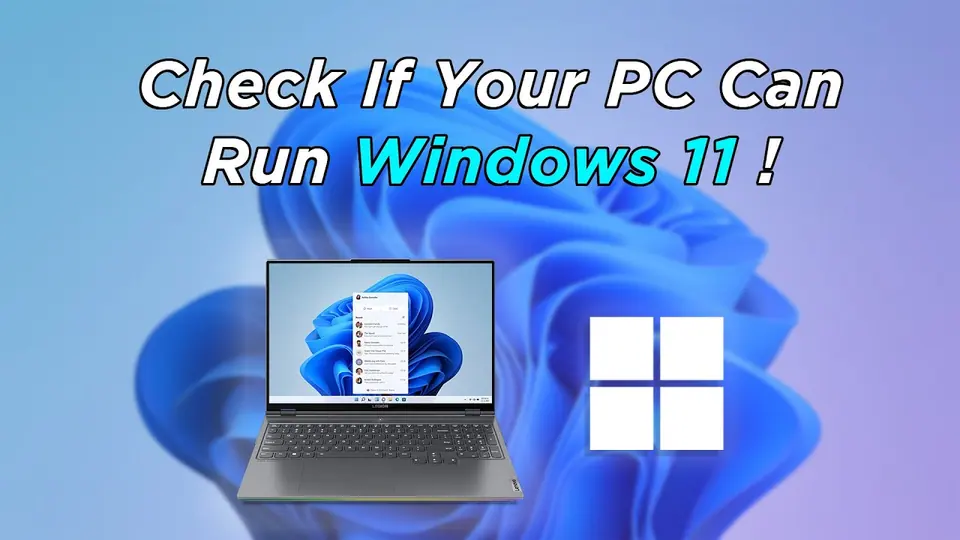
Windows 11 has stricter hardware requirements than Windows 10. The most reliable way to check a PC is to use Microsoft’s PC Health Check app and then investigate any requirement it flags.
Windows 11 minimum hardware requirements
Microsoft currently lists these core requirements:
- Processor: 1 GHz or faster, two or more cores, on a compatible 64-bit processor or SoC
- Memory: 4 GB RAM or more
- Storage: 64 GB or more
- Firmware: UEFI, Secure Boot capable
- TPM: TPM 2.0
- Graphics: DirectX 12 compatible with a WDDM 2.0 driver
- Display: 720p display, larger than 9 inches diagonally, 8 bits per color channel
The processor must also be on Microsoft’s supported processor list for the relevant Windows 11 release.
Method 1: Use PC Health Check
- Download PC Health Check from Microsoft.
- Install and open the app.
- Under the Windows 11 compatibility section, select Check now.
- Review the result and expand any failed requirement.
PC Health Check is preferable to relying only on RAM, storage, or CPU speed because Windows 11 eligibility also depends on TPM, Secure Boot capability, and supported processor generations.
Method 2: Check TPM 2.0 manually
- Press Windows + R.
- Enter
tpm.mscand press Enter. - In TPM Manufacturer Information, look for Specification Version: 2.0.
If Windows says a compatible TPM cannot be found, TPM may be disabled in UEFI/BIOS. Depending on the PC manufacturer, firmware TPM can appear under names such as Intel PTT or AMD fTPM.
Do not change firmware settings blindly. Check the PC or motherboard manufacturer’s documentation first.
Method 3: Check UEFI and Secure Boot
- Press Windows + R.
- Enter
msinfo32and press Enter. - In System Information, check:
- BIOS Mode — Windows 11 expects UEFI.
- Secure Boot State — On is ideal, but the requirement is that the system be Secure Boot capable.
A PC installed in legacy BIOS/CSM mode might need disk-layout or firmware changes before Secure Boot can be enabled. Back up important data before making those changes.
If the PC is not compatible
Microsoft does not recommend installing Windows 11 on devices that do not meet the minimum requirements. Unsupported devices are not supported by Microsoft and are not guaranteed to receive updates, including security updates.
Windows 10 reached end of support on October 14, 2025. If the PC cannot run Windows 11, review Microsoft’s current Windows 10 Extended Security Updates options or consider replacing the device.
Official references
- Microsoft Windows 11 requirements: https://learn.microsoft.com/en-us/windows/whats-new/windows-11-requirements
- Microsoft Windows 11 system requirements: https://support.microsoft.com/en-us/windows/experience/compatibility/windows-11-system-requirements
Related posts
Browse all articles →
How to Use Focus Sessions in Windows 11 for Productivity
Use Focus in Windows 11 to reduce distractions, start timed focus sessions, and connect the Clock app with Spotify and Microsoft To Do.
How to Activate Windows 11 Without Entering a Product Key
Learn when Windows 11 can activate through a digital license without asking you to type a 25-character product key, and when a new license is still required.

How to Change the Desktop Background in Windows 10 and 11
Change your Windows desktop background to a picture, solid color, slideshow, or supported Windows Spotlight background, and adjust how images fit the screen.