How to Fix Wi-Fi Not Working on a Windows Laptop
Troubleshoot Wi-Fi problems in Windows 10 and 11 with Microsoft's recommended sequence, from basic checks and reconnection to network commands, driver repair, and network reset.
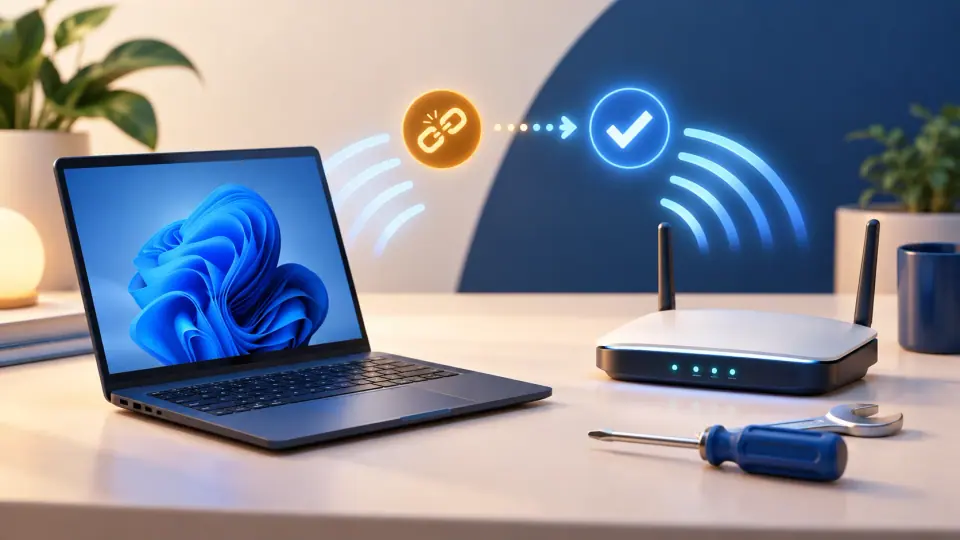
Wi-Fi problems can come from the laptop, the router, the Internet service, a saved network profile, or the wireless driver. The fastest approach is to start with low-risk checks and move to resets only if simpler steps fail.
1. Confirm the problem is really Wi-Fi
- Make sure Wi-Fi is on and Airplane mode is off.
- Try the same network from a phone or another PC.
- If every device is offline, restart the modem/router or contact the ISP.
- If only the Windows laptop is affected, continue below.
2. Run the Windows network troubleshooter
On Windows 11, Microsoft recommends starting with the automated Network and Internet troubleshooter in Get Help.
On Windows 10, use the Network troubleshooter from Settings > Network & Internet > Status.
3. Forget the network and reconnect
- Open Settings > Network & internet > Wi-Fi.
- Open Manage known networks.
- Select the affected Wi-Fi network and choose Forget.
- Reconnect and enter the Wi-Fi password again.
This clears a damaged saved profile or outdated authentication settings.
4. Restart the modem and router
Power off the modem/router, wait at least 30 seconds, then start the modem first and the router afterward. Allow several minutes for them to reconnect before testing the laptop.
5. Reset the Windows network stack
Open Command Prompt as administrator and run these commands in order:
netsh winsock reset
netsh int ip reset
ipconfig /release
ipconfig /renew
ipconfig /flushdns
Restart the PC after the commands complete.
6. Repair the wireless adapter driver
If the problem began after a driver or Windows update:
- Open Device Manager.
- Expand Network adapters.
- Open the Wi-Fi adapter’s Properties > Driver tab.
- If available, try Roll Back Driver.
If that does not help, download the latest Wi-Fi driver from the laptop manufacturer’s support site before uninstalling the adapter. Microsoft recommends having a backup driver available in case Windows cannot reinstall it automatically.
7. Use Network reset only as a last step
Network reset removes and reinstalls network adapters and returns networking settings to their defaults.
- Windows 11: Settings > Network & internet > Advanced network settings > Network reset
- Windows 10: Settings > Network & Internet > Status > Network reset
Afterward you might need to reinstall VPN software or virtual network adapters, and known network profiles may need to be configured again.
Official reference
Related posts
Browse all articles →
How to Use Focus Sessions in Windows 11 for Productivity
Use Focus in Windows 11 to reduce distractions, start timed focus sessions, and connect the Clock app with Spotify and Microsoft To Do.
How to Activate Windows 11 Without Entering a Product Key
Learn when Windows 11 can activate through a digital license without asking you to type a 25-character product key, and when a new license is still required.
How to Check if Your PC Is Compatible with Windows 11
Check Windows 11 compatibility with Microsoft PC Health Check and verify the key requirements, including TPM 2.0, UEFI, Secure Boot capability, RAM, storage, and CPU support.