How to Replace PowerShell with Command Prompt in the Windows 10 Win+X Menu (Historical)
Historical Windows 10 instructions for switching the Win+X menu from Windows PowerShell to Command Prompt. This setting does not describe the current Windows 11 menu.
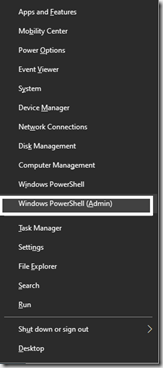
Historical Windows 10 article: This guide documents a Windows 10 taskbar setting that was available when the article was published. Windows 10 reached end of support on October 14, 2025, and Windows 11 uses Windows Terminal in the Win+X menu instead. Do not apply these steps to Windows 11.
Some Windows 10 releases replaced the Command Prompt entries in the Windows + X power-user menu with Windows PowerShell. Windows 10 provided a taskbar option that could switch those menu entries back to Command Prompt.
Change the Windows 10 Win+X menu
-
Open Settings.
-
Go to Personalization > Taskbar.
-
Find the setting labeled similar to:
Replace Command Prompt with Windows PowerShell in the menu when I right-click the Start button or press Windows key + X
-
Turn that setting Off.
-
Press Windows + X again to check the menu.
On the Windows 10 versions that exposed this option, the PowerShell entries were replaced by Command Prompt and Command Prompt (Admin).
If the setting is not present
Windows interface details vary by release. If the toggle is missing, do not use unrelated registry hacks just to recreate it. You can still open Command Prompt directly:
- Open Start/Search.
- Type cmd or Command Prompt.
- Select Run as administrator when elevation is required.
Windows 11 is different
Current Windows 11 uses Windows Terminal as the default command-line host in the Win+X menu. Windows Terminal can host Command Prompt, PowerShell, and other shells in tabs, so replacing PowerShell with Command Prompt in Win+X is no longer the relevant workflow.
Historical verification
Microsoft-hosted community guidance from the Windows 10 period documented the same Settings > Personalization > Taskbar toggle. This article is intentionally preserved as historical Windows 10 guidance rather than being relabeled as Windows 11 instructions.
Related posts
Browse all articles →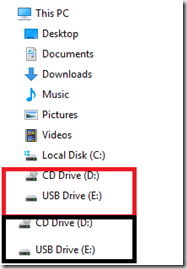
Fix Duplicate Drive Entries in Windows 10 File Explorer (Historical)
Historical Windows 10 registry workaround for the old File Explorer issue that displayed removable drives twice in the navigation pane.

How to Batch Rename Files in Windows with PowerRename and PowerShell
Use Microsoft PowerToys PowerRename or PowerShell to preview and apply advanced bulk file-renaming rules in Windows 10 and 11.
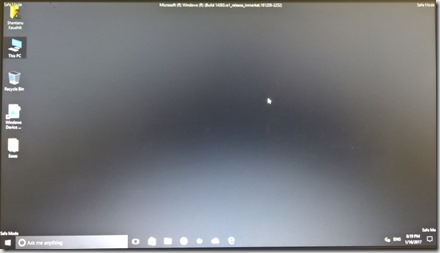
How to Boot Windows 10 into Safe Mode
Step-by-step Windows 10 Safe Mode instructions using Windows Recovery Environment, including Safe Mode with Networking and recovery-media options.