Understanding the Reimagined Task Manager in Windows 8 (Historical)
A tour of the redesigned Windows 8 Task Manager, including Processes, Performance, App history, Startup, Users, Details, and Services.
Historical support note: Windows 8 introduced the Task Manager design that influenced later Windows versions. This article describes the Windows 8 implementation.
Windows 8 substantially redesigned Task Manager. The default view was simplified for quickly closing an app, while More details exposed a much richer set of monitoring and startup-management tools.
Processes
The Processes tab groups running software into apps, background processes, and Windows processes. It shows CPU, memory, disk, and network use so you can identify a process consuming unusual resources.
Performance
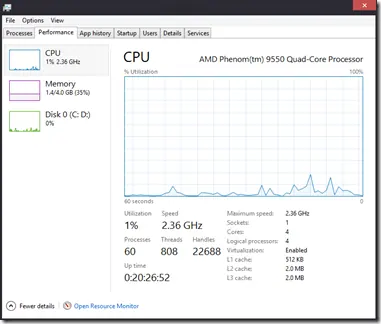
The Performance tab provides live CPU, memory, disk, and network graphs. On supported hardware, the CPU view also exposes details such as logical processors, cache information, and virtualization status.
App history
App history tracks resource usage primarily for Windows Store/modern apps. It was particularly useful for seeing accumulated CPU time and network activity.
Startup
Windows 8 moved common startup-app control into Task Manager. Select an entry on the Startup tab and choose Disable to stop that app’s registered startup entry from launching automatically.
Task Manager also estimates startup impact. Microsoft documents that this impact classification is based on CPU time and disk I/O used during startup.
Users, Details, and Services
- Users shows signed-in users and the processes/resources associated with them.
- Details provides the more granular process view familiar to advanced users.
- Services lists Windows services and lets administrators inspect or start/stop appropriate services.
Do not stop an unfamiliar Windows service just because it is running. Many are required by the operating system or other applications.
Official references
- Microsoft: Startup apps and Task Manager startup impact: https://learn.microsoft.com/en-us/windows/win32/w8cookbook/startup-apps
- Microsoft Windows lifecycle status: https://support.microsoft.com/en-us/windows/deployment/updates-lifecycle/what-does-it-mean-if-windows-isn-t-supported
Related posts
Browse all articles →
How to Use a Clean Boot in Windows 7 and Vista — Historical Guide
Historical Windows 7 and Vista clean-boot procedure for isolating background service and startup-program conflicts.

Fix Brightness Controls or Hotkeys Not Working in Windows 8, 7, Vista, or XP — Historical Guide
Historical troubleshooting for laptop brightness sliders and function keys that stop working on older Windows versions.
Fix 'BOOTMGR Is Missing' in Windows 7 and Vista — Historical Guide
Historical Windows 7 and Vista recovery guide for the “BOOTMGR is missing” startup error, using boot-order checks, Startup Repair, System Restore, and BCD repair when appropriate.