How to Run the Windows Update Troubleshooter in Windows 10
Run Microsoft's Windows Update troubleshooter on Windows 10 and follow the supported recovery sequence after it finishes.
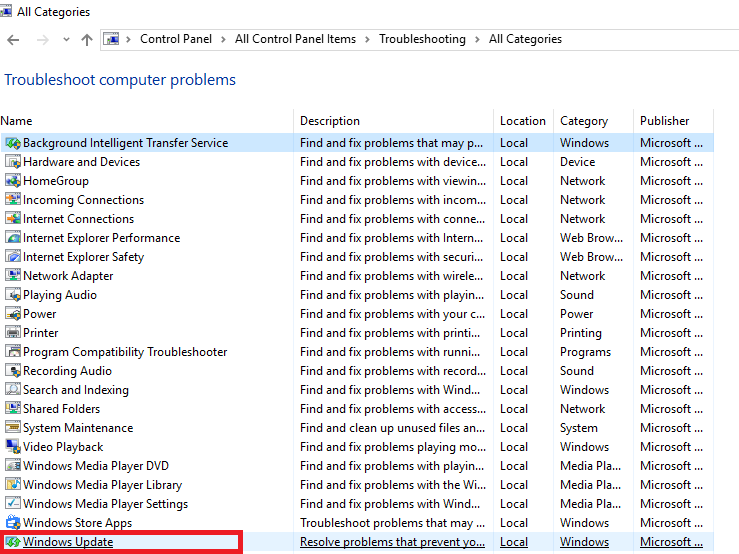
The Windows Update troubleshooter can detect and repair several common update-service and configuration problems in Windows 10.
Windows 10 support note: Microsoft ended normal support for Windows 10 on October 14, 2025. A troubleshooter can repair the local Windows Update components, but it cannot make unsupported devices eligible for updates they are no longer offered.
Method 1: Use the Get Help troubleshooter
On a Windows 10 PC where Get Help is available:
- Open Get Help.
- Search for Windows Update troubleshooter.
- Run the automated diagnostic and follow its recommendations.
Method 2: Use the Windows 10 Settings troubleshooter
On Windows 10 builds that still expose the Settings-based troubleshooter:
- Open Start > Settings > Update & Security.
- Select Troubleshoot > Additional troubleshooters.
- Select Windows Update.
- Select Run the troubleshooter.
- Apply any recommended fixes.
- Restart the PC.
- Return to Settings > Update & Security > Windows Update and check for updates again.
The original version of this article used the older Control Panel troubleshooter. Later Windows 10 releases moved the normal consumer workflow into Settings and Get Help.
Official reference
Microsoft Windows Update Troubleshooter: https://support.microsoft.com/en-us/windows/windows-update-troubleshooter-19bc41ca-ad72-ae67-af3c-89ce169755dd
Related posts
Browse all articles →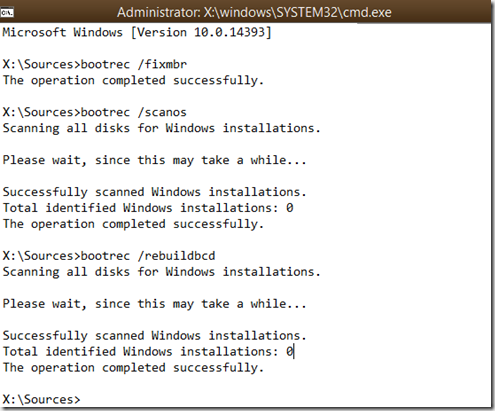
How to Rebuild the BCD in Windows 10 or Windows 8.1
Repair Boot Configuration Data from Windows Recovery Environment, using Startup Repair first and Bootrec or BCDBoot only when needed.
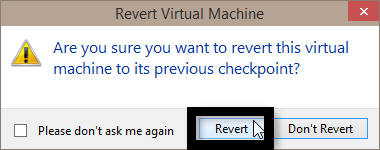
How to Apply a Hyper-V Checkpoint in Windows 10
Restore a Hyper-V virtual machine to an existing checkpoint in Windows 10 and understand the difference between Apply and Create Checkpoint and Apply.
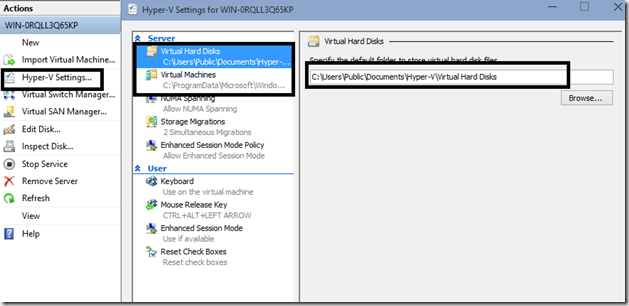
How to Set Up Hyper-V in Windows 10 Insider Preview (Historical)
A historical Windows 10 Insider Preview guide to opening Hyper-V Manager, connecting to the local host, and configuring default virtual-machine storage paths.