Fix Windows Update Error 0x8000FFFF in Windows 7 and Vista — Historical Guide
Historical troubleshooting for Windows Update error 0x8000FFFF in Windows 7 and Vista, with safer cache and system-integrity checks.
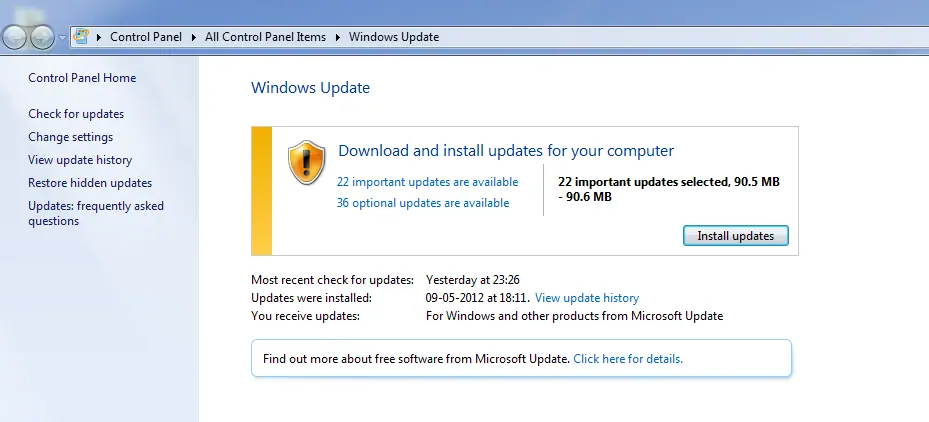
Historical support note: Windows 7 and Vista no longer receive normal consumer security updates. This article is retained for legacy-system maintenance, not as current Windows Update guidance.
Error 0x8000FFFF is a broad unexpected-failure code. When it appears in Windows Update, the failing package, servicing state, or update cache matters; the code alone does not identify one universal cause.
1. Restart and retry the specific update
Restart Windows, disconnect unnecessary external devices, and try the failed update again. Check that the system date and time are sensible.
2. Check system files
Open an elevated Command Prompt and run:
sfc /scannowIf protected Windows files are damaged, repair them before continuing with update-cache resets.
3. Rebuild the Windows Update download cache only if necessary
If repeated downloads of the same package fail, stop the Windows Update service before renaming the SoftwareDistribution folder, then restart the service. Renaming is safer than immediately deleting the folder because it leaves a rollback copy.
Do not clear update caches simply because 0x8000FFFF appears in another component such as System Restore; Microsoft has documented this same code for unrelated failures.
4. Treat unsupported Windows as a legacy system
If the goal is to bring an Internet-connected Windows 7 or Vista machine up to a secure current state, troubleshooting one old update does not restore vendor support. Plan migration to a supported OS.
Official references
- Microsoft: System File Checker: https://support.microsoft.com/en-us/windows/experience/backup-recovery/use-the-system-file-checker-tool-to-repair-missing-or-corrupted-system-files
- Microsoft: Example of 0x8000FFFF used by a different Windows 7 recovery failure: https://support.microsoft.com/en-us/topic/-e-unexpected-0x8000ffff-error-when-you-try-to-restore-a-system-by-using-system-recovery-options-in-windows-7-88b19266-bf5d-2c49-7817-bfe47ed75fa6
- Microsoft: Windows support lifecycle: https://support.microsoft.com/en-us/windows/deployment/updates-lifecycle/what-does-it-mean-if-windows-isn-t-supported
Related posts
Browse all articles →
Fix: Mouse or Touchpad Pointer Jumps While Typing in Windows 8, 7, Vista, or XP (Historical)
Historical troubleshooting for laptop touchpad cursor jumps, focusing on palm rejection, OEM drivers, sensitivity, charger interference, and hardware isolation.

Fix Hardware Devices Not Detected in Windows 8, 7, Vista, or XP — Historical Guide
Historical device-detection troubleshooting for older Windows versions using connection checks, Device Manager, OEM drivers, and hardware diagnostics.

Fix File or Folder 'Access Denied' in Windows 7, Vista, or XP — Historical Guide
Historical guide to diagnosing NTFS ownership and permission errors after reinstalling or moving drives, with encryption and file-system cautions.