Using the Share Charm in Windows 8 — Video Guide (Historical)
Historical Windows 8 guide to sharing content from compatible apps through the Share charm.
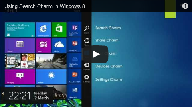
Historical support note: The Share charm belongs to the Windows 8 Charms interface and is retained here for legacy reference.
The Share charm let compatible Windows Store apps hand content to another app without requiring you to leave the app you were using.
How the Share charm worked
- Open content in a Windows 8 app that supports sharing.
- Swipe in from the right edge, or press Windows key + C.
- Select Share.
- Choose one of the apps offered as a share target.
What you can share depends on the app. A browser-style app might expose a link, while a photo app might expose an image.
The important limitation is that sharing was app-dependent. The original article described it as working from virtually anywhere, but Windows 8 apps had to participate in the Share contract for the feature to be available.
Historical context
Modern Windows versions use app-specific Share commands and the Windows share sheet rather than the old Charms bar.
Official reference
- Microsoft Windows lifecycle status: https://support.microsoft.com/en-us/windows/deployment/updates-lifecycle/what-does-it-mean-if-windows-isn-t-supported
Related posts
Browse all articles →Using the Search Charm in Windows 8 — Video Guide (Historical)
Historical Windows 8 guide to using the Search charm for apps, settings, and files.
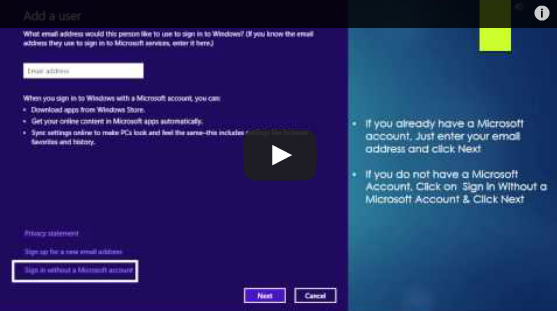
Set Up and Sync a Microsoft Account in Windows 8 (Historical)
Historical Windows 8 guide to adding a Microsoft account and enabling the operating system's original settings-sync experience across Windows 8 devices.
How to Use the Settings Charm in Windows 8 — Video Guide (Historical)
Historical Windows 8 video guide to the Settings charm, including app-specific settings and common system controls.