Set Up and Sync a Microsoft Account in Windows 8 (Historical)
Historical Windows 8 guide to adding a Microsoft account and enabling the operating system's original settings-sync experience across Windows 8 devices.
- Applies to Windows 8
- 2 min read
View article illustration
Historical support note: Windows 8 is no longer supported. This article documents the account and synchronization experience as it existed in 2013.
Windows 8 introduced deeper integration with a Microsoft account. Signing in with one could connect the Windows Store and allow selected settings to synchronize between Windows 8 devices using the same account.
Add a Microsoft account in Windows 8
The original Windows 8 interface used the Start screen and PC settings/account controls:
- Make sure the PC is connected to the Internet.
- Open the Start screen and search for the user/account settings.
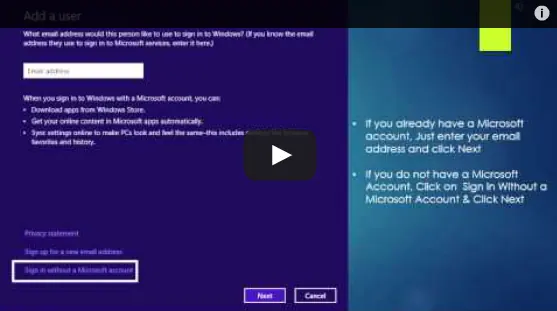
- Choose the option to Add a user or add an account.
- Enter the email address associated with the Microsoft account.
- Complete the on-screen account-verification steps.
- Sign out, then sign in with the Microsoft account.
Microsoft accounts were not limited to hotmail.com, live.com, or outlook.com; users could create a Microsoft account associated with another email address as well.
Turn on settings sync
In the Windows 8 PC settings, users could enable synchronization and choose which categories of Windows settings were allowed to roam between devices.
The exact categories and cloud services changed substantially in later Windows releases, so screenshots and sync options from this article should not be reused as current Windows 10/11 instructions.
Historical video
The recovered article references the original video demonstration:
https://www.youtube.com/watch?v=xlaY4JtnTvg
Treat it as an archive of the Windows 8 UI.
Official reference
- Microsoft Windows lifecycle status: https://support.microsoft.com/en-us/windows/deployment/updates-lifecycle/what-does-it-mean-if-windows-isn-t-supported
Related posts
Browse all articles →
Using the Search Charm in Windows 8 — Video Guide (Historical)
Historical Windows 8 guide to using the Search charm for apps, settings, and files.
How to Use the Settings Charm in Windows 8 — Video Guide (Historical)
Historical Windows 8 video guide to the Settings charm, including app-specific settings and common system controls.
Using the Share Charm in Windows 8 — Video Guide (Historical)
Historical Windows 8 guide to sharing content from compatible apps through the Share charm.