Enable Automatic Sign-In in Windows 8 (Historical, Security Risk)
Historical Windows 8 guide to automatic sign-in, with a clear explanation that autologon stores reusable credentials and reduces physical-access security.
Historical support note: Windows 8 is out of support. Automatic sign-in is also a security trade-off and should not be used on a shared, portable, or physically accessible PC.
Windows can be configured to sign in to an account automatically at startup. This does not remove the account password; Windows stores information that allows Winlogon to submit the credentials automatically.
Historical Windows 8 method
On Windows 8, the original UI could be opened with:
- Press Windows + R.
- Run:
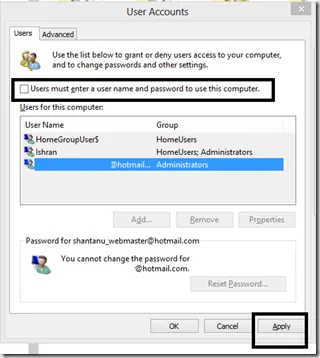
control userpasswords2- Select the account.
- Clear Users must enter a user name and password to use this computer.
- Select Apply.
- Enter the account password when prompted.
- Restart and test.
To undo the configuration, return to the same dialog and require users to enter credentials again.
Security implications
Automatic logon means anyone who can start the computer can reach the user’s desktop without knowing the password. It is unsuitable for laptops, shared PCs, work computers, or systems containing sensitive information.
Microsoft’s current Sysinternals Autologon documentation also warns that even when the stored password is protected as an LSA secret, a user with administrative rights can retrieve and decrypt it.
This is a convenience feature, not a way to make an account passwordless.
Official references
- Microsoft Sysinternals Autologon: https://learn.microsoft.com/en-us/sysinternals/downloads/autologon
- Microsoft automatic logon documentation: https://learn.microsoft.com/en-us/troubleshoot/windows-server/user-profiles-and-logon/turn-on-automatic-logon
- Microsoft Windows lifecycle status: https://support.microsoft.com/en-us/windows/deployment/updates-lifecycle/what-does-it-mean-if-windows-isn-t-supported
Related posts
Browse all articles →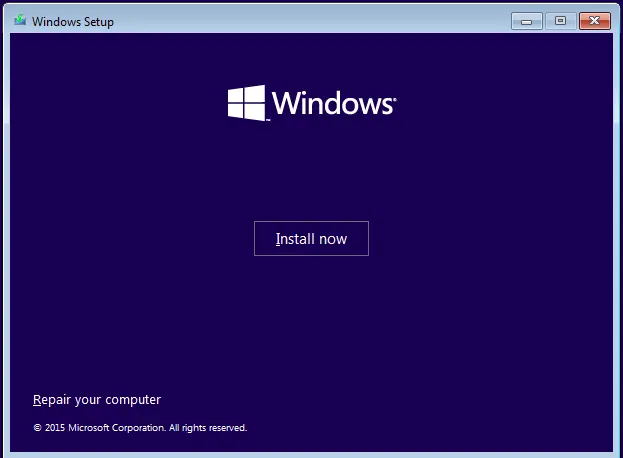
Fix: Windows Recovery Environment (WinRE) Won't Open in Windows 10
Troubleshoot Windows 10 when Advanced startup or Windows Recovery Environment will not open, using supported WinRE checks and recovery media.
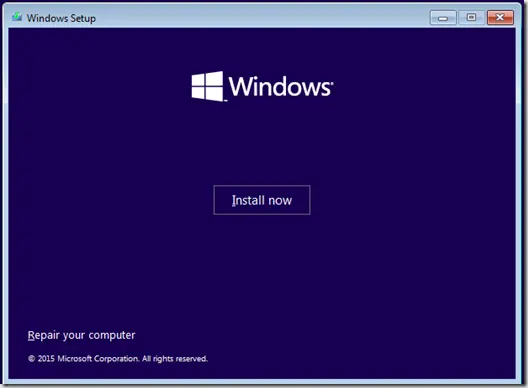
Fix Windows Boot Error 0xc0000225 in Windows 10 or 8.1
Troubleshoot boot error 0xc0000225 with Startup Repair first, then repair Boot Configuration Data only when needed.
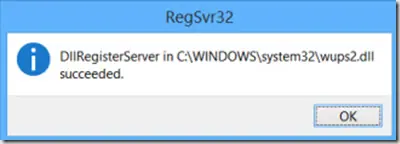
Fix Windows Update Error 0x80080008 in Windows 8 or 8.1 (Historical)
Historical Windows 8/8.1 troubleshooting for update error 0x80080008, with unsupported-OS context and safer repair steps.