Clear Stuck Print Jobs in Windows 7, Vista, and XP — Historical Guide
Historical guide to clearing frozen print jobs in Windows 7, Vista, and XP by canceling the queue, restarting the spooler, and clearing spool files when necessary.

Historical support note: Windows 7, Vista, and XP are out of support. The print-spooler reset concept still exists in current Windows, but menus differ.
If a print job is stuck and cannot be canceled, work from the queue toward the spooler before reinstalling the printer.
1. Cancel the queue normally
Open Devices and Printers, open the affected printer, and cancel the stuck job or choose Cancel all documents. Give Windows a moment to process the request.
2. Restart the Print Spooler
Open services.msc, find Print Spooler, and restart the service.
3. Clear spool files if jobs remain stuck
If the queue still will not clear:
- Stop the Print Spooler service.
- Open
%WINDIR%\System32\spool\PRINTERS. - Delete the files in that folder.
- Start the Print Spooler service again.
This removes queued print jobs; it does not delete the original documents you were trying to print.
4. Reinstall the printer only if needed
If the spooler repeatedly crashes or jobs become stuck again, reinstall the printer using the correct driver for the legacy OS and printer model.
Official references
- Microsoft: Fix print spooler service errors: https://support.microsoft.com/en-us/windows/hardware/printer/fix-print-spooler-service-not-running-errors-in-windows
- Microsoft: Windows support lifecycle: https://support.microsoft.com/en-us/windows/deployment/updates-lifecycle/what-does-it-mean-if-windows-isn-t-supported
Related posts
Browse all articles →
Troubleshoot Printer Problems in Windows — Historical Guide
Historical Windows printer troubleshooting covering power, cables, network connectivity, queues, spooler resets, drivers, and hardware isolation.
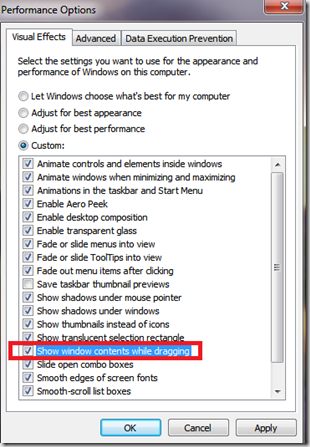
Fix Windows Turning Transparent While Dragging or Resizing (Windows XP–8, Historical)
Historical troubleshooting for Windows XP through Windows 8 when window contents disappear or appear transparent while dragging or resizing.
Fix PAGE_FAULT_IN_NONPAGED_AREA (0x50) in Windows 7/Vista/XP (Historical)
Historical troubleshooting for PAGE_FAULT_IN_NONPAGED_AREA (0x50), focusing on faulty drivers/services, antivirus software, NTFS corruption, and failing memory or hardware.