Fix Duplicate Drive Entries in Windows 10 File Explorer (Historical)
Historical Windows 10 registry workaround for the old File Explorer issue that displayed removable drives twice in the navigation pane.
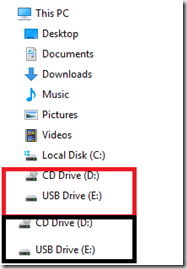
Historical Windows 10 workaround: This article documents a File Explorer issue seen on older Windows 10 builds. Windows 10 reached end of normal support on October 14, 2025. Do not apply this registry change unless your PC shows the exact duplicate removable-drive symptom described here.
Some Windows 10 systems displayed a removable drive twice in File Explorer’s navigation pane. An old workaround removes the shell namespace entry responsible for the second navigation-pane listing.
Before editing the registry
Create a restore point and export the registry key you are about to modify. Registry changes are immediate, and deleting the wrong key can affect File Explorer or other parts of Windows.
Remove the duplicate removable-drive namespace entry
- Open Start, type
regedit, and run Registry Editor as administrator. - Go to:
HKEY_LOCAL_MACHINE\SOFTWARE\Microsoft\Windows\CurrentVersion\Explorer\Desktop\NameSpace\DelegateFolders- Look for this subkey:
{F5FB2C77-0E2F-4A16-A381-3E560C68BC83}- Export that subkey first as a backup.
- Delete only that subkey.
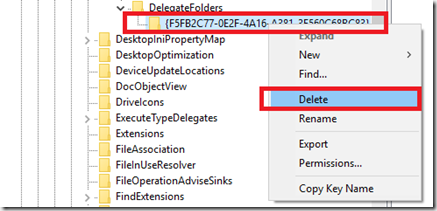
On 64-bit Windows 10, the duplicate entry may also be associated with the same CLSID under:
HKEY_LOCAL_MACHINE\SOFTWARE\Wow6432Node\Microsoft\Windows\CurrentVersion\Explorer\Desktop\NameSpace\DelegateFoldersIf that path contains the same {F5FB2C77-0E2F-4A16-A381-3E560C68BC83} subkey, export it before deleting it.
Restart File Explorer or restart the PC and check the navigation pane again.
When not to use this tweak
Stop if the CLSID is not present or if the duplicate item is not a removable drive. Duplicate drive letters can also come from disk-management, mount-point, or third-party shell issues, and those require different troubleshooting.
This registry workaround is retained as historical guidance; it is not a current Microsoft-supported fix for every duplicate-drive problem.
Official safety reference
Microsoft registry backup guidance: https://support.microsoft.com/en-us/windows/experience/backup-recovery/how-to-back-up-and-restore-the-registry-in-windows
Related posts
Browse all articles →
How to Replace PowerShell with Command Prompt in the Windows 10 Win+X Menu (Historical)
Historical Windows 10 instructions for switching the Win+X menu from Windows PowerShell to Command Prompt. This setting does not describe the current Windows 11 menu.

How to Batch Rename Files in Windows with PowerRename and PowerShell
Use Microsoft PowerToys PowerRename or PowerShell to preview and apply advanced bulk file-renaming rules in Windows 10 and 11.
How to Boot Windows 10 into Safe Mode
Step-by-step Windows 10 Safe Mode instructions using Windows Recovery Environment, including Safe Mode with Networking and recovery-media options.