Fix 'USB Device Not Recognized' in Windows 7, Vista, and XP — Historical Guide
Historical USB troubleshooting for Windows 7, Vista, and XP, covering ports, hubs, power, drivers, chipset support, and device isolation.

Historical support note: Windows 7, Vista, and XP are out of support.
A USB device not recognized message can come from the device itself, a cable, a USB hub, insufficient power, a damaged port, or the Windows USB/chipset driver stack.
1. Isolate the hardware first
- Disconnect the device and reconnect it after a few seconds.
- Try a different USB port.
- If a hub is in use, connect the device directly to the PC.
- Try a different known-good cable when the device uses a removable cable.
- Test the USB device on another computer if possible.
2. Restart Windows
A restart can clear a stuck USB-controller state without changing drivers.
3. Check Device Manager
Look for an Unknown Device or a warning icon under USB controllers or the device’s normal category. Reinstall or update the specific affected device/controller rather than uninstalling every USB Root Hub at once.
4. Install the correct chipset/USB driver
For a legacy PC, use the system or motherboard manufacturer’s driver package for that exact model. Old Fix It and hotfix download links should not be replaced with files from third-party mirrors.
5. Consider power-management symptoms
If the device works after boot but disappears after sleep, USB power management may be involved. Change power-management settings only for the controller/hub tied to the symptom.
Official references
- Microsoft: Basic USB/hardware connection troubleshooting: https://support.microsoft.com/en-US/Windows/Hardware/input-devices/mouse-and-keyboard-problems-in-windows
- Microsoft: Windows support lifecycle: https://support.microsoft.com/en-us/windows/deployment/updates-lifecycle/what-does-it-mean-if-windows-isn-t-supported
Related posts
Browse all articles →
SSD Performance Tips for Windows 8, 7, Vista, and XP — Historical Guide
Updated historical SSD guidance explaining AHCI, TRIM, Windows drive optimization, indexing, write caching, and what not to disable on modern SSD-aware Windows releases.

Fix 'Windows Explorer Has Stopped Working' in Windows 7, Vista, and XP — Historical Guide
Historical troubleshooting for repeated Windows Explorer crashes in Windows 7, Vista, and XP, using system-file checks, clean boot, restore, and driver/app isolation.
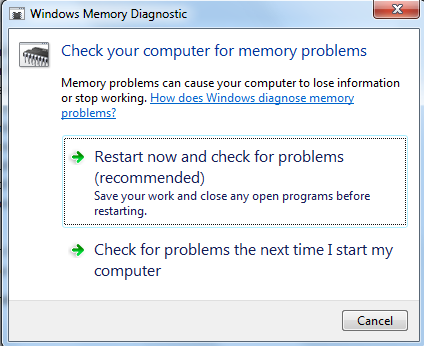
Use Windows Memory Diagnostic to Test RAM — Historical Guide
Guide to running Windows Memory Diagnostic on legacy Windows systems to check for memory errors, including Standard and Extended test options.