Troubleshoot Flickering or Lines on a PC Display — Windows 8/7/Vista/XP Historical Guide
Historical troubleshooting for flickering, scrambled graphics, or lines across a PC display, separating driver/app faults from cables, monitors, GPUs, and laptop display hardware.

Historical support note: This article spans Windows 8, 7, Vista, and XP. Those releases are out of support, but the hardware-isolation principles remain useful.
Flickering, horizontal/vertical lines, or a scrambled image can be caused by the graphics driver, an incompatible application, a loose/damaged cable, the monitor/panel, or the GPU itself.
1. Decide whether the problem is software or hardware
If the distortion appears only after Windows loads, a driver or application is more likely. If it is visible in firmware setup, on the manufacturer’s splash screen, or on another operating system, hardware becomes much more likely.
2. Test the display path
For a desktop:
- Reseat or replace the display cable.
- Test the monitor on another computer.
- Test the PC with another monitor.
- If the system has both integrated and add-in graphics and the hardware supports safe switching, use that comparison to isolate the GPU.
For a laptop, connect an external display. If the external image is clean while the built-in panel flickers—especially when the lid moves—the panel cable, hinge area, or panel itself may need service.
3. Check the graphics driver
If the problem began after a driver change, roll back that change. Otherwise install the graphics driver recommended by the PC or GPU manufacturer for the exact legacy system.
Do not open a laptop display assembly merely to “reseat” a cable unless the manufacturer provides service instructions and you are equipped to work safely.
Official references
- Microsoft: Troubleshoot screen flickering in Windows: https://support.microsoft.com/en-us/windows/hardware/display-graphics/troubleshoot-screen-flickering-in-windows
- Microsoft: Windows support lifecycle: https://support.microsoft.com/en-us/windows/deployment/updates-lifecycle/what-does-it-mean-if-windows-isn-t-supported
Related posts
Browse all articles →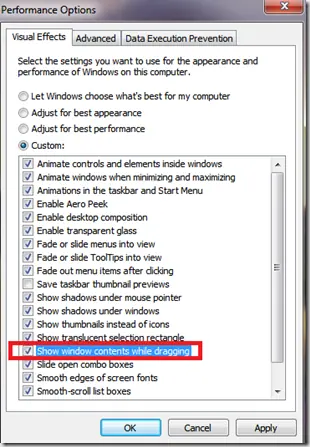
Fix Windows Turning Transparent While Dragging or Resizing (Windows XP–8, Historical)
Historical troubleshooting for Windows XP through Windows 8 when window contents disappear or appear transparent while dragging or resizing.

Keyboard and Mouse Stop Working After Windows Sign-In (XP–8, Historical)
Safer legacy troubleshooting for a keyboard or mouse that works before Windows loads but stops responding at or after sign-in.
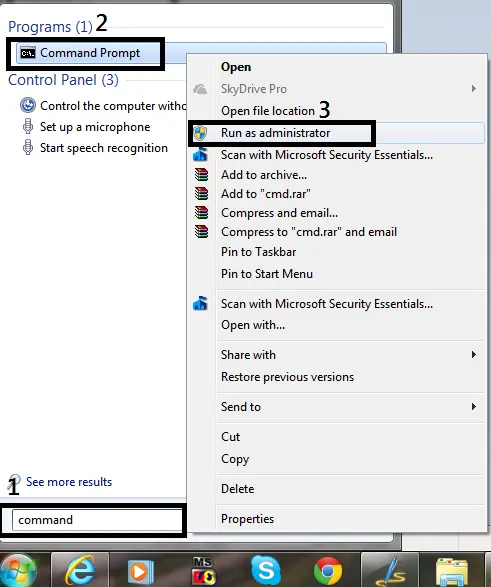
How to Open Command Prompt as Administrator in Windows 8, 7, and Vista (Historical)
Historical guide to opening an elevated Command Prompt in Windows 8, Windows 7, and Windows Vista.