Fix Folder View Settings That Keep Resetting in Windows 7/Vista (Historical)
Historical troubleshooting for Windows 7/Vista when Explorer repeatedly forgets saved folder-view settings.
Historical support note: This guide covers Windows 7 and Windows Vista, both of which are no longer supported.
Windows Explorer stores folder-view preferences so folders can remember choices such as icon size, details view, column layout, and folder template. If those settings repeatedly reset, start with the least destructive fixes.
1. Reset the affected folder type
Open Folder Options, go to the View tab, and use Reset Folders for the folder type that is behaving incorrectly. Then set the view again and test.
2. Check whether the problem is profile-specific
Create or use another Windows user account and see whether Explorer remembers views there. If the second profile works correctly, the issue is likely in the original user’s Explorer settings rather than a system-wide fault.
3. Advanced reset of saved folder views
Older Windows versions store saved folder views in registry locations commonly known as Bags and BagMRU. Deleting those values resets Explorer’s remembered views.
Only use this as an advanced last step:
- Export the affected registry keys first.
- Reset only the current user’s Explorer view data.
- Sign out or restart Explorer/Windows.
- Reconfigure the folder views you want.
The original article also increased BagMRU Size to 5000 or 10000. That tweak was historically used when Windows reached its folder-view cache limit, but it should not be the first response to every folder-view problem.
The old Microsoft Fix it package referenced by the original article is no longer a current support path.
Official reference
- Microsoft Windows lifecycle status: https://support.microsoft.com/en-us/windows/deployment/updates-lifecycle/what-does-it-mean-if-windows-isn-t-supported
Related posts
Browse all articles →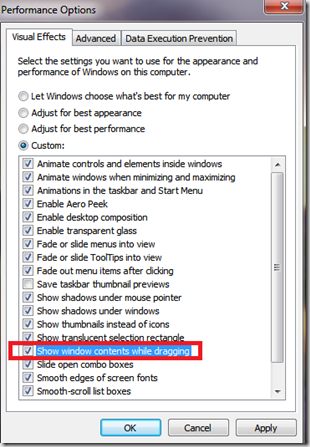
Fix Windows Turning Transparent While Dragging or Resizing (Windows XP–8, Historical)
Historical troubleshooting for Windows XP through Windows 8 when window contents disappear or appear transparent while dragging or resizing.
Fix PAGE_FAULT_IN_NONPAGED_AREA (0x50) in Windows 7/Vista/XP (Historical)
Historical troubleshooting for PAGE_FAULT_IN_NONPAGED_AREA (0x50), focusing on faulty drivers/services, antivirus software, NTFS corruption, and failing memory or hardware.

Keyboard and Mouse Stop Working After Windows Sign-In (XP–8, Historical)
Safer legacy troubleshooting for a keyboard or mouse that works before Windows loads but stops responding at or after sign-in.