Fix a Recycle Bin Icon That Does Not Refresh in Windows Vista or XP (Historical)
Historical troubleshooting for a Recycle Bin icon that remains stuck in its full or empty state in Windows Vista or Windows XP.

Historical support note: Windows Vista and Windows XP are no longer supported. This guide is retained only for legacy installations.
If the Recycle Bin works but its desktop icon stays stuck on full or empty, first reset the icon through the desktop customization controls instead of importing an old registry script.
Windows Vista
- Right-click the desktop and select Personalize.
- Select Change desktop icons.
- Select Recycle Bin (full) and choose Restore Default.
- Select Recycle Bin (empty) and choose Restore Default.
- Apply the changes.
If that does not refresh the icon, temporarily clear the Recycle Bin check box, apply the change, then enable it again.
Windows XP
Open Display Properties > Desktop > Customize Desktop and use the desktop-icon controls to restore or reselect the Recycle Bin icons.
If the problem remains
Restart Windows Explorer or sign out and back in. If other shell icons are also corrupted, the issue may be broader than the Recycle Bin icon itself.
The original article relied on a retired Microsoft Fix it package and a large hand-written registry import. Those methods have been removed because the UI reset is safer and easier to reverse.
Official reference
- Microsoft Windows lifecycle status: https://support.microsoft.com/en-us/windows/deployment/updates-lifecycle/what-does-it-mean-if-windows-isn-t-supported
Related posts
Browse all articles →
Fix Windows Setup Error 0x80FE0000 or 0x80FF0000 in Windows 7/Vista (Historical)
Historical troubleshooting for Windows Setup errors 0x80FE0000/0x80FF0000 and 'could not set the offline locale information,' with destructive disk steps removed from the default workflow.
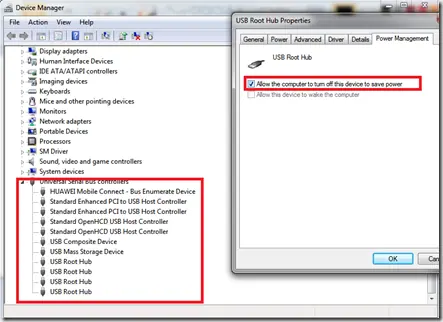
Troubleshoot Stop 0x9F or 0xFE on AMD-Based Windows 7/Vista PCs (Historical)
Historical troubleshooting for Windows 7/Vista systems that crash with 0x9F or 0xFE around sleep or USB activity, with the two bug checks correctly separated.
Troubleshoot 0x10E or 0xC1 Blue Screens in Windows 7/Vista (Historical)
Historical guidance for Windows 7/Vista crashes with VIDEO_MEMORY_MANAGEMENT_INTERNAL (0x10E) or SPECIAL_POOL_DETECTED_MEMORY_CORRUPTION (0xC1).