Fix Windows Setup Error 0x80FE0000 or 0x80FF0000 in Windows 7/Vista (Historical)
Historical troubleshooting for Windows Setup errors 0x80FE0000/0x80FF0000 and 'could not set the offline locale information,' with destructive disk steps removed from the default workflow.
Historical support note: Windows Vista support ended in 2017 and Windows 7 support ended in 2020. This guide is retained for legacy installation recovery only.
The original article described 0x80FE0000 and 0x80FF0000 as blue-screen stop errors during Windows 7/Vista setup. Microsoft community records associate at least 0x80FE0000 with the setup message “Windows could not set the offline locale information.” These values should therefore be treated as Windows Setup errors rather than ordinary Windows bug-check codes.
Because Microsoft does not publish a single universal repair for these codes, troubleshoot the installation methodically instead of immediately repartitioning the disk.
1. Check the installation media
If installing from DVD, inspect the disc for damage. If possible, recreate the installation media from a known-good Windows image and use a reliable USB drive or optical disc.
Do not use modified or untrusted installation images.
2. Check Windows Setup logs
Windows Setup records detailed logs that can identify the phase and component that failed. Depending on the setup phase, useful logs include setupact.log and setuperr.log under Windows Setup’s Panther directories.
Review the logged error before assuming the disk layout is the cause.
3. Check the target disk for errors
From Windows installation or recovery media, open Command Prompt and identify the correct target volume before running disk checks.
For example:
chkdsk D: /fReplace D: with the actual target volume. Drive letters in the setup environment may differ from the letters used by an installed Windows system.
If the drive reports repeated errors or hardware diagnostics fail, replace or repair the storage device before reinstalling Windows.
4. Recreate partitions only when you intend a clean install
Deleting or cleaning partitions destroys data. Do not use diskpart clean as a routine first step.
If you have already backed up everything and intentionally want a clean installation, use Windows Setup to delete/recreate the target partitions in a way that matches the firmware mode and disk layout.
5. Check firmware and storage-controller settings
Unexpected changes to SATA/AHCI/RAID settings can affect setup. Use the configuration recommended by the PC or motherboard manufacturer; do not switch modes blindly on a disk that already contains data.
Official references
- Microsoft Windows Setup log files: https://learn.microsoft.com/en-us/troubleshoot/windows-client/setup-upgrade-and-drivers/windows-setup-log-file-locations
- Microsoft
chkdsk: https://learn.microsoft.com/en-us/windows-server/administration/windows-commands/chkdsk - Microsoft Windows lifecycle status: https://support.microsoft.com/en-us/windows/deployment/updates-lifecycle/what-does-it-mean-if-windows-isn-t-supported
Related posts
Browse all articles →
SSD/HDD Partition Alignment in Windows 8, 7, Vista, and XP — Historical Guide
Historical explanation of partition alignment, why modern Windows setup normally aligns partitions automatically, and why destructive DiskPart realignment should not be routine maintenance.
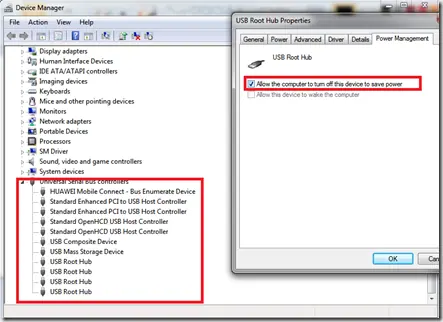
Troubleshoot Stop 0x9F or 0xFE on AMD-Based Windows 7/Vista PCs (Historical)
Historical troubleshooting for Windows 7/Vista systems that crash with 0x9F or 0xFE around sleep or USB activity, with the two bug checks correctly separated.
Troubleshoot 0x10E or 0xC1 Blue Screens in Windows 7/Vista (Historical)
Historical guidance for Windows 7/Vista crashes with VIDEO_MEMORY_MANAGEMENT_INTERNAL (0x10E) or SPECIAL_POOL_DETECTED_MEMORY_CORRUPTION (0xC1).