Fix KERNEL_DATA_INPAGE_ERROR (0x0000007A) — Historical Guide
Historical troubleshooting for bug check 0x7A KERNEL_DATA_INPAGE_ERROR, focusing on storage I/O errors, bad sectors, cabling, RAM, and diagnostics.

KERNEL_DATA_INPAGE_ERROR is bug check 0x0000007A. It means Windows could not read a requested page of kernel data from the paging file into memory. Microsoft notes that the second bug-check parameter is often an I/O status code that helps identify the cause.
On the legacy Windows versions this article originally covered, common causes include bad disk sectors, a disconnected or failing storage device, controller/cabling problems, failing RAM, or other hardware faults.
1. Record the bug-check parameters
If possible, note parameter 2. Microsoft documents examples such as:
0xC000009C/0xC000016A— often bad sectors.0xC000009D— device not connected.0xC0000185— I/O/cabling/controller-related error.0xC000000E— no such device, often hardware or configuration related.
2. Protect important data
If the storage device is disappearing, making abnormal noises, or reporting repeated bad-sector errors, prioritize backup/data recovery instead of repeatedly running repair scans.
3. Check the file system and disk when appropriate
Microsoft documents the following for suspected bad-block cases:
chkdsk C: /f /rThe command writes repairs to the volume and can take a long time. Use the correct drive letter, especially from a recovery environment.
4. Test memory and storage hardware
Run the PC manufacturer’s storage diagnostics and Windows Memory Diagnostic. Check storage cables/connections on serviceable desktop hardware.
5. Review Event Viewer
Disk, controller, or file-system errors immediately before the crash can help identify the device at fault.
Official references
- Microsoft: Bug Check 0x7A KERNEL_DATA_INPAGE_ERROR: https://learn.microsoft.com/en-us/windows-hardware/drivers/debugger/bug-check-0x7a--kernel-data-inpage-error
- Microsoft: Windows Memory Diagnostic is documented in current Windows troubleshooting: https://support.microsoft.com/en-us/windows/experience/performance-optimization/how-to-fix-error-0xa-irql-not-less-or-equal
Related posts
Browse all articles →
Fix PAGE_FAULT_IN_NONPAGED_AREA (0x50) in Windows 7/Vista/XP (Historical)
Historical troubleshooting for PAGE_FAULT_IN_NONPAGED_AREA (0x50), focusing on faulty drivers/services, antivirus software, NTFS corruption, and failing memory or hardware.

Fix INACCESSIBLE_BOOT_DEVICE (0x0000007B) in Windows 7, Vista, and XP — Historical Guide
Historical troubleshooting guide for the 0x0000007B INACCESSIBLE_BOOT_DEVICE blue-screen error in Windows 7, Vista, and XP.
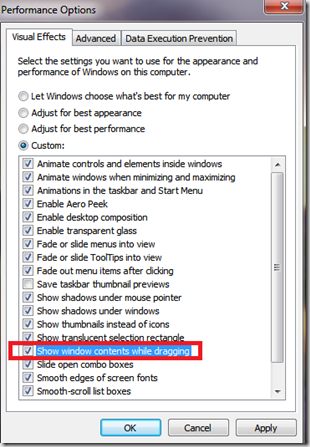
Fix Windows Turning Transparent While Dragging or Resizing (Windows XP–8, Historical)
Historical troubleshooting for Windows XP through Windows 8 when window contents disappear or appear transparent while dragging or resizing.