Fix 'We Couldn't Verify the Product Key' During Windows 8/8.1 Setup (Historical)
Historical troubleshooting for Windows 8/8.1 Setup when a valid-looking product key cannot be verified, focusing on edition/key mismatch and installation-media problems.
Historical support note: Windows 8 support ended in 2016 and Windows 8.1 support ended in 2023. This guide is retained for legacy installation recovery.
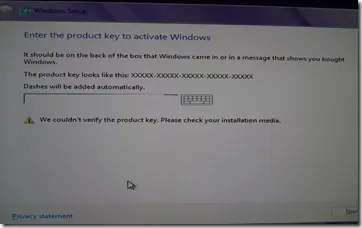
During Windows 8 or Windows 8.1 Setup, the message “We couldn’t verify the product key. Please check your installation media” can appear even when the key itself looks correct.
Do not assume the product key is the only possible cause. Windows Setup must be able to match the key to an edition in the installation image, and it also needs readable, unmodified installation media.
1. Check that the key matches the Windows edition
A product key is edition-specific. A key intended for Windows 8/8.1 Pro will not activate a different edition simply because both are Windows 8.x.
If the PC originally came with Windows, the firmware may contain an OEM product key. Microsoft documents that Windows Setup can read a firmware key and try to match it to an image on the installation media. If the available image does not match the supplied or firmware key, Setup can fail.
Use installation media for the exact edition that the license covers.
2. Recreate the installation media
If the key and edition match, recreate the media from a trusted Windows image.
For USB media:
- Use a known-good USB drive.
- Recreate the bootable media rather than reusing a possibly damaged copy.
- Connect the USB drive directly to the PC instead of through an external hub.
- If the installation PC is old and the installer repeatedly loses access to a USB 3.x device, trying a USB 2.0 port can be a useful legacy-hardware test.
For DVD media, inspect the disc for scratches and recreate it if necessary.
3. Avoid random firmware changes
The original version of this article suggested changing USB emulation and legacy-support options in BIOS. Those settings vary widely between PCs and can make a working configuration worse.
Only change firmware USB settings when the computer or motherboard manufacturer specifically documents the setting for your model.
4. Check for modified setup files
Windows Setup can also be influenced by answer files and edition/product-ID configuration files. Microsoft documents that Unattend, EI.cfg, and PID.txt data can take priority over the normal product-key prompt.
If you are using customized installation media, test again with clean, unmodified media.
Official references
- Microsoft: product key does not match any Windows images during installation: https://learn.microsoft.com/en-us/troubleshoot/windows-server/licensing-and-activation/error-product-key-not-match-windows-images-installation
- Microsoft: Find your Windows product key: https://support.microsoft.com/en-us/windows/activation/find-your-windows-product-key
- Microsoft Windows lifecycle status: https://support.microsoft.com/en-us/windows/deployment/updates-lifecycle/what-does-it-mean-if-windows-isn-t-supported
Related posts
Browse all articles →
Fix Windows Boot Error 0xc0000225 in Windows 10 or 8.1
Troubleshoot boot error 0xc0000225 with Startup Repair first, then repair Boot Configuration Data only when needed.
Fix Windows Update Error 0x80080008 in Windows 8 or 8.1 (Historical)
Historical Windows 8/8.1 troubleshooting for update error 0x80080008, with unsupported-OS context and safer repair steps.
Fix Error 0x800F0906 in Windows 8 or 8.1 (Historical)
Troubleshoot Windows 8/8.1 error 0x800F0906 when Windows cannot download files needed for a feature or component repair.