Fix 'Windows Is Not Genuine' Error 0x80070005 in Windows 7 (Historical)
Historical Windows 7 troubleshooting for activation error 0x80070005 when licensing access is blocked by permissions or Plug and Play policy settings.
Historical support note: Windows 7 reached end of support on January 14, 2020. This article is retained for legacy systems.
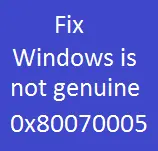
A Windows 7 system affected by this issue may show a black desktop, a Windows is not genuine message, and activation error 0x80070005.
Microsoft documents a specific scenario in which slmgr.vbs /dlv also returns:
Access denied: the requested action requires elevated privileges
Even from an elevated Command Prompt, this can occur when permissions used by the licensing service have been altered or when a Plug and Play Group Policy setting blocks the required access.
1. Confirm the symptom
Open an elevated Command Prompt and run:
slmgr.vbs /dlvIf Windows shows licensing information normally, you may be dealing with a different activation problem. Do not apply registry or Group Policy fixes intended for 0x80070005 without confirming the symptom.
2. Check Plug and Play Group Policy
Microsoft’s documented procedure uses Resultant Set of Policy:
- Press Windows key + R, type
rsop.msc, and press Enter. - Browse to Computer Configuration > Windows Settings > Security Settings > System Services.
- Check whether Plug and Play is explicitly configured by a Group Policy Object.
If it is, the preferred fix is to correct that policy so the service account has the permissions Microsoft specifies, or return the setting to Not Defined when the policy was applied accidentally.
On a domain-managed PC, make this change in the controlling GPO rather than only on the local machine.
3. Missing licensing profile entries
Microsoft also documents a second scenario in which the built-in service profile registry entries for S-1-5-18, S-1-5-19, or S-1-5-20 are missing.
Do not use an unknown downloaded .reg file. Compare the system against Microsoft’s documented values or have an administrator repair the entries using the official article.
4. Activate again
After correcting the underlying permission or policy problem, restart Windows and complete activation using the legitimate product key or license assigned to the PC.
Official references
- Microsoft: Windows is not genuine error / 0x80070005: https://learn.microsoft.com/en-us/troubleshoot/windows-server/licensing-and-activation/windows-not-genuine-error
- Microsoft Windows lifecycle status: https://support.microsoft.com/en-us/windows/deployment/updates-lifecycle/what-does-it-mean-if-windows-isn-t-supported
Related posts
Browse all articles →
Fix Windows Setup Error 0x80FE0000 or 0x80FF0000 in Windows 7/Vista (Historical)
Historical troubleshooting for Windows Setup errors 0x80FE0000/0x80FF0000 and 'could not set the offline locale information,' with destructive disk steps removed from the default workflow.
Troubleshoot Stop 0x9F or 0xFE on AMD-Based Windows 7/Vista PCs (Historical)
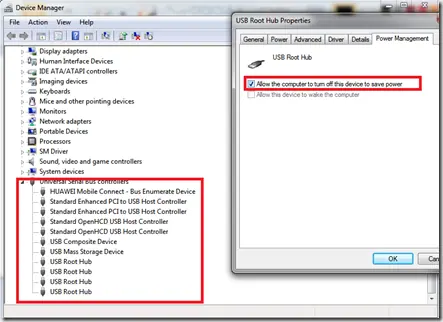
Historical troubleshooting for Windows 7/Vista systems that crash with 0x9F or 0xFE around sleep or USB activity, with the two bug checks correctly separated.
Fix DRIVER_POWER_STATE_FAILURE (0x9F) in Windows 8 or 7 (Historical)
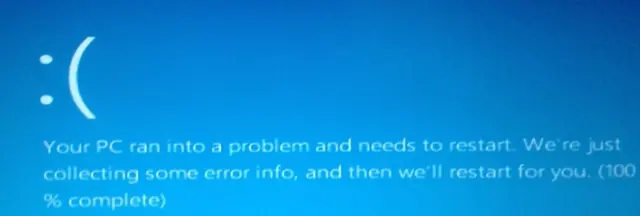
Historical troubleshooting for DRIVER_POWER_STATE_FAILURE (0x9F) on Windows 8/7, focusing on the device, driver, firmware, or power transition responsible for the crash.