How to Disable Automatic Restart on System Failure in Windows 8, 7, Vista, and XP (Historical)
Historical Windows guide to keeping a blue-screen stop message visible by disabling automatic restart after a system failure.
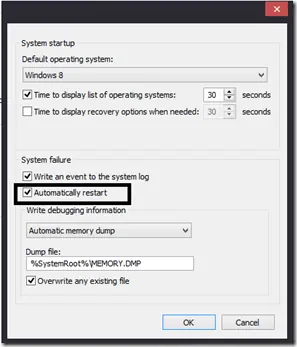
Historical support note: The System Properties control described here existed across Windows XP, Vista, 7, and 8. Those operating systems are now unsupported.
When Windows encounters a serious stop error (blue screen), it can restart automatically. Temporarily disabling automatic restart can make the stop code stay on screen long enough to record it.
This setting does not fix the crash. It only changes what Windows does after the crash occurs.
Disable automatic restart
- Open System in Control Panel.
- Select Advanced system settings.
- On the Advanced tab, under Startup and Recovery, select Settings.
- Under System failure, clear Automatically restart.
- Select OK, then Apply.
On the next crash, Windows should leave the stop screen visible instead of immediately rebooting.
Capture useful information
Record the stop code and any driver/file name shown. If Windows is configured to write a memory dump, the dump is usually more useful than the visible stop message because it can be analyzed later.
Once troubleshooting is complete, you can turn automatic restart back on if you prefer the normal behavior.
Official reference
- Microsoft Windows lifecycle status: https://support.microsoft.com/en-us/windows/deployment/updates-lifecycle/what-does-it-mean-if-windows-isn-t-supported
Related posts
Browse all articles →
Fix DRIVER_PORTION_MUST_BE_NONPAGED in Windows 10
Troubleshoot the DRIVER_PORTION_MUST_BE_NONPAGED (0xD3) stop error in Windows 10 by isolating drivers and recent hardware changes.
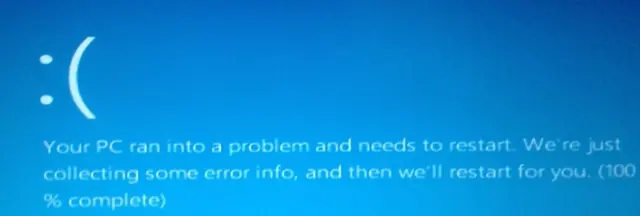
Fix DRIVER_POWER_STATE_FAILURE (0x9F) in Windows 8 or 7 (Historical)
Historical troubleshooting for DRIVER_POWER_STATE_FAILURE (0x9F) on Windows 8/7, focusing on the device, driver, firmware, or power transition responsible for the crash.
Fix PAGE_FAULT_IN_NONPAGED_AREA (0x50) in Windows 7/Vista/XP (Historical)
Historical troubleshooting for PAGE_FAULT_IN_NONPAGED_AREA (0x50), focusing on faulty drivers/services, antivirus software, NTFS corruption, and failing memory or hardware.