How Windows 10 Technical Preview Rollback Worked in 2015 (Historical)
A historical explanation of the Windows Rollback boot entry that appeared on some early Windows 10 Technical Preview systems, plus the modern Go back equivalent.
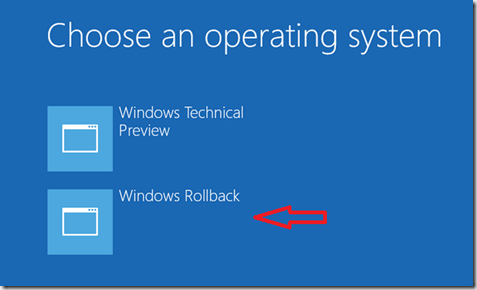
This article is an archive of Windows 10 Technical Preview behavior from 2015. Do not use it as current rollback instructions.
Some early Windows 10 Technical Preview builds displayed a Windows Rollback entry in the boot menu. Microsoft specifically documented a January 2015 preview-build issue in which a second boot option could remain present to uninstall the Technical Preview and return to the previous operating system.
The 2015 preview behavior
On affected preview installations, the historical process was:
- Start or restart the PC.
- At the boot-selection screen, choose Windows Rollback.
- Let the rollback process complete without interrupting the PC.
That boot entry was tied to the preview/upgrade environment of the time. It was not a permanent Windows 10 uninstall feature and should not be expected on released Windows versions.
How rollback works on later Windows versions
Modern Windows uses a Go back option after certain upgrades. Microsoft states that it is available only for a limited period—typically 10 days—and depends on the previous installation files still being present.
On a supported current system, use Microsoft’s Recovery settings and documentation rather than looking for the old Windows Rollback boot entry.
Windows 10 support note: Windows 10 reached end of normal support on October 14, 2025.
Official references
- Microsoft Windows Insider Blog, January 2015 preview build: https://blogs.windows.com/windows-insider/2015/01/23/january-build-now-available-to-the-windows-insider-program/
- Microsoft, Go back to the previous version of Windows: https://support.microsoft.com/en-us/windows/deployment/install-upgrade/go-back-to-the-previous-version-of-windows
Related posts
Browse all articles →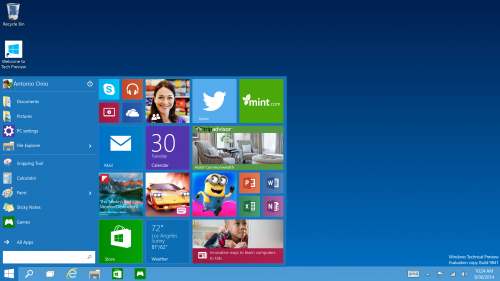
Windows 10 Technical Preview Build 10061: What Changed (Historical)
A historical summary of Windows 10 Technical Preview Build 10061, released to Fast ring Windows Insiders on April 22, 2015.
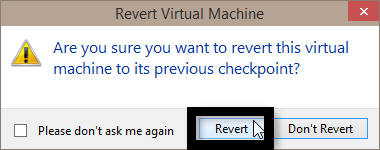
How to Apply a Hyper-V Checkpoint in Windows 10
Restore a Hyper-V virtual machine to an existing checkpoint in Windows 10 and understand the difference between Apply and Create Checkpoint and Apply.
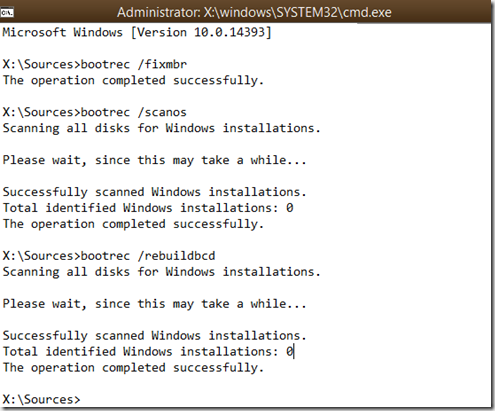
How to Rebuild the BCD in Windows 10 or Windows 8.1
Repair Boot Configuration Data from Windows Recovery Environment, using Startup Repair first and Bootrec or BCDBoot only when needed.