How to Roll Back a Driver in Windows 10 or 11
Roll back a recently updated Windows driver through Device Manager, and learn what to do when the Roll Back Driver button is unavailable.
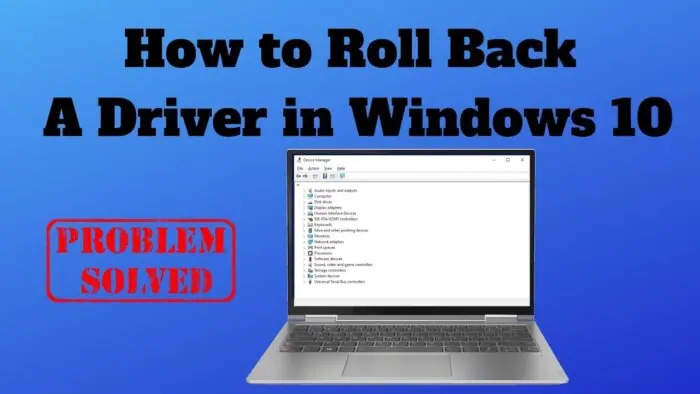
A new graphics, audio, Wi-Fi, Bluetooth, or other hardware driver can occasionally introduce a problem that was not present with the previous version. If the issue started immediately after a driver update, Windows can often restore the previous driver from Device Manager.
Before you roll back
A rollback makes the most sense when:
- the device worked correctly before a recent driver update;
- the problem began immediately after that update; and
- the device is still detected in Device Manager.
For laptops, keep the PC connected to power and save your work before changing drivers.
Roll back the driver in Device Manager
You need administrator permissions.
- Right-click Start and select Device Manager.
- Expand the category that contains the affected device.
- Right-click the device and select Properties.
- Open the Driver tab.
- Select Roll Back Driver.
- Follow the prompts, then restart the PC if Windows asks you to.
Microsoft specifically recommends driver rollback when a problem began after a recent update.
If Roll Back Driver is grayed out
The button is unavailable when Windows does not have a previous driver package available for that device.
In that case:
- Identify the laptop manufacturer and exact model.
- Download the appropriate driver from the PC manufacturer’s support site or, where appropriate, the hardware vendor.
- In Device Manager, uninstall or update the current driver only after you have the replacement installer available.
- Restart if required, then install the known-good driver.
Avoid random third-party driver-download sites. Laptop manufacturers often customize drivers for power management, hotkeys, graphics switching, audio, and networking.
If the problem started after Windows Update
Driver updates can arrive through Windows Update. Rolling back the affected device driver can be a reasonable first step. You can also check Settings > Windows Update for a newer corrective update or optional driver update.
Does rolling back a driver delete files?
No. A driver rollback changes device-driver software; it does not remove personal documents or photos. Even so, keeping a normal backup is always recommended before system-level troubleshooting.
Official reference
Related posts
Browse all articles →
How to Use Focus Sessions in Windows 11 for Productivity
Use Focus in Windows 11 to reduce distractions, start timed focus sessions, and connect the Clock app with Spotify and Microsoft To Do.
How to Activate Windows 11 Without Entering a Product Key
Learn when Windows 11 can activate through a digital license without asking you to type a 25-character product key, and when a new license is still required.
How to Check if Your PC Is Compatible with Windows 11
Check Windows 11 compatibility with Microsoft PC Health Check and verify the key requirements, including TPM 2.0, UEFI, Secure Boot capability, RAM, storage, and CPU support.