SD Card Says It Needs Formatting? Recover Photos Before Trying a Repair
An SD card asking to be formatted may still contain recoverable photos. Stop writes, check the reader, recover to another drive and verify files before repair.
- 6 min read
View article illustration
A camera SD card worked yesterday. Today a laptop says the disk must be formatted before use, or a phone reports the card as corrupted. If the card contains the only copies of a holiday, school event, or client shoot, formatting it immediately is one of the worst first steps. The correct goal is to preserve the data that remains readable before attempting a repair.
Stop writing to the card
Remove the card safely from the camera or phone and stop using it for new photos. Every new write can overwrite information that recovery tools might otherwise find. Do not take a few more pictures to “test” it. Do not copy recovered files back onto the same card.
If the card is physically damaged, excessively hot, bent, corroded, or repeatedly disconnects, avoid repeated experiments. A professional recovery service may have better options before the damage gets worse. Even reputable software cannot fix a broken controller or cracked flash package.
First determine whether the card or reader is failing
Power down the device before reseating the card where recommended. Try a different known-good reader, USB port, or computer. If the files appear in one reader but not another, copy them to another disk immediately. Check the camera's own playback function as a separate clue; it may show images even when a computer struggles with a directory.
Inspect the card's visible metal contacts without scratching or using metal tools. A full-size SD adapter can have a physical write-protect switch; verify its position, but remember that write protection by itself should not make existing files disappear.
“Format required” does not mean the card is empty
The operating system may fail to recognize a damaged file-system structure even though many photo data blocks remain intact. A corruption warning is therefore not proof the files are permanently gone. Equally, seeing the correct card capacity does not prove the underlying flash media is healthy.
Distinguish three cases: the drive appears with the expected capacity but cannot be opened, it appears with a wildly incorrect size, or it never appears at all. The second and third cases are more concerning for hardware or controller faults.
Make a copy before running repair tools
If recovery software supports creating a complete image of the card, imaging to a healthy disk can be a good first step for a readable but unstable card. Work on the image, leaving the original untouched. The destination must have enough capacity for the entire card, not merely the files you expect to recover.
Some imaging attempts may repeatedly encounter unreadable sectors. If the device starts disconnecting, overheating, or producing escalating I/O errors, stop and assess whether professional recovery is needed. Repeated full scans can add stress to failing hardware.
Check non-destructive recovery options first
Look for copies in a camera companion app, cloud photo backup, a computer import folder, or a second card used during the shoot. Photographers sometimes import JPEG previews separately from raw files; recovering an original card may be unnecessary if a verified backup exists.
If the card was used on Windows and files were accidentally deleted rather than the card becoming physically corrupt, Microsoft's Windows File Recovery supports an Extensive mode intended for FAT/exFAT and other file systems. Its documentation requires the recovery destination to be on a different drive from the source. That separation helps avoid overwriting recoverable data.
Use recovery software carefully
Choose an established recovery tool that can scan the actual device or its image and preview recovered photos. Preview is useful because seeing filenames alone does not prove image content is intact. Recover results onto a separate SSD, hard drive, or computer disk, then open samples from beginning, middle, and end of the recovered set.
Many card-recovery tools rebuild file contents by looking for signatures. That can rescue JPEGs and video fragments when the directory is damaged, but filenames, folder hierarchy, timestamps, or partially overwritten files may not be recoverable. Be realistic about the limits.
What if the card was reformatted accidentally?
Stop using it immediately. A quick format may leave some contents recoverable, but success depends on the device, file system, flash behavior, and what was written afterward. Do not format the card again with a different tool in the hope that it will somehow reveal the old files.
SD cards use flash controllers and wear management. Results after a format can vary sharply. A recovery utility that worked on one person's camera card is not a guarantee for another person's phone card.
Do not run repair commands on the only copy casually
A Windows prompt may offer to scan and fix errors, while Disk Utility offers First Aid on Mac. Such tools are useful for repairing file systems, but a repair can modify directory structures on the source. When preserving irreplaceable data, clone or recover first, then consider repair on a copy or once the files are safe.
Avoid unverified commands that rewrite partition tables or file-system headers. A quick online trick can turn a partially damaged but recoverable volume into a more difficult case.
Recovering large video files is harder
Modern cameras may write high-bitrate video, split clips, or use formats with metadata located in specific parts of a file. A recovery tool might produce an MP4 that appears large but won't play because its index is damaged. Check recovered video at several points, not just the thumbnail.
A specialist tool or professional lab may be warranted for irreplaceable event footage. For a routine card with a verified second copy, a careful ordinary recovery scan may be proportionate.
After recovery, test whether the card is trustworthy
Once the files are verified elsewhere, you may reformat the card in the camera or use the SD Association's SD Memory Card Formatter where appropriate. The Association recommends its formatter because it follows SD card specifications. Formatting is a preparation step for reuse—not a data-recovery method.
Test a fresh shoot and playback, then copy the results to another device. If the original card has repeated corruption, wrong reported capacity, intermittent disconnections, or sudden write errors, retire it. The cost of a new card is usually small compared with the value of lost photographs.
Avoid counterfeit or incompatible cards
A fake high-capacity card can accept some files and then overwrite earlier ones when its true capacity is exceeded. Always buy from a reputable seller and test suspicious removable storage with a verified capacity-testing utility before important use. Cameras may also have specific SD speed class and capacity requirements.
Do not assume a memory card is suitable for high-bitrate 4K/8K recording because the packaging advertises a large maximum speed; sustained write speed and camera support matter too.
Improve the workflow before the next shoot
Use more than one card for important work, import footage promptly, keep a verified second copy, and format cards in the intended camera after backup. Eject cards properly. Keep storage media dry and protected from physical damage. If the camera supports simultaneous recording to two cards, consider it for critical events.
The key principle is straightforward: recover first, repair or format later. Treat the original card as evidence until you know the files exist somewhere else and can actually be opened.
Official references
Microsoft — Windows File Recovery modes and destinationsOfficial documentation checked 9 October 2026 SD Association — Card formatting after recoveryOfficial documentation checked 9 October 2026Related posts
Browse all articles →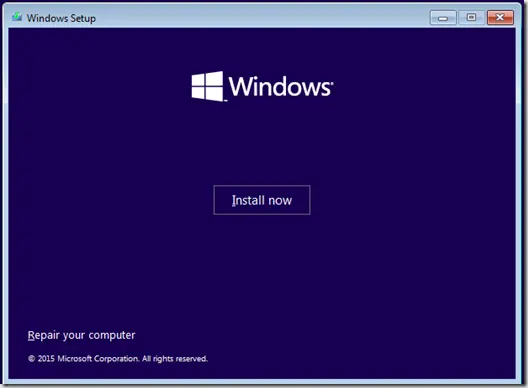
Fix Windows Boot Error 0xc0000225 in Windows 10 or 8.1
Troubleshoot boot error 0xc0000225 with Startup Repair first, then repair Boot Configuration Data only when needed.
Stellar Phoenix Windows Data Recovery — 2013 Review (Historical)
Archived 2013 hands-on review of Stellar Phoenix Windows Data Recovery after recovering files from a 2 TB drive that appeared as RAW in Windows.

How to Create Windows 8 Recovery or Repair Media (USB and CD/DVD) — Historical
Historical Windows 8 guide distinguishing a USB recovery drive from a separate CD/DVD system repair disc.