SSD Performance Tips for Windows 8, 7, Vista, and XP — Historical Guide
Updated historical SSD guidance explaining AHCI, TRIM, Windows drive optimization, indexing, write caching, and what not to disable on modern SSD-aware Windows releases.
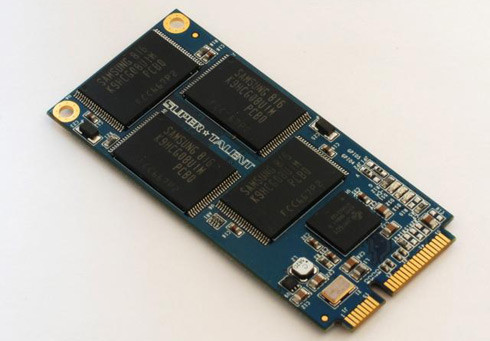
Historical support note: This article originated when SSDs were becoming common on Windows XP/7/8 PCs. Some popular “SSD tweaks” from that era are now outdated or harmful.
1. Let Windows manage drive optimization
Do not disable the Windows optimization/defragmentation service simply because the system uses an SSD. Current Windows storage optimization distinguishes media types and can send TRIM/ReTrim commands to SSDs. Microsoft also documents limited scheduled traditional defragmentation for SSDs when needed by the file system.
That makes the old advice to disable the service obsolete.
2. Use AHCI only when the system is configured for it correctly
AHCI enables features such as native command queuing and is normally appropriate for SATA SSDs, but changing the firmware controller mode on an already-installed Windows system without preparation can make Windows fail to boot.
For a fresh installation, use the PC/motherboard manufacturer’s recommended storage mode. On systems using RAID or vendor storage controllers, do not switch to AHCI merely because an article says to.
3. Check TRIM support
On Windows versions that support TRIM, the historical check is:
fsutil behavior query DisableDeleteNotifyA result of 0 historically indicates delete notifications/TRIM are enabled at the Windows level. It does not by itself prove that every controller, driver, or SSD firmware layer is processing TRIM correctly.
4. Do not disable indexing or caching by default
Whether indexing helps depends on workload; disabling it is not a universal SSD performance requirement. Likewise, leave write-caching settings at the manufacturer’s/Windows default unless you understand the power-loss implications.
5. Keep firmware, storage drivers, and backups current
Firmware fixes can matter for older SSDs, but use only the SSD or PC manufacturer’s official updater and instructions. Keep current backups regardless of drive type.
Official references
- Microsoft: Defrag/Optimize Drives behavior, including SSD policy: https://learn.microsoft.com/en-us/windows-server/administration/windows-commands/defrag
- Microsoft: Optimize-Volume and ReTrim: https://learn.microsoft.com/en-us/powershell/module/storage/optimize-volume
- Microsoft Windows lifecycle status: https://support.microsoft.com/en-us/windows/deployment/updates-lifecycle/what-does-it-mean-if-windows-isn-t-supported
Related posts
Browse all articles →
Stellar Phoenix Windows Data Recovery — 2013 Review (Historical)
Archived 2013 hands-on review of Stellar Phoenix Windows Data Recovery after recovering files from a 2 TB drive that appeared as RAW in Windows.
Fix Frequent 'Not Responding' Messages in Windows 7 and Vista — Historical Guide
Historical Windows 7/Vista troubleshooting for applications that frequently stop responding, with resource, disk, memory, driver, and system-file checks.
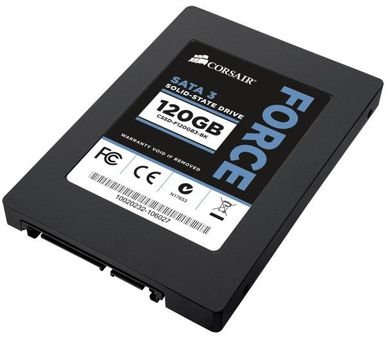
SSD/HDD Partition Alignment in Windows 8, 7, Vista, and XP — Historical Guide
Historical explanation of partition alignment, why modern Windows setup normally aligns partitions automatically, and why destructive DiskPart realignment should not be routine maintenance.