How to Quickly Open Apps in Windows 8 — Video Tip (Historical)
Historical Windows 8 video tip showing how to launch apps and find programs quickly from the Start screen.
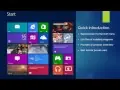
Historical support note: This video documents the original Windows 8 Start screen and Search behavior.
Windows 8 replaced the traditional Start menu with a full-screen Start experience. One of its fastest workflows was to begin typing the name of an app or program immediately after opening Start.
Quickly open an app
- Press the Windows key to open Start.
- Begin typing the name of the app or desktop program you want.
- Select the matching result or press Enter when the correct result is highlighted.
You do not need to click a search box before typing.
Search shortcuts in the original Windows 8 interface
Windows 8 also provided Search-charm shortcuts such as:
- Windows key + Q — search apps
- Windows key + W — search settings
- Windows key + F — search files
These shortcuts and categories changed in later Windows releases, so the video should be read as a Windows 8-era interface guide.
Official reference
- Microsoft Windows lifecycle status: https://support.microsoft.com/en-us/windows/deployment/updates-lifecycle/what-does-it-mean-if-windows-isn-t-supported
Related posts
Browse all articles →How to Use Refresh Your PC in Windows 8 — Video Guide (Historical)
Historical video guide to Windows 8 Refresh your PC, including what it preserves and what must be reinstalled afterward.
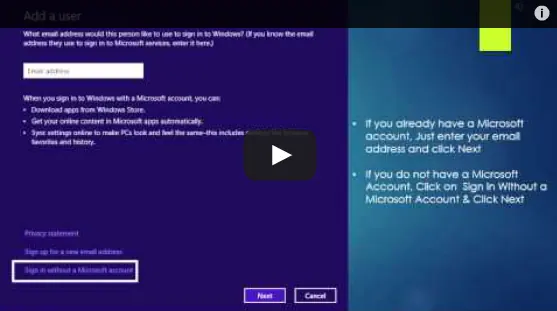
Set Up and Sync a Microsoft Account in Windows 8 (Historical)
Historical Windows 8 guide to adding a Microsoft account and enabling the operating system's original settings-sync experience across Windows 8 devices.
How to Use the Settings Charm in Windows 8 — Video Guide (Historical)
Historical Windows 8 video guide to the Settings charm, including app-specific settings and common system controls.