How to Use Refresh Your PC in Windows 8 — Video Guide (Historical)
Historical video guide to Windows 8 Refresh your PC, including what it preserves and what must be reinstalled afterward.
Historical support note: Refresh your PC was a Windows 8 recovery feature. Current Windows releases use different Reset/Reinstall options.
The original video demonstrates Refresh your PC, which reinstalls the Windows 8 system while trying to preserve personal data and selected settings.
What Refresh your PC did
In Windows 8, Refresh was designed to repair a damaged or unstable Windows installation without performing the same full wipe as Reset your PC.
Personal files were intended to be preserved. Windows Store apps were retained/reinstalled as part of the Windows environment, while traditional desktop programs generally had to be installed again afterward. Windows could leave a list of removed desktop applications to help with reinstallation.
A refresh is therefore not the same as restoring a factory image, and it is not a substitute for a backup.
Start Refresh from Windows 8
- Open the Windows 8 recovery settings.
- Choose Refresh your PC without affecting your files.
- Read the summary carefully before continuing.
- Follow the on-screen instructions.
If Windows will not start, Refresh could also be launched from the Windows Recovery Environment when the recovery components were intact.
Before you begin
Back up anything important first. Recovery operations can fail, and applications/settings may need to be recreated afterward.
Official references
- Microsoft: Windows 8 Refresh/Reset recovery issue and behavior: https://learn.microsoft.com/en-us/troubleshoot/windows-client/performance/cannot-refresh-reset-pc-automatic-repair-fail
- Microsoft Windows lifecycle status: https://support.microsoft.com/en-us/windows/deployment/updates-lifecycle/what-does-it-mean-if-windows-isn-t-supported
Related posts
Browse all articles →
Refresh Your PC in Windows 8: Repair Windows While Keeping Personal Files (Historical)
Historical Windows 8 guide to the Refresh your PC recovery feature and what it keeps, removes, and reinstalls.
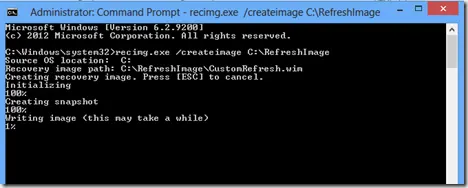
Create a Custom Refresh Image in Windows 8 with Recimg (Historical)
Historical Windows 8 guide to creating and registering a custom Refresh image with Recimg.exe; this recovery model does not apply to modern Windows releases.
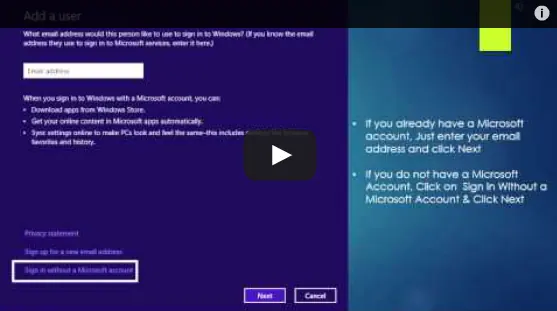
Set Up and Sync a Microsoft Account in Windows 8 (Historical)
Historical Windows 8 guide to adding a Microsoft account and enabling the operating system's original settings-sync experience across Windows 8 devices.